Parents choosing a first personal device
Decide whether touch-first entertainment, communication away from home or keyboard-based learning will matter most. Plan for a separate child account and age-appropriate settings from the start.


Choose around the child’s main task: a tablet fits touch-first video, reading and lighter learning; a smartphone fits communication away from home; and a Chromebook or Windows laptop is worth considering for regular typed schoolwork. Before choosing a device, check that its account and parental controls work with the browsers, apps and school accounts the child will actually use. Set up the child’s own account with their accurate age where the service requires it.
Decide whether touch-first entertainment, communication away from home or keyboard-based learning will matter most. Plan for a separate child account and age-appropriate settings from the start.
If a child already uses a phone or shared tablet, check whether their assignments now call for longer typing, particular browser services or school-specific software. Ask how a school-managed account will work on the device.
Choose controls that fit the child’s devices, accounts and browsers. Apple, Google and Microsoft describe different requirements for their family tools, so a familiar control name alone is not enough to establish coverage.
Start with the child’s regular tasks, then check the school’s requirements and the supervision setup before settling on a device.
| Priority | What to check | Your needs |
|---|---|---|
| Device type | Compare touch use and portable communication with the typing, browser and software required for schoolwork. Check whether a physical keyboard will be used regularly. | I want the device to fit what my child does most, rather than choosing by popularity. Ofcom reported in May 2026 that 77% of UK children aged 8–17 who went online used a mobile phone to do so, while 59% used a tablet; these figures describe device use, not purchase preferences. |
| Child account | Check how to create the child’s own age-accurate account and join the relevant family group. Confirm which app, website and communication settings apply on that device. | I need settings suited to my child’s age and the services they use. Ofcom reported in May 2026 that 99% of UK children aged 8–17 were online and 89% watched video content online; neither figure measures demand for a particular control. |
| Browser controls | Check the child’s signed-in account and every browser they can open. Google says Family Link’s Chrome settings may not apply after a child switches profiles or browsers on Windows, Mac or Linux; Microsoft says its web and search filters require a supported browser and a signed-in Microsoft account. | I want website rules to work during ordinary browsing, not just when I open the family-settings app. |
| School access | Ask which software and account the school requires. For a school account or school-issued Chromebook, Google says the education administrator determines which Google services students can access. | If assignments involve long stretches of typing or school-specific software, I need to check those requirements before choosing between a Chromebook and a Windows laptop. |
| Games and time | Check app and game permissions, time settings and how you will review them as the child’s use changes. UK government guidance advises testing controls and updating them when a child gets a new device. | Gaming is part of the plan, so I want rules we can revisit. Ofcom reported in May 2026 that 72% of UK children aged 8–17 played games online; that is an activity figure, not a measure of gaming-device buying intent. |
Google says Family Link can supervise supported Android devices and Chromebooks, but most of its supervision tools do not work on iPhones, iPads or computers other than Chromebooks.
Check the intended device and child account against the controls you need before buying. For an Apple device, examine Apple’s own child-account and Screen Time setup rather than assuming Google’s device-level tools will transfer.
Microsoft’s web and search filters require a supported browser and a signed-in Microsoft account. Google warns that its Chrome settings may stop applying if a child switches profiles or uses another browser on Windows, Mac or Linux.
Test the browsers and accounts the child can actually access before handing over the device, and check them again after account or software changes.
Apple’s family setup calls for a separate Child Account, while Google’s supervised-account setup uses the child’s account information. An adult account or inaccurate birth date can undermine the intended setup.
Create the child’s own account, enter their accurate date of birth when requested and connect it to the appropriate family group.
New apps, school accounts and devices can change where a child goes online. UK government online-safety guidance says parental controls are helpful but cannot address everything.
Check that settings work after setup and revisit them when the child starts a new service, changes device or needs different boundaries. Keep conversations about unwanted content and contact alongside the technical controls.
These are account-system references for choosing a device, not a list of brands available in the product options below.
Relevant when considering an iPhone, iPad or Mac alongside Apple’s family-account tools.
Relevant to a supervised Google Account on a supported Android device or Chromebook.
Relevant to a Windows laptop used with Microsoft accounts and a Family Safety group.
These options cover Chromebook-style computers for typed schoolwork and an Android tablet for touch-first use. Check school-account requirements and the controls available on the exact device before relying on either route.
 No image available
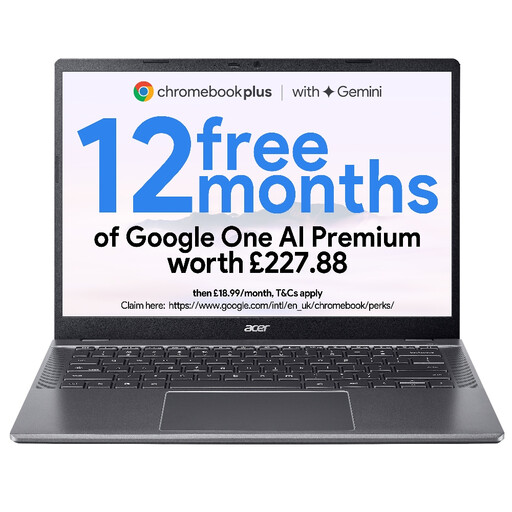
A Chromebook option to consider when schoolwork regularly involves typing and browser-based tasks.
Listed with a 14-inch WUXGA (1920 x 1200) display, 8GB RAM and 512GB SSD. If Family Link supervision matters, confirm the ChromeOS version and child-account setup; ask the school how its account will work on the device.
 No image available
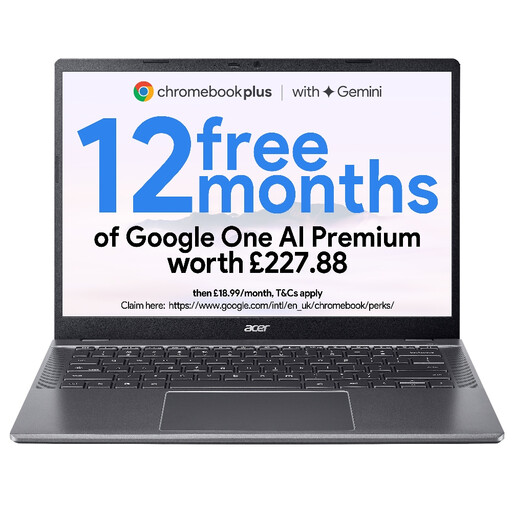
Consider this Chromebook for typed assignments and browser-based school services, subject to the school’s software requirements.
This variant lists a 14-inch WUXGA (1920 x 1200) display, 8GB RAM and 256GB SSD. Confirm the ChromeOS version for the intended Family Link setup and check how a school-managed account affects family settings.
 No image available
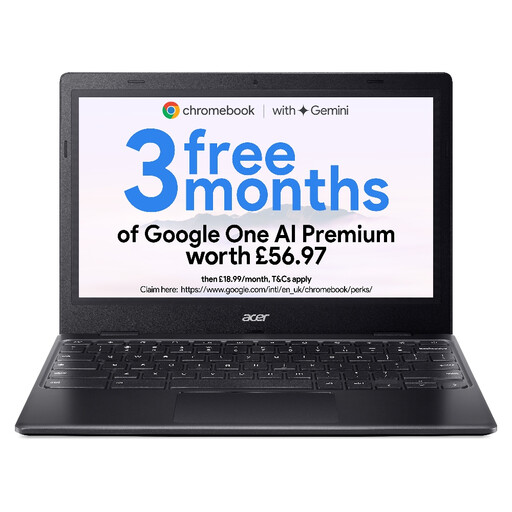
The smaller screen may suit a household looking for a compact computer for browser-based schoolwork; check that its screen size fits the child’s assignments.
The listing specifies a 1366 x 768 display, Intel Celeron N4500, 4GB RAM and 64GB eMMC. Check school software and storage needs, plus the ChromeOS version and account arrangement if Family Link supervision is essential.
 No image available
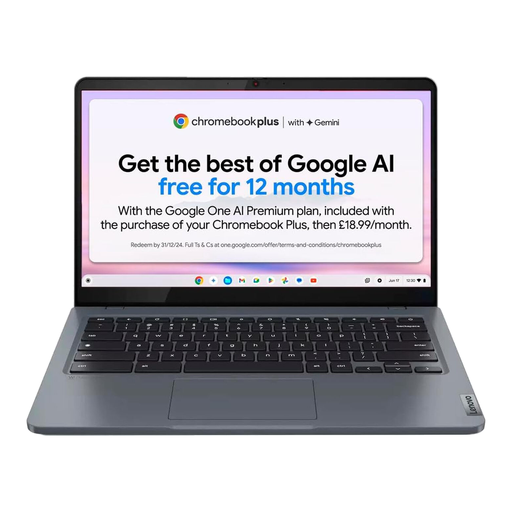
A 14-inch Chromebook option for typed work and web-based tasks, provided it fits the school’s account and software requirements.
Listed with an Intel Core i3 N305, 8GB RAM and 256GB eMMC. Check whether that storage suits the child’s intended files and apps, and confirm ChromeOS and school-account conditions before relying on Family Link.
 No image available
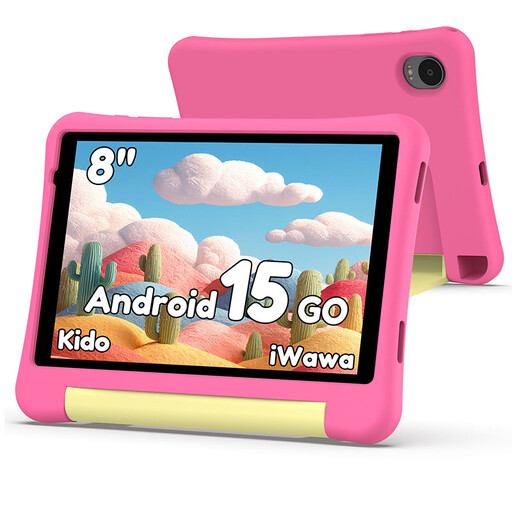
Consider a tablet when touch-first apps, reading and video matter more than long typed assignments. Check what its listed Child Lock actually controls before relying on it.
The title lists 3GB RAM, 32GB storage, a 5000mAh battery and an included protective case. It also states that no power adapter is included, so check which compatible charger the household will use.
Set up the child’s own account rather than sharing an adult account. Apple calls for a separate Child Account in Family Sharing, and Google provides supervised child accounts. Enter the child’s accurate age whenever the service requests it.
No. Google says most Family Link supervision tools do not work on iPhones, iPads or computers other than Chromebooks; supported Android devices and Chromebooks have different supervision coverage. Check the controls for the specific device and account you plan to use.
No. Microsoft says its web and search filters require a supported browser while the child is signed in to a Microsoft account. Test the browsers the child can access rather than assuming the filter applies to all of them.
No. UK government online-safety guidance says controls can help but cannot address everything. Check that they still work as the child starts new services or changes device, and keep talking about online content and contact.