Family-connected first-time user
Someone starting with calls, messages, photos or video chats may benefit from a short, familiar daily routine rather than a device chosen for broader computing tasks.


Choose around the tasks your relative will do regularly: a smartphone for communication on the move, a tablet for touch-led use on a larger screen, or a Chromebook or Windows laptop when forms and typing are central. Before buying, check that they can use the intended controls, that the exact model will keep receiving updates, and that someone can help after the initial setup.
The UK Department for Science, Innovation and Technology identifies access to a suitable device, skills, support and confidence as connected parts of getting online. The task matters as much as the device category.
Someone starting with calls, messages, photos or video chats may benefit from a short, familiar daily routine rather than a device chosen for broader computing tasks.
Someone using email, shopping, banking or public services needs to be able to read pages and complete forms comfortably. A larger display or physical keyboard may matter more than portability.
Someone who finds unfamiliar steps daunting needs a clear way to get help after setup. Ofcom identifies lack of online confidence among digital-access barriers, while AbilityNet offers digital-skills support for older people.
Start with where the device will be used and whether touch or a keyboard feels manageable. Then test the tasks your relative actually wants to complete.
Consider it when: Calls, messages and account codes need to be accessible while out and about.
Trade-off: A small touch screen may make lengthy forms and typing difficult; try those tasks before choosing a handset.
Consider it when: Home-based video calls, photos and browsing call for more screen space without a built-in keyboard.
Trade-off: More screen space does not necessarily make long forms easier; test typing and gestures with the intended user.
Consider it when: Web-based services and regular typing suit a keyboard-led routine.
Trade-off: Check required applications and the exact model’s final-update date; Google publishes a model-specific Chromebook update schedule.
Consider it when: Documents, files or an existing Windows routine are important alongside web access.
Trade-off: Check that the user can manage the keyboard-led workflow and has help with updates and accounts.
| Concern | What to check | Who this matters to |
|---|---|---|
| Everyday communication | Ask the person to unlock the device, find a contact and answer or start a call. Check that messages and call controls are comfortable to read and use. | If keeping in touch is the main reason to get online, I need calls and messages to feel straightforward enough to use regularly. Roughly 42% of consumers would put simple communication first. |
| Readable online services | Try a priority website with adjusted text size, then complete a form using touch or a physical keyboard. | When forms or email are part of my routine, I need to read the page and enter details without struggling with the controls. Around 33% of consumers would make usable online services their primary concern. |
| Support and updates | Check the exact model’s update-support information and agree who will help with setup, account recovery and later questions. | If unfamiliar prompts might stop me using the device, I need a dependable person or service to ask after handover. About 25% of consumers would prioritise continuing support and maintainability. |
The National Cyber Security Centre advises applying security updates promptly and notes that older devices eventually stop receiving them. Google provides a final-update date for each Chromebook model.
Check the exact phone or tablet model’s manufacturer support information, or the Chromebook’s update schedule, before buying.
Reading space helps only if the person can also manage taps, gestures, typing and sign-in steps. Ofcom identifies accessibility and confidence as barriers to getting online.
Watch the intended user try a priority task. Adjust the display and test input methods; AbilityNet notes that a stylus can help when dry fingertips make a touchscreen less responsive.
Access to a device alone does not address the skills, support and confidence needs identified by the UK Department for Science, Innovation and Technology.
Set up a few essential tasks together, practise one of them and agree who can help with later questions. AbilityNet offers digital-skills resources for older people.
Apple notes that some iPad features vary by country, region or language; Samsung says Galaxy feature availability can vary by model specification.
Check the exact model and software version, then enable and try the settings the person needs before relying on them.
An iPhone or iPad may suit a touch-led setup when the intended user and their supporter can try the relevant controls together.
Galaxy phones and tablets are worth examining when a touch-led Android device matches the person’s tasks.
ChromeOS is relevant to a web-first, keyboard-led Chromebook setup.
Lenovo Chromebook formats may be relevant once a keyboard-led ChromeOS device has been chosen.
Acer Chromebook formats offer another way to compare touch and keyboard-led use.
These choices span keyboard-led Chromebooks and laptops, touch-led tablets and a smartphone. Match the device type to your relative’s regular tasks, then check the exact model’s controls and update support.
 No image available
Consider this Chromebook if web tasks and regular typing suit the intended user; try its controls and check the exact model’s final-update date.
14-inch WUXGA display (1920 x 1200), Intel Core i3-1315U, 8GB RAM and 256GB SSD.
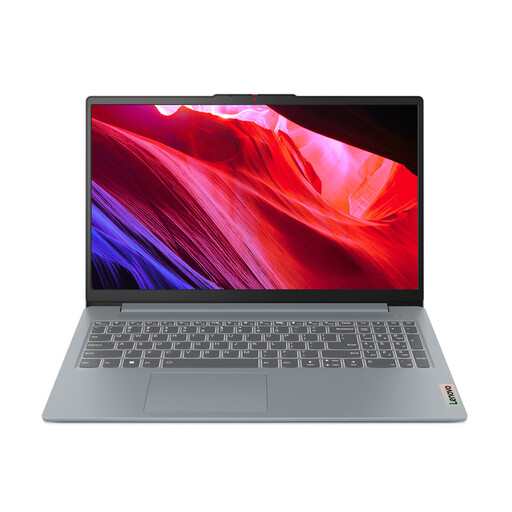 No image available
Consider a Windows laptop if familiar computer tasks and typing are central; check required applications and whether the user can manage the controls.
15.6-inch display, Intel N100, 4GB RAM and 128GB eUFS storage.
 No image available
Consider this Wi-Fi tablet for touch-led use where a suitable connection is available. Try the intended calls or online services with the user before choosing it.
The named configuration has 8G RAM and 128GB storage.
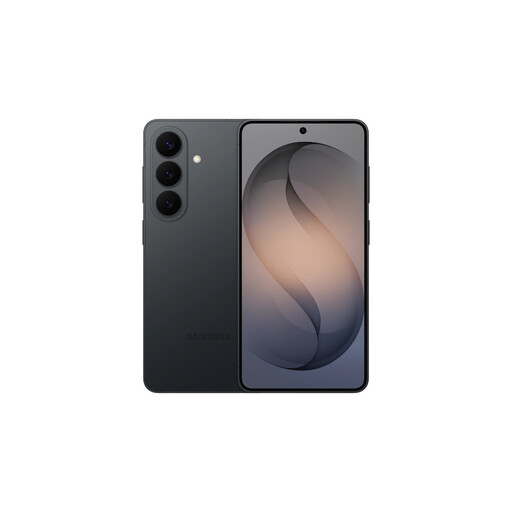 No image available
Consider a smartphone when calls and messages need to travel with the user; test reading, unlocking and any longer online task on the actual handset.
The named variant has 12GB RAM and 256GB storage. Check the exact model’s accessibility settings and update support.
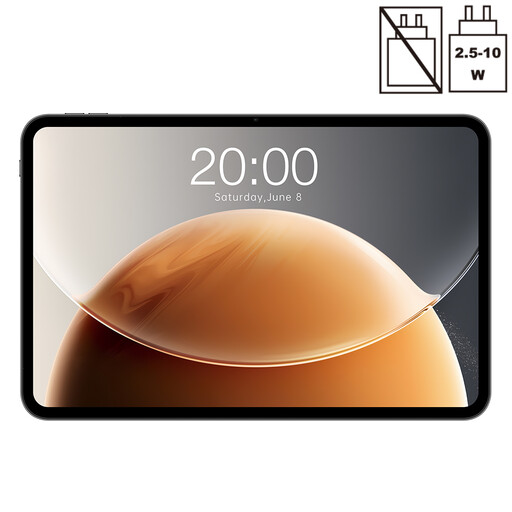 No image available
Consider this tablet if touch-led use on a 13.4-inch screen appeals to the intended user; check that its size is comfortable to handle.
The named variant lists a 120Hz display, dual-SIM 4G and 128GB storage; its 26GB memory figure comprises 6GB RAM plus 20GB virtual memory. Check the exact model’s software support.
No: ease of use depends on the person’s repeated tasks and the controls they can manage. A tablet offers more room for touch-led tasks than a phone, while regular typing may favour a keyboard; ask your relative to try unlocking, reading and completing a real task on the intended device.
Practise an essential task together and agree who will provide follow-up help. Set up contacts and account recovery, enable available updates and keep the initial set of apps manageable; the National Cyber Security Centre advises installing software and app updates promptly.
Check the update schedule for the exact Chromebook model before buying. Google says the schedule shows when that model will receive its last update, which matters when choosing a device intended for continued use.