What to check before buying
Decide how you will arrange the draft and reference windows, then check screen positioning and the computer’s two-display connections. A simpler connection layout may suit you better than docking features you cannot use.
| Concern |
What to check |
Who this matters to |
| Document workspace |
Compare both screens’ native resolution and size; check whether your preferred text scaling leaves room for a draft and reference window. |
I want to read source material beside my draft without making either window awkward to inspect; around 36% of consumers put document workspace first. |
| Screen positioning |
Check stand adjustment, desk space and any required arm mounting. The Health and Safety Executive advises placing the main screen directly in front of you, with its top at eye level and the screen about an arm’s length away. |
During long writing sessions, I need to look between screens without an uncomfortable layout; roughly 29% of consumers make positioning their main concern. |
| Laptop connections |
Confirm support for two external displays, the required cables and the monitor’s charging output if you plan to power a laptop through USB-C. |
I use a laptop and want both monitors to work with the connections at my desk; around 21% of consumers prioritise that connection need. |
| Setup simplicity |
Identify the video inputs and positioning controls you will actually use before choosing additional hub or docking functions. |
My computer already has a workable display connection, so I would rather keep the two-screen arrangement straightforward; roughly 14% of consumers put simplicity first. |
Brands and relevant models
These models illustrate different connection and positioning features to compare; the features of one model should not be assumed to apply across its brand.
HP
The Series 7 Pro 727pq is a 27-inch QHD option for a two-screen desk where daisy-chaining and display adjustment are priorities.
- HP describes daisy-chaining with another HP Series 7 Pro monitor, USB-C and USB-A ports, and four-way adjustment.
- Confirm that your computer and cables support the intended second-display connection.
BenQ
The GW2790QT is a 27-inch QHD USB-C hub monitor to consider for a laptop-based writing desk.
- BenQ specifies USB-C data connectivity and 65 W laptop power delivery for this model.
- Check that 65 W meets your laptop’s requirements and establish a supported connection for the second screen separately.
LG
LG’s 27U631A-B and 27QP88D-BS illustrate different QHD approaches: a tilt-adjustable USB-C display and a clamp-mounted adjustable display.
- LG specifies 15 W USB-C power delivery for the 27U631A-B; its 27QP88D-BS has a C-clamp or grommet Ergo stand and listed daisy-chain capability.
- Check laptop charging requirements for the 27U631A-B and desk-mount and connection compatibility for the 27QP88D-BS.
Dell
Dell identifies the P2725DE as a 27-inch QHD USB-C hub monitor for comparison with other office-display configurations.
- Its stated QHD resolution and USB-C hub format give you specific features to compare with your laptop and desk requirements.
- Dell UK marks this model unavailable on its product page; check the exact model with a prospective seller rather than assuming it is an available purchase option.
Joybuy monitors for independent connections
These QHD monitors are options to assess for a writing desk with two independently connected screens. Before choosing a pair, check that your computer can drive both displays and that each monitor’s size, inputs and positioning suit the layout you want.
 No image available
ASUS ProArt PA278CFRV IPS QHD 100 Hz monitor
Consider this QHD model for a matched draft-and-reference layout. Check its stand adjustment against your desk and confirm the exact variant’s connections if you need USB-C.
View on Joybuy
 No image available
ASUS ProArt PA278CV IPS WQHD monitor
This WQHD model is worth assessing for a document-and-reference desk where screen positioning matters. If you intend to charge a laptop through the monitor, check its power-delivery rating against the laptop’s requirements.
View on Joybuy
 No image available
Samsung Odyssey G6 S27DG612 27-inch QHD OLED 240 Hz monitor
Its stated 27-inch QHD format can be assessed for a side-by-side document workspace, although the model is presented as a gaming monitor. Check the stand’s adjustment range against your intended screen position.
View on Joybuy
 No image available
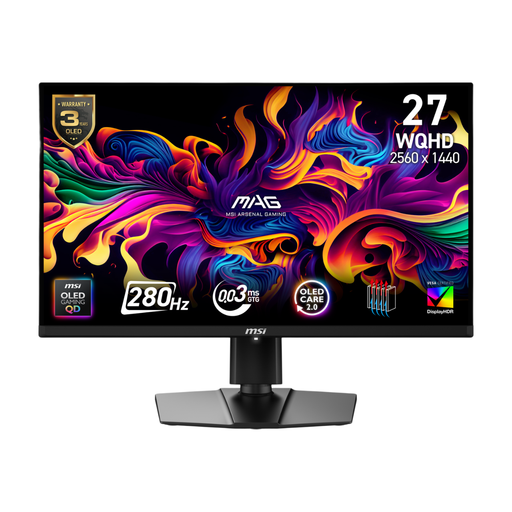
MSI MAG 271QP QD-OLED X28 QHD 280 Hz monitor
This QHD model can be considered for a two-screen layout, but check its physical size before trying to match it precisely with another monitor: the listing title says 27 inches while the detailed panel specification says 26.5 inches. Its stated 15 W USB-C power delivery also needs checking against your laptop’s charging requirements.
View on Joybuy
 No image available
HKC G27H2DPro 27-inch QHD Fast IPS 220 Hz monitor
Its stated 2560 × 1440 resolution and 27-inch size make it an option to assess for a matched document workspace. Check whether the available stand adjustment will let you position it comfortably at your desk.
View on Joybuy
Questions about two-monitor setups
How should I position two monitors for writing customer instructions?
Put the screen you use most directly in front of you and keep the secondary screen close enough to consult without repeatedly twisting. The Health and Safety Executive advises placing the top of the main screen at eye level and the screen about an arm’s length away.
Will a USB-C monitor let my laptop run two external screens?
A USB-C port alone does not establish that it will. Check your laptop’s supported external-display configuration, the monitor instructions and the required cables; HP’s stated daisy-chain option for the Series 7 Pro 727pq is a model-specific feature, not a guarantee of laptop compatibility.
When does HSE say an employer needs to assess a screen workstation?
The Health and Safety Executive says employers must carry out a workstation assessment where workers use display screen equipment daily as part of their normal work, continuously for an hour or more. The assessment concerns the workstation as a whole, not just the choice of monitors.
Should I choose a monitor that charges my laptop?
Choose that feature if your laptop accepts charging through the intended connection and the monitor’s power-delivery rating meets its requirements. BenQ specifies 65 W for the GW2790QT, while LG specifies 15 W for the 27U631A-B; check the exact laptop rather than assuming either rating is sufficient.
Do I need monitor arms for a two-screen writing desk?
Not necessarily: the supplied stands may be enough if both screens can be positioned comfortably. If they cannot, check arm compatibility and the desk’s mounting space; LG’s 27QP88D-BS uses a C-clamp or grommet stand that requires a suitable desk fitting.


