Choose backup storage around the files you need to keep, how you would restore them and where a separate copy will live. An external hard drive offers a direct local destination; a portable SSD suits frequent large-file transfers, while a network-attached storage device suits a household prepared to manage central storage. Cloud storage can provide another location alongside a local copy, but its account and recovery conditions matter too.
Who needs which backup arrangement?
The right starting point depends on whether the household needs to protect one computer, move large media collections or give several computers a central destination. In every case, the backup plan must account for a loss that could affect the original files and a nearby copy together.
Households protecting one computer’s files
If photos and documents would be difficult to replace after a computer failure or accidental deletion, start with a repeatable way to copy those folders and a separate safe place for a backup. The National Cyber Security Centre advises keeping important backup data in a separate location.
Households moving large photo and video collections
If you regularly copy large media libraries, a portable SSD may suit that workflow. Check the computer’s port and cable before relying on a manufacturer’s stated transfer speed; Samsung, for example, attaches connection requirements to its T7 Shield specifications.
Households planning shared storage
A network-attached storage device, or NAS, can provide a central destination for compatible computers. Plan who will maintain it and where its own separate backup will go: Synology’s guidance cautions that internal recovery features do not replace a full backup.
What matters when choosing backup storage?
Choose the destination that fits the household’s access and copying routine, then decide how a backup will remain separate from the original computer and how you would restore a file. The four routes below solve different parts of that task rather than replacing one another automatically.
External hard drive
Consider it when: You want a directly attached local destination for one computer’s photos and documents.
Trade-off: A drive left connected or stored beside the computer can be exposed to the same incident, as the National Cyber Security Centre warns.
Portable SSD
Consider it when: You frequently transfer large media files and can use a compatible computer connection.
Trade-off: Transfer-speed claims depend on the stated equipment and conditions; a portable drive alone does not create a separately located copy.
Network-attached storage
Consider it when: Several compatible computers would benefit from one household network destination.
Trade-off: The device needs setup and maintenance, plus another backup destination. Synology cautions that RAID and restore points do not replace a full backup.
Cloud storage alongside local storage
Consider it when: You want a copy away from the home or supported folders available after signing in on another computer.
Trade-off: Recovery depends on account access, the service and its plan. Microsoft Support, for instance, limits whole-OneDrive restore to eligible subscribers and a stated recovery period.
| Concern |
What to check |
Who this matters to |
| Copy separation |
Decide where the original and each backup will live, and which copy will be disconnected or kept elsewhere. Try restoring a file from it. |
If my computer is lost or affected by ransomware, I need a copy that the same event cannot readily reach. Around 30% of consumers put separation first. |
| Backup and restore routine |
Check that the chosen workflow covers the right folders on your operating system and that you can retrieve them on another computer. |
I need to keep documents and photos backed up without remembering every copy, and I want a clear way to get them back after a computer failure. Roughly 30% of consumers make that routine their primary concern. |
| Large-file transfers |
Measure your library and allow for growth; check the computer’s port and cable before relying on a drive’s rated speed. |
When I regularly move a large photo or video library, waiting for local copies can disrupt my backup routine. About 20% of consumers chiefly prioritise transfer and portability. |
| Shared home storage |
Confirm each computer’s backup compatibility and decide who will administer the NAS and its separate backup. |
With several computers at home, I want one manageable network destination, provided I can also protect that device. Around 20% of consumers place central storage first. |
Backup mistakes to avoid
-
Leaving the only backup drive permanently connected
A connected drive may be affected alongside the computer. The National Cyber Security Centre warns that ransomware incidents have reached connected USB and network backup drives; keeping a drive beside the computer also leaves both exposed to some local incidents.
Keep a copy genuinely separate from the everyday computer environment, whether on a safely stored offline drive, at another location or both. Restore a few files to check that the copy is usable.
-
Assuming NAS redundancy is a separate backup
A NAS remains one household device. Synology advises that RAID failures and hard-drive failures can still cause loss, and says BeeStation restore points are not a replacement for full backups.
Choose a second destination for the NAS and establish how to recover both an individual file and the device’s contents.
That second destination requires its own storage capacity.
-
Expecting cloud synchronisation to preserve every earlier version
Recovery tools have service- and plan-specific limits. Microsoft Support says whole-OneDrive restore is for Microsoft 365 subscribers and covers actions within the last 30 days; Google Drive Help describes a different bulk-restore tool with its own revision period.
Check the exact account, recovery feature, retention period and treatment of deleted or changed files before relying on it. Keep an independent local copy of irreplaceable records.
-
Reformatting a drive before checking its contents
Apple advises that a disk formatted for Windows may need erasing and reformatting before Time Machine can use it. Erasing the disk removes files already on it.
Move existing files somewhere safe first, then check the required format against every computer that must use the drive.
Relevant brands and their approaches
These brands illustrate particular backup workflows and product lines, not a ranking of their entire ranges. Check the exact device or service conditions before choosing a route.
Samsung
Samsung’s portable T7 Shield SSD range is relevant to households considering a compact drive for frequent photo and video transfers.
- Samsung lists 1 TB, 2 TB and 4 TB T7 Shield variants and claims sequential read and write speeds of up to 1,050 and 1,000 MB/s under its specified USB 3.2 Gen 2, cable and host conditions.
- Samsung bases the T7 Shield’s IP65 and drop-resistance statements on controlled testing and says liquid and dust damage are not covered under its warranty. Those T7 Shield claims should not be assumed for a different T7 model.
Synology
Synology offers NAS and personal-cloud workflows for households prepared to manage network storage and another backup destination.
- Synology’s guidance describes local recovery options and backups to external storage, another NAS or cloud services.
- Synology also cautions that RAID and BeeStation restore points do not replace a full, separate backup.
Microsoft
Windows Backup and OneDrive provide a folder-based cloud route for households using eligible personal Microsoft accounts.
- Microsoft Support says Windows Backup can sync selected folders to OneDrive for access after signing in on another PC.
- Microsoft says whole-OneDrive restore requires a Microsoft 365 subscription and covers actions within the last 30 days; check the account’s storage and recovery terms.
Apple
Apple’s Time Machine workflow is relevant to Mac households choosing a directly attached or compatible network backup destination.
- Apple Support says Time Machine can use attached USB or Thunderbolt storage and NAS devices supporting the required network protocols.
- A Windows-formatted disk may need erasing and reformatting before Time Machine use, so check its contents and the intended Mac setup first.
Joybuy storage choices
These choices cover directly attached hard drives and SSDs for local copies, plus a diskless NAS for a central home setup. Whichever route you choose, plan where a separate backup copy will live.
 No image available
Western Digital My Passport Portable Hard Drive, 2TB, Black
Consider this directly attached drive for a local copy of one computer’s household files; keep another copy separately for incidents that could affect both computer and drive.
Portable external hard drive; 2TB capacity. Measure the folders you intend to protect and check the required computer connection and format before setup.
View on Joybuy
 No image available
Western Digital My Passport Ultra for Mac Hard Drive, 5TB, Silver
This Mac-oriented portable drive offers a local destination for household files. Check the backup workflow and any other computers that must use the drive before setting it up.
Portable external hard drive; 5TB capacity. Allow for the size and growth of your files, and maintain a separate backup copy.
View on Joybuy
 No image available
Samsung Portable SSD T7, 4TB, Grey
Consider this portable SSD if you regularly make local copies of a large photo or video collection. Check your computer and cable before relying on any particular transfer rate.
4TB capacity and a USB Type-C 3.2 Gen 2 connection are stated in the product name. This is the T7, not the T7 Shield; keep a backup copy in a separate location.
View on Joybuy
 No image available
SanDisk Portable SSD, 2TB
This portable SSD is a local-storage choice for photos, videos and documents, particularly if you intend to carry a copy between locations. Confirm the connection and operating-system requirements for your devices.
2TB capacity. Check your current file volume and expected growth, and do not treat a single portable drive as the whole backup plan.
View on Joybuy
 No image available
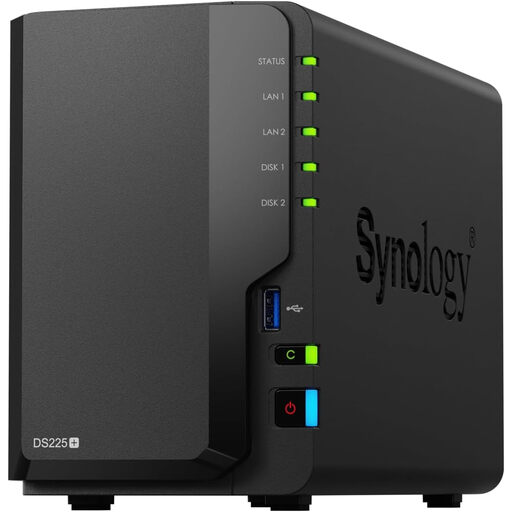
Synology DS225+ Two-Bay Diskless NAS
Consider a central network destination if several household computers need a managed backup location. Confirm each computer’s intended backup workflow and plan another destination for the NAS itself.
This is a two-bay diskless NAS: choose compatible drives and their capacity separately. If you need Mac Time Machine backups, check support for the exact NAS setup before buying.
View on Joybuy
Backup storage questions
Is one external drive enough to protect household files?
One external drive is a useful local backup destination, but it does not protect against every incident if it is the only copy or stays connected beside the computer. The National Cyber Security Centre advises storing important backup data in a separate safe location and warns that connected backup drives can be affected by ransomware. Keep a genuinely separate copy and test that you can restore files from it.
Can a Mac use a NAS for Time Machine backups?
A Mac can use a compatible NAS as a Time Machine destination if the NAS supports the required SMB or AFP setup. Apple Support advises checking the network device’s Time Machine compatibility; confirm the exact NAS configuration before buying.
Do NAS restore points or RAID replace a separate backup?
No: Synology says BeeStation restore points are not a replacement for full backups and cautions that RAID and drive failures can still cause data loss. Arrange another destination for the NAS, then check how you would restore both individual files and a larger collection.
Can cloud storage recover files changed by ransomware?
Cloud recovery tools may help, but the available action and time window depend on the service and account. Microsoft Support says whole-OneDrive restore is available to Microsoft 365 subscribers for actions within the last 30 days; Google Drive Help describes a separate bulk-restore tool that keeps the last 25 days of revisions. Check the feature you would use and retain an independent local copy.


