Beginners with limited space
You want to practise basic aircraft control and navigation from a desk or another supported seated position without starting with pedals and panels.


Match the flight stick to your simulator platform and the space available around your seat before choosing extra controls. A compact stick can suit introductory practice in a smaller space; a detachable-throttle HOTAS gives you separate stick and power controls if you have a stable surface for both. Check the exact model's yaw controls and PC or console compatibility before buying.
You want to practise basic aircraft control and navigation from a desk or another supported seated position without starting with pedals and panels.
You need to settle platform compatibility before comparing controls. Microsoft Flight Simulator cautions that most PC flight-simulation peripherals are not compatible with Xbox Series X|S unless specified.
You would rather adjust power with a physical throttle while practising airliner or general-aviation procedures than rely mainly on keyboard assignments.
Confirm your simulator platform and where the controller will rest, then decide which flight controls you want within reach during a seated session.
| Concern | What to check | Who this matters to |
|---|---|---|
| Platform compatibility | Check the exact model's stated PC or console support and the simulator platform you use. Microsoft Flight Simulator warns that PC peripherals are not generally Xbox-compatible by default. | If I use Xbox, I need the controller to work with my console before its other features matter. Around 36% of consumers put platform compatibility first. |
| Seated placement | Check whether the throttle is integrated or detachable, and whether your desk or tray offers a stable, reachable place for each unit. | With little surface space beside my seat, I need controls I can place and reach steadily. Seated layout comes first for around 29% of consumers. |
| Flight controls | Look for a stated yaw input and a throttle arrangement that suits the aircraft and simulator commands you intend to practise. | When practising civil-flight procedures, I want yaw and power changes close to hand rather than relying mainly on keyboard inputs. Around 21% of consumers prioritise those controls. |
| Handling and configuration | Check handedness, grip adjustment and available control-mapping options on the exact model. | If I will share a stick or change its controls as I learn, I need a layout I can handle comfortably. Handling and configuration lead the choice for around 14% of consumers. |
A PC-compatible flight stick may not work on Xbox Series X|S. Microsoft Flight Simulator advises checking console compatibility rather than assuming it from PC support.
Compare the full model name with the manufacturer's platform list; similarly named variants can support different platforms.
Separated stick and throttle units need stable surfaces within reach of your seat. A detachable design may offer an attached arrangement when space is tighter.
Check your available surface and how you intend to position both hands before choosing a two-piece layout.
Hand-operated yaw controls on some sticks and HOTAS systems let you begin practising without pedals, although they do not provide every function of a separate pedal set.
Confirm the exact controller's yaw method first. Consider pedals later if separate foot control or toe brakes become important to your setup.
Extra assignments do not resolve a platform mismatch or an awkward seated layout, and they add controls to learn.
Settle platform support, placement, yaw and throttle first; then consider extra buttons for commands you regularly use.
Its flight-stick range includes PC stick-only models and HOTAS options with differing platform support.
The VelocityOne Flightstick offers an integrated-control route for Xbox and Windows PC learners.
The X52 is a separate-throttle HOTAS for learners considering a desk-based setup with extensive command assignments.
These products cover stick-and-throttle setups, a civil-flight control bundle and an integrated flight stick. Compare each one against your platform and seated space rather than treating them as interchangeable.
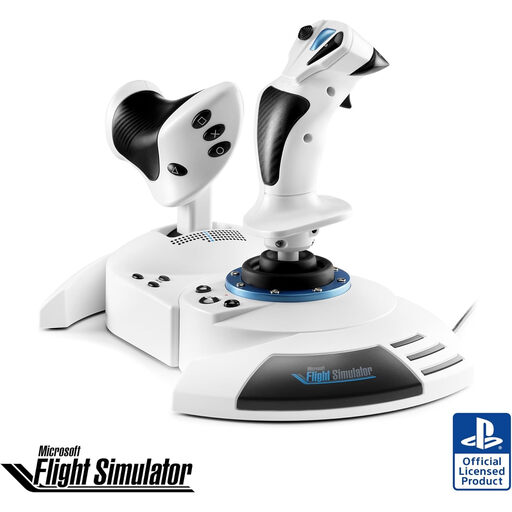 No image available
Consider this stick-and-throttle setup for seated practice on PS5, PS4 or PC. Check how you will position the throttle and operate yaw before relying on it without pedals.
 No image available
Consider this PC flight-control system if you plan a seated setup with a mount. Check that your desk offers a suitable mounting surface and enough reachable space for the controls.
 No image available
Consider this Airbus-themed control pack for civil-flight practice on Xbox Series X/S or PC. Check its yaw-control method and how much space the complete pack needs if you intend to learn without pedals.
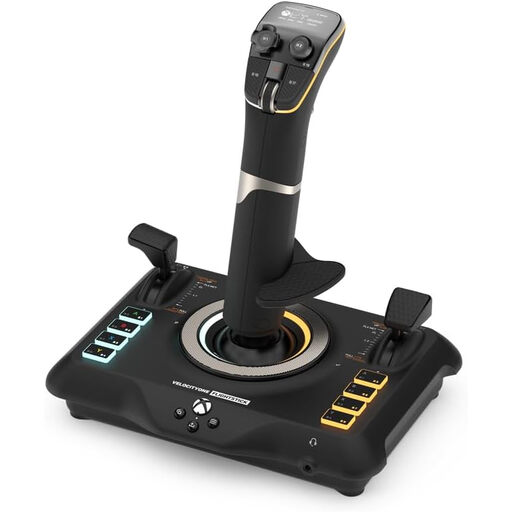 No image available
Consider this integrated stick if you want physical controls in one unit for Xbox or PC practice. Turtle Beach lists 27 programmable buttons and eight axes; check its yaw-control method and seated placement before choosing it as a pedal-free setup.
No, provided your chosen controller has a suitable hand-operated yaw input. Some sticks use twist rudder or another hand control; pedals are an optional later choice if you want separate foot control or toe brakes.
Do not assume so. Microsoft Flight Simulator warns that most PC flight-simulation peripherals are not Xbox-compatible unless specified; check the exact model's stated console support before ordering.
A detachable throttle is useful when you want the option of keeping controls together or placing the throttle separately for two-handed use. Check that both positions give you a stable surface and comfortable reach from your seat.
Choose enough controls for the actions you expect to use, rather than treating button count as the starting point. Platform support, a workable yaw input and a throttle arrangement matter first; additional assignments become more useful once you know which keyboard commands interrupt your practice.