Workers moving between locations
If one computer must go between home and another workplace, start with a laptop. A dock may simplify the home desk arrangement, provided it supports that laptop’s required connections.


Choose a laptop if the same computer must travel between work locations, or a desktop if it will stay at one desk and the required software calls for a fixed configuration. A compatible dock can make a laptop easier to connect to a desk setup, but check its display and charging functions against the exact laptop. Before buying personally owned equipment for work, confirm your employer’s device, software and security requirements and consider the whole workstation, not just the computer.
If one computer must go between home and another workplace, start with a laptop. A dock may simplify the home desk arrangement, provided it supports that laptop’s required connections.
If the computer will remain at home, consider a desktop configured for the applications you actually use. Check the employer’s device requirements and plan space and connections for the display and input devices.
If you spend sustained periods using a laptop at home, consider where its screen, keyboard and mouse will sit. The Health and Safety Executive says an applicable display-screen-equipment assessment should consider the whole workstation, the job and individual requirements.
Settle the computer’s location and your employer’s requirements first; then plan the display, controls and any dock around the way you will work.
| Concern | What to check | Who this matters to |
|---|---|---|
| Moving between locations | How often the computer travels; whether the required applications and work controls can run on the laptop. | If my computer has to move between home and another workplace, I need it to serve both places. About 30% of consumers put mobility first. |
| Fixed-desk capability | The required application specifications; available desk space and display connections. | When my computer will stay at one desk, I want a configuration chosen around my work rather than portability. Fixed-workstation capability is the main concern for about 20% of consumers. |
| Long-session workstation layout | Screen position and desk depth; room for a separate keyboard and mouse. | For long periods of screen and input work, I need the whole desk arrangement to fit how I work. About 30% of consumers make that their primary concern. |
| Work-device approval | Permission to use a personal device; required software, management and security controls. | Before choosing hardware, I need to know whether my employer will allow and support it for my tasks. That approval and compatibility need comes first for about 20% of consumers. |
A USB-C socket alone does not establish which dock features a laptop can use. Lenovo says display output from its ThinkPad USB-C Dock Gen 2 depends on the host system; charging and managed features also need model-specific checks.
Check the exact laptop’s port protocol, display support and charging requirements against the dock before ordering.
An incompatible arrangement may call for a different dock, adapter or power supply.
The Health and Safety Executive says an applicable workstation assessment considers equipment, furniture, work conditions and the job. A laptop purchase alone does not settle screen and input placement for long sessions.
Plan the computer, display, keyboard, mouse and desk space together, using your employer’s workstation assessment process where it applies.
A stand, external controls, display or additional cabling may be needed to make the planned layout workable.
The Information Commissioner’s Office identifies security considerations for home-working and personally owned devices. A computer chosen for its hardware alone may not meet an employer’s software or data-handling requirements.
Ask which personal devices, operating systems, applications, management tools and storage arrangements your employer permits before choosing a model.
Microsoft’s Windows 11 minimum requirements address installation eligibility, not how well a computer will handle a particular employer’s applications.
Compare the employer’s or application publisher’s recommended processor, memory, storage and graphics requirements with the exact PC configuration.
Relevant to laptop-to-desk setups as well as fixed business computers.
Relevant to ThinkPad desks and buyers considering a USB-C dock.
Offers fixed-computer formats to consider when the machine will remain at a home desk.
A reference point for keyboards and mice in a home desk arrangement.
These selections cover laptops for work across locations, desktops for a fixed desk and a dock for a compatible laptop-based workspace. Check work-device approval and the connections needed for your own arrangement.
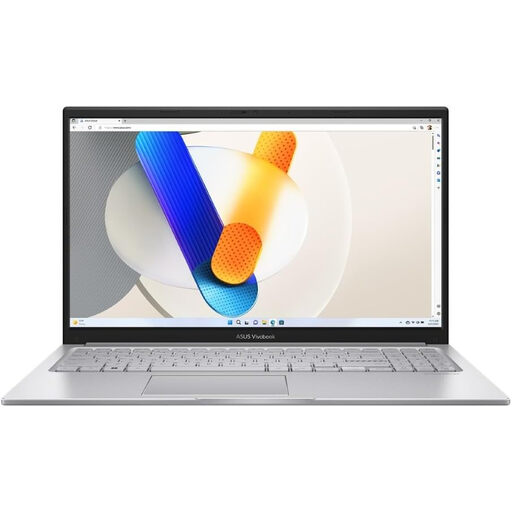 Image unavailable
Consider this laptop when the same computer needs to move between work locations. Its stated configuration includes a 15.6-inch display, Intel Core 5 120U, 24 GB memory and a 1 TB SSD. If a dock is part of your desk plan, confirm the exact laptop’s USB-C video and charging functions first; also check employer and application requirements.
 Image unavailable
Consider this desktop if the computer will stay at one home desk. Its named configuration has 8 GB memory, a 1 TB SSD and Windows 11 Home. Confirm the package contents, including the display you will need, and compare the configuration with your work applications and employer requirements.
 Image unavailable
Consider this mini desktop where a fixed computer needs to fit into a limited desk area. The named variant has an Intel Core 5 processor, 16 GB memory and a 512 GB SSD. Confirm which display and input devices come with it, the outputs your monitor needs, and whether it meets work-software and employer requirements.
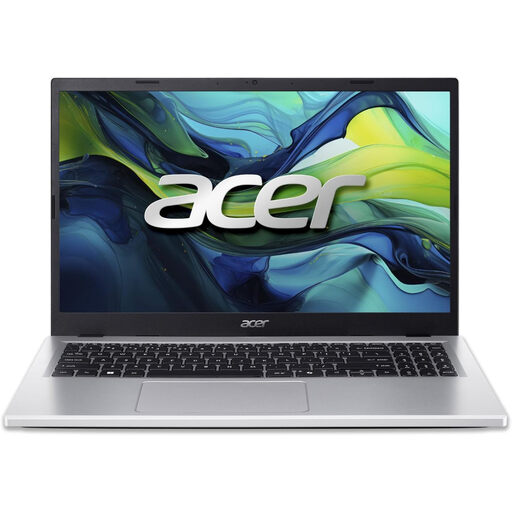 Image unavailable
Consider this laptop when work must continue away from the home desk. Its named configuration includes a 15.6-inch Full HD screen, 8 GB DDR5 memory, a 256 GB NVMe SSD and Windows 11 Home. Check those capacities against your applications, and confirm USB-C video and charging support before planning a dock.
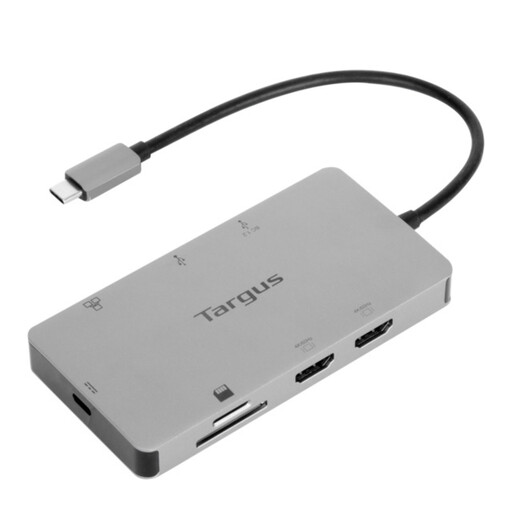 Image unavailable
Consider this dock for a laptop-based desk that needs HDMI display connections. Its named features include dual HDMI 4K and 100 W power-delivery pass-through; the displays and charging available in use depend on the host and power arrangement. Check the exact laptop’s compatibility and confirm the supplied power equipment before buying.
The Health and Safety Executive says display-screen-equipment rules can apply to permanent or long-term home working. Where an assessment applies, it should consider the whole workstation, the work being done and individual requirements rather than the computer alone.
No single accessory arrangement follows from the Health and Safety Executive’s whole-workstation approach. Assess the work, desk layout and individual needs before deciding which display or input devices are appropriate.
Ask your employer whether personal devices are permitted and which operating system, applications, management tools, authentication and data-handling controls are required. The Information Commissioner’s Office highlights security considerations for home working and bring-your-own-device arrangements.
Do not assume so from the connector alone. Check the laptop’s exact USB-C Alt Mode or Thunderbolt support, required display configuration, charging input and operating-system compatibility against the dock; Lenovo notes that display output for its ThinkPad USB-C Dock Gen 2 depends on the host system.
They establish installation eligibility, not suitability for your workload. If your employer requires Windows, check Microsoft’s Windows 11 requirements, then compare the exact PC with the employer’s or application publisher’s recommended specification.