What matters when choosing?
Start with the keys and devices your slide workflow requires, then decide how much space, portability and typing comfort matter in your usual workspace.
| Concern |
What to check |
Who this matters to |
| Shortcut access |
Check modifier, function and navigation keys against the PowerPoint commands you use. Microsoft Support notes that key positions may differ from its US-layout shortcut guidance. |
If I build and revise slides mostly with keyboard commands, I need familiar keys I can reach without hunting for them. Around 40% of consumers put shortcut-led editing first. |
| Device switching |
Check how many devices the exact model can pair with and whether each computer, tablet or phone supports its connection method. |
Moving between devices while drafting and reviewing slides makes repeated pairing inconvenient; around 30% of consumers prioritise switching between devices. |
| Portability and noise |
Compare the keyboard’s dimensions, physical key coverage and stated key type; consider typing sound if you work around others. |
If I carry a keyboard or prepare slides in a shared space, it needs to fit my setup without drawing attention to every keystroke. Roughly 20% of consumers make portability or quiet working their primary concern. |
| Long-session comfort |
Consider key shape, palm support and whether the keyboard fits your desk arrangement. Assess the rest of the workstation too. |
During extended slide-editing sessions, I need a keyboard position and key feel that suit me; comfort comes first for around 10% of consumers. |
Joybuy keyboard options
These keyboards cover different slide-preparation setups, from a full-size desk layout to compact and split designs. Compare the exact key layout with your shortcuts before choosing between them.
 No image available
HP 960 Ergonomic Split Layout Wireless Keyboard with padded wrist rest
Consider this split-layout keyboard if comfort during longer desk-based slide sessions is your priority.
Check its physical key layout and whether any key-configuration software works with your operating system before relying on custom slide actions. Allow desk space for the split arrangement.
View on Joybuy
 No image available
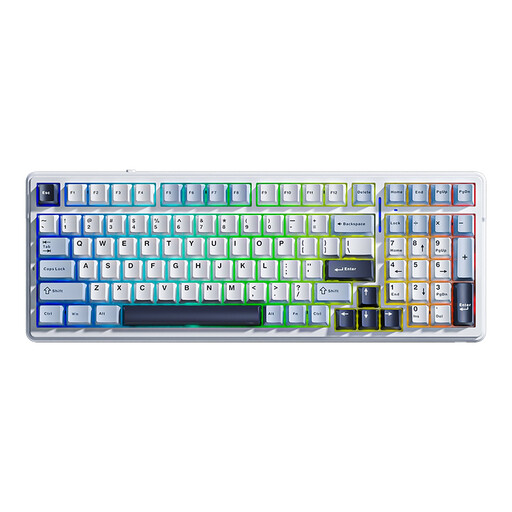
AULA F99 Mechanical Wireless Keyboard, US layout, Light Blue/Reaper Switch
This is an option for desk-based slide work if you want a mechanical keyboard and are comfortable with a US key layout.
The title specifies wired, Bluetooth and 2.4G connection modes. Test the shortcuts you rely on against the QWERTY US layout, and check configuration requirements before planning to use macros for slide actions.
View on Joybuy
 No image available
Targus EcoSmart™ Full Size Wireless Keyboard (UK)
Consider this full-size UK-variant keyboard for a desk where slide editing takes priority over packing the keyboard away.
Confirm the physical key legends and the shortcut positions you use. If you intend to use a USB-A receiver rather than another connection method, check that your device can accommodate it.
View on Joybuy
 No image available
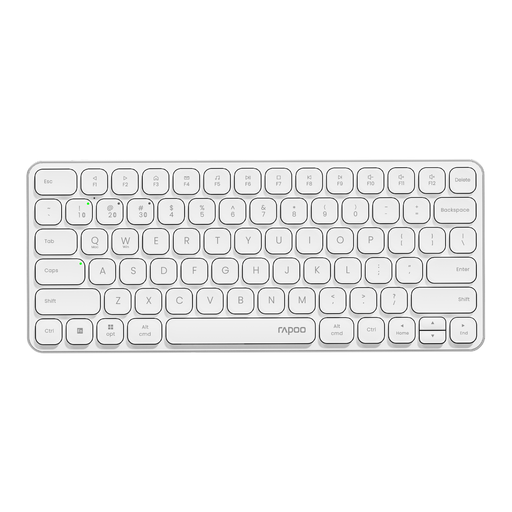
Rapoo E9050L 75% Wireless Membrane Keyboard, US layout, White
Its compact format may suit slide work on a smaller desk or between locations, provided the key arrangement covers your commands.
The title specifies 78 keys, Bluetooth 5.0/4.0 and 2.4GHz connections, and support for four devices. Check the placement of arrow, navigation and function keys, as well as shortcuts affected by the US layout.
View on Joybuy
 No image available
HyperX Alloy Rise 75 Wireless Keyboard UK
Consider this 75% wireless model if you want a smaller keyboard for slide editing but prefer to assess the key arrangement yourself.
Although the title identifies a UK variant, check its physical key legends and the positions of the shortcuts you use. If typing noise matters in your workspace, assess that separately.
View on Joybuy
Common questions
Do I need a special keyboard for PowerPoint?
No particular keyboard type is required for preparing PowerPoint slides. Choose one whose layout makes your frequent commands comfortable and whose connection method suits the devices you use; Microsoft Support lists shortcuts for tasks such as adding a slide, copying, saving and starting a slide show.
Will PowerPoint shortcuts use the same keys on a UK keyboard?
Do not assume every documented key position will match. Microsoft Support says its shortcut guidance refers to a US layout and that keys on other layouts might not correspond exactly, so check the less-common combinations you depend on.
When is multi-device switching useful for slide preparation?
It is useful when you regularly move between compatible devices while drafting or reviewing slides. Logitech UK lists switching between up to three devices on the K780 and Pebble Keys 2 K380s; check each device’s required connection method before buying.
Is an ergonomic keyboard enough for long editing sessions?
No keyboard can be assessed separately from the rest of the workstation. The Health and Safety Executive’s display-screen guidance considers posture, equipment, furniture, work and individual needs, so check how the keyboard fits your overall desk arrangement.
Does a brand warranty apply if I buy through a marketplace?
Check the terms for the seller and product rather than assuming a direct-purchase policy applies. Keychron UK says its published warranty policy covers products bought directly through its UK site; for a marketplace purchase, confirm the seller’s after-sales arrangements and retain your order record.


