Choose a keyboard whose layout, connections and shortcuts fit the devices you use to edit and present slides. Adjustable key lighting is worth considering when daylight changes, but it cannot remove reflections from the display; screen position and the wider workstation need separate attention, as the Health and Safety Executive advises.
Who this is for
Bright-window slide editors
You need to read key legends as daylight changes while keeping reflections off the screen where you edit slides. Assess key lighting and display placement separately: the Health and Safety Executive advises adjusting screens and lighting to avoid glare.
Multi-device presenters
You edit slides on one device and may present from another. The layout, connection method and availability of your essential shortcuts matter alongside any device-switching feature.
Long-session desk workers
You spend extended periods refining slides and need space for the keyboard, mouse and display without awkward reaching or twisting. The Health and Safety Executive advises keeping the screen and keyboard central, with the keyboard just below elbow height where practicable.
What to check before buying
Start with the devices and shortcuts your presentations require, then assess key visibility and how the keyboard fits beside your screen and mouse.
| Concern |
What to check |
Who this matters to |
| Key visibility and screen glare |
Check key-legibility and lighting controls at your window-side desk; position the display to reduce reflections. |
Changing daylight makes me want readable keys, but I also need to see the slide clearly on screen. For roughly 31% of consumers, visibility and glare management are the primary concern. |
| Compatibility and shortcuts |
Confirm the UK layout, connections, operating-system support and access to your slide-editing shortcuts. |
If I edit on one device and present on another, I need the keyboard to work with both without losing familiar controls. Compatibility and shortcuts come first for around 31% of consumers. |
| Workstation comfort |
Check keyboard height and position alongside the screen, chair and mouse. |
Long editing sessions make an awkward reach or twisted position difficult to ignore. About 23% of consumers put workstation comfort first. |
| Desk footprint |
Compare the keyboard's layout with your available space and the navigation keys you use. |
A crowded desk makes a smaller keyboard appealing, provided I can still reach the keys my slides require. Footprint is the main consideration for roughly 15% of consumers. |
Buying pitfalls
-
Expecting illuminated keys to fix window glare
Key lighting affects the keyboard, not reflections on the display used to edit slides.
Check whether you can read the keys in your usual daylight position. Separately, adjust the screen and lighting to avoid reflections, as the Health and Safety Executive advises.
-
Choosing a layout before checking your presentation devices
A familiar-looking keyboard may have different key positions, connection requirements or shortcut support from those you expect.
Confirm the supplied layout, operating-system compatibility and available connection on both your editing and presentation devices before buying.
-
Assuming programmable shortcuts need no setup
Logitech's Smart Actions use Logi Options+. Keychron says configuring its K3 Version 3 through Launcher requires a wired connection and a current Chrome, Opera or Edge browser.
Check that you can complete the required setup on the computer where you intend to configure your shortcuts.
Allow time to configure the keys before relying on them for a presentation.
-
Treating a new keyboard as the whole comfort solution
Keyboard choice alone does not determine the position of your screen, mouse or chair during a long editing session.
The Health and Safety Executive advises keeping the screen and keyboard central and placing the keyboard just below elbow height where practicable. Assess the complete workstation if your work calls for it.
Brands to consider for this setup
Logitech
The MX Keys S is a reference point for a wireless keyboard with adaptable key illumination and device switching.
- Logitech lists environment-responsive illumination, programmable Smart Actions and switching across up to three devices for MX Keys S.
- Check the operating system needed for your shortcuts: Logitech says basic functions work without software on systems other than Windows and macOS, rather than promising the full software feature set.
Keychron
The K3 Version 3 offers a compact, programmable route with a UK-ISO option.
- Keychron lists Bluetooth 5.2, wired use and QMK/Launcher customisation for this model.
- Check whether its 75% key arrangement suits your shortcuts. Launcher configuration requires wired mode and a supported browser.
Apple
The British-English Magic Keyboard (USB-C) is a compact option for a presentation workflow on compatible Apple devices.
- Apple lists Bluetooth, USB-C charging and compatibility requirements for specified Mac, iPad, iPhone and Apple Vision Pro systems.
- If illuminated keys or device switching are essential, confirm those features for the exact keyboard before choosing it.
Microsoft
The Surface Keyboard (2nd Edition) is a full-size reference point for a Windows-oriented shortcut workflow.
- Microsoft lists a number pad, dedicated Copilot, Call Mute and Snip & Sketch keys, and Bluetooth 4.0.
- Confirm the supplied key layout and any lighting requirement before buying for a window-side desk.
Joybuy keyboard choices
These keyboards offer different layouts for editing slides at a window-side desk. Compare the keys you need, your available space and the connection to your presentation device; check lighting controls separately where daylight visibility matters.
 Image unavailable
HyperX Alloy Rise 75 Wireless Keyboard UK
Consider this wireless UK keyboard if a smaller key arrangement could leave more room for your mouse while you edit slides.
The Alloy Rise 75 name identifies the layout variant. Check that its key positions suit your shortcuts and that its lighting and configuration controls work with your intended computer.
View on Joybuy
 Image unavailable
Hyper HyperSpace Next Bluetooth Wireless Keyboard, UK, white
This UK Bluetooth keyboard is worth considering if your slide-editing device can use a wireless connection.
Check its physical footprint, key-lighting controls and switching steps against your desk and presentation workflow rather than assuming that Bluetooth alone covers every device you use.
View on Joybuy
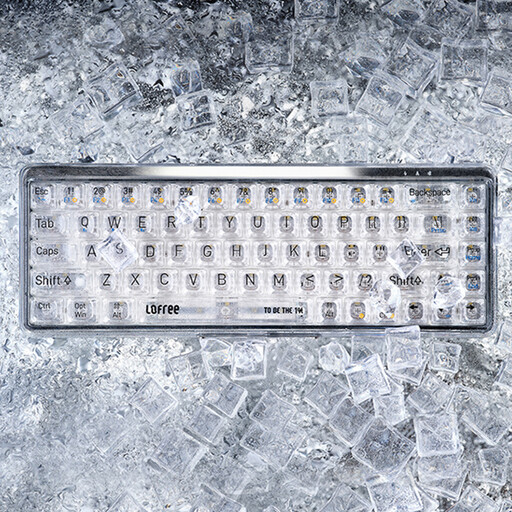 Image unavailable
Lofree OE907 65% Mechanical Keyboard, US QWERTY
Consider this compact keyboard only if its US key positions suit the shortcuts and characters you use to prepare slides.
The product name specifies 68 keys, Jellyfish switches, Bluetooth 5.1, a wired mode and white backlighting. Check the compact navigation arrangement and key visibility at your window-side desk.
View on Joybuy
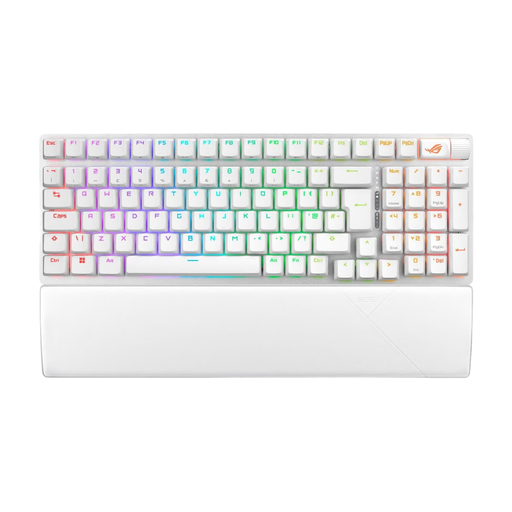 Image unavailable
ASUS ROG Strix Scope II 96 Wireless Keyboard, UK layout, white
The 96 layout is an option to assess if you want to compare its key arrangement with a conventional full-size keyboard for slide editing.
This is the wireless, white UK-layout variant. Check the exact shortcuts and whether its lighting can be adjusted before relying on it beside a bright window.
View on Joybuy
 Image unavailable
Targus EcoSmart Full Size Wireless Keyboard, UK
A full-size UK layout may suit you if familiar key placement matters more than keeping the keyboard footprint small.
This is the wireless EcoSmart variant. Check that it fits beside your mouse and whether the keys provide the visibility you need in changing daylight.
View on Joybuy
Common questions
Will a backlit keyboard fix glare from a bright window?
No. Key lighting may help you read the keyboard as ambient light changes, but it does not remove reflections from the screen. The Health and Safety Executive advises adjusting screens and lighting to avoid glare.
Do I need a particular ergonomic keyboard for display-screen work?
The Health and Safety Executive does not specify a particular keyboard model in its display-screen equipment guidance. It says employers must assess workstations for employees who use display-screen equipment daily as part of normal work, continuously for an hour or more; the assessment considers the wider workstation, not just the keyboard.
How should I position a keyboard for a long slide-editing session?
Keep the keyboard and screen central and avoid twisting to use them. The Health and Safety Executive advises placing the keyboard just below elbow height where practicable; make room for the mouse as you arrange the workstation.
Can I configure Keychron K3 Version 3 macros over Bluetooth?
Keychron says its Launcher configurator requires the K3 Version 3 to be connected in wired mode, using a current Chrome, Opera or Edge browser. The keyboard also supports Bluetooth 5.2 for use after you have checked that its setup process fits your computer.


