Coordinators working away from sockets
If you will spend much of the day away from mains power, focus on the selected laptop’s battery configuration, a realistic trial of your workload and a compatible charging plan.


A compact 13- or 14-inch laptop is a sensible starting point if you will move around the venue: check its battery performance against your actual tasks, its connections for presentations and its charging requirements. A larger screen can suit document-heavy planning at a fixed table, but neither screen size nor an advertised battery figure establishes how long a particular configuration will run during the event.
If you will spend much of the day away from mains power, focus on the selected laptop’s battery configuration, a realistic trial of your workload and a compatible charging plan.
Moving between meetings, registration points and presentations makes carrying weight and the connections required by your actual display and accessories important.
If schedules, budgets and shared documents are your main tasks at a fixed table, a larger workspace may be worth considering alongside its carrying and charging requirements.
Start with the time you must work unplugged, then check how you will carry the laptop and connect it to the venue’s equipment. Treat screen space and the condition of an existing laptop as separate decisions.
| Concern | What to check | Who this matters to |
|---|---|---|
| Unplugged work and charging | Compare battery claims for the exact configuration and test your planned tasks from a full charge. Confirm the laptop’s charging input before choosing backup power. | If losing power would interrupt registration or schedule changes, I need a laptop that lasts through my own workload. Around 36% of consumers would put power continuity first. |
| Movement and connections | Check the selected model’s weight and ports against the venue projector and essential accessories; test any required adapter. | When moving between rooms and presentation points, I need to carry the laptop comfortably and connect it when needed. Mobility and connections would come first for around 29% of consumers. |
| Planning workspace | Choose a screen size and shape that suit your documents and calls, while accounting for what you must carry. | If I build schedules and budgets at a fixed table, room to work across documents matters more to me than a smaller device. Around 21% of consumers would prioritise that workspace. |
| Battery condition and safe power use | For a used Windows laptop, inspect its battery report and try it unplugged. Check model-specific repair options and use appropriately rated charging equipment. | If I am relying on an older laptop, I want to know its battery condition and plan safe access to power. Those checks would be the primary concern for around 14% of consumers. |
According to HP UK Tech Takes, real-world battery life can differ from an advertised figure. Brightness, wireless use and the work being done can change how long a charge lasts.
Check the test conditions for the exact configuration, then rehearse your expected documents, calls and display use from a full charge.
A USB-C connection alone does not establish that a particular laptop accepts charging through it or that a charger supplies the power it requires.
Check the laptop’s charging specification and the proposed charger or power bank’s compatible output before relying on it.
A separate compatible charger or power bank may be needed for the charging plan you choose.
Electrical Safety First warns that overloaded or daisy-chained extension devices can overheat and create a fire risk.
Plan battery use and charging turns. If you need an extension device, follow its rating, use only one per socket, fully unwind cable reels and never chain extension leads together.
The battery’s present condition matters when a laptop must operate away from sockets; its original specification is not a trial of the device you have now.
For a Windows laptop, use a battery report where possible and run an unplugged trial with the tasks it will perform at the event.
ThinkPad X-series and X1 Carbon models are relevant when a compact business laptop and model-specific connections are priorities.
Latitude configurations are worth examining if battery and charging choices need to fit a particular venue plan.
EliteBook models are relevant to planners considering a larger display for documents and collaboration.
These laptops offer different screen sizes and configurations for mobile coordination or document-focused planning. Check each one against your event-day runtime, software, projector and charging needs before deciding.
 No image available
Consider this 14-inch model if you will carry your planning documents between event areas. Confirm that its charging arrangement and projector connection suit the venue, and trial your workload unplugged before depending on it for the day.
 No image available
The 13-inch format is an option for planning across several locations. Its advertised video-streaming battery duration is not a result for calls or event work; test those tasks, and confirm the required projector adapter and charging setup.
 No image available
This 14-inch 2-in-1 is worth considering for planning that moves between rooms and calls. Test how long your event workload runs on a charge, and check the connection needed by the venue projector.
 No image available
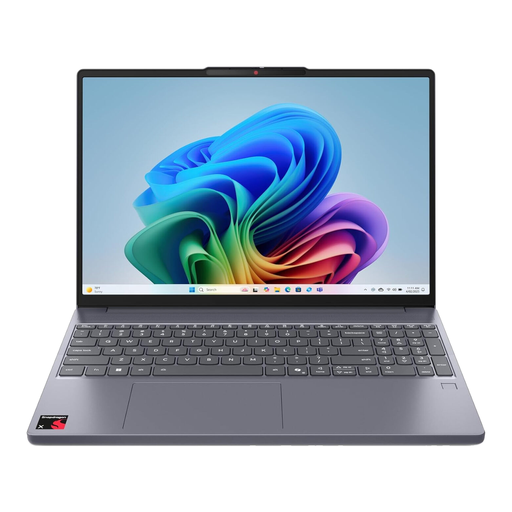
The 15.3-inch screen may appeal if much of your planning happens across documents at a table. Do not use its advertised battery duration as an event-work result: rehearse your tasks, check the venue connections and confirm that essential software runs on this configuration.
 No image available
The 15.6-inch display is an option for table-based document work. Confirm the supplied Windows 11 Home configuration, charging method and venue connections, then test battery life with your actual planning tasks rather than relying on the advertised maximum.
Do not treat it as a guarantee for your event. HP UK Tech Takes notes that real-world battery life can differ from advertised results; check the exact test configuration and rehearse your calls, documents and display use from a full charge.
Generate a battery report and test the laptop unplugged with your planned workload. Microsoft Learn documents the Windows powercfg /batteryreport command; the report helps assess usage but does not replace an event-like trial.
Only use one that meets the exact laptop’s charging requirements. Confirm that the laptop accepts charging through the relevant port and that the proposed power source provides a compatible power profile and output.
No. Electrical Safety First advises against plugging one extension lead into another and recommends only one socket extension device per socket. Plan charging turns and, where an extension device is needed, follow its rating.
Check the electrical-equipment collection or recycling options offered by your local authority or retailer. GOV.UK identifies the UK Waste Electrical and Electronic Equipment Regulations 2013, as amended, as the framework for recovery, reuse and recycling; its cited guidance is principally directed at manufacturers, importers and distributors.