What matters when choosing?
For organising lesson resources, settle school-software compatibility before comparing laptop specifications. Windows, macOS and ChromeOS each remain options when the required applications and school controls work on that operating system; Microsoft says Chromebook users access Microsoft 365 applications through the web rather than installing the Windows or Mac desktop versions.
Windows laptop
Consider it: When a required application runs on Windows desktop or the school specifies a Windows-managed device.
Check: Windows alone does not establish that a particular processor, application or school-management setup will work together.
MacBook Air
Consider it: When school applications and services support macOS and you prefer the available MacBook Air configurations.
Check: Windows-only software is not covered by choosing macOS; classroom equipment may also need an adapter.
Chromebook Plus
Consider it: When required lesson files and applications work through supported browser and cloud workflows.
Check: Microsoft 365 desktop applications for Windows or Mac cannot be installed on a Chromebook; confirm required offline tasks separately.
| Concern |
What to check |
Who this matters to |
| Files and multitasking |
Compare the exact model’s memory and SSD capacity with the files you keep locally and the applications you open together. |
I keep lesson plans, slides, PDFs and browser tabs open together, so I need enough room to work without constantly moving files off the laptop; around 36% of consumers put this resource-management need first. |
| School compatibility |
Confirm required applications, accounts, device management and classroom equipment with school IT before choosing an operating system. |
If a school application or sign-in method will not work on my device, its other features cannot make up for that; roughly 29% of consumers prioritise school-system compatibility. |
| Working across locations |
Check the exact model’s screen size, weight, ports and power arrangements against where you teach and prepare resources. |
Moving between rooms and home makes me weigh a readable document workspace against what I am comfortable carrying; about 21% of consumers put mobility and workspace first. |
| Security and accessibility |
Ask whether personal devices are permitted and which school controls and assistive features your setup requires. |
Before accessing school information, I need a device I can use within local safeguards and accessibility requirements; around 14% of consumers make these needs their primary concern. |
Joybuy product choices
These laptops offer Windows, ChromeOS and macOS choices for organising lesson resources, with different screen sizes and stated storage capacities. Confirm school compatibility before treating any one model as suitable for your work.
 No image available
ASUS Vivobook 14 X1407QA-LY003W, Snapdragon X, Quiet Blue
Consider this model if you want a 14-inch laptop for lesson files and can confirm that your required school software works with this configuration.
The product name specifies 16GB RAM and a 512GB SSD. Check the applications, management tools and classroom peripherals you need before buying.
Joybuy
 No image available
Microsoft Surface Laptop 7 15-inch, Snapdragon X Elite, Maya Color
The 15-inch touchscreen is worth considering if built-in workspace matters more to you than choosing a smaller screen.
The product name specifies 16GB RAM and a 256GB SSD. Check whether that local storage meets your lesson-file needs, and confirm required school-software compatibility.
Joybuy
 No image available
Acer Chromebook Plus 514 CB514-5H, Core 5 120U, Iron
Consider this Chromebook for browser-based lesson planning only if your school’s applications and offline tasks work with ChromeOS.
The product name specifies a 14-inch 1920 × 1200 display, 8GB RAM and a 512GB SSD. Microsoft 365 desktop applications for Windows or Mac cannot be installed on a Chromebook.
Joybuy
 No image available
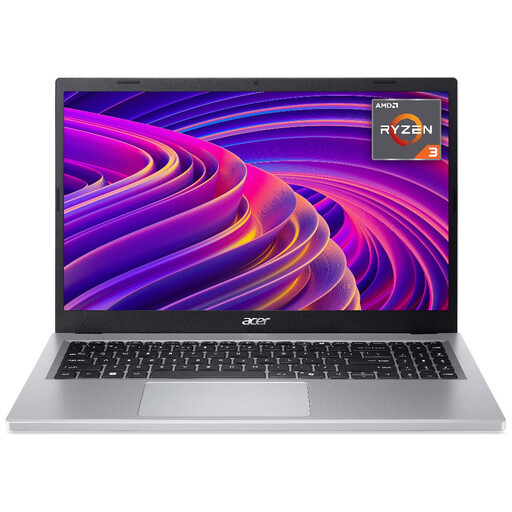
Acer Aspire Go 15 AG15-21P, Ryzen 3 7320U, Silver
This larger-screen laptop may suit lesson-document work if its operating system and configuration meet your school’s requirements.
The product name specifies a 15.6-inch 1920 × 1080 display, 8GB RAM and a 256GB SSD. Consider how many files you keep locally and how much you multitask before choosing those capacities.
Joybuy
 No image available
Apple 13-inch MacBook Air M5, 10-core CPU and GPU, Starlight
Consider this MacBook Air for lesson-resource work only if your school’s applications and services support macOS.
The product name specifies 16GB memory and a 1TB SSD. If classroom connections affect your choice, check this exact configuration’s ports and box contents before buying.
Joybuy
Common questions
Should I choose Windows, macOS or ChromeOS for lesson resources?
Choose the operating system your school’s required applications and management systems support. Windows is necessary for a Windows-only desktop application; macOS needs confirmation for the same school workflow; and ChromeOS is an option when approved browser tools cover the tasks. Microsoft says Chromebook users access Microsoft 365 applications through the web rather than installing their Windows or Mac desktop versions.
Can I use Word, Excel, PowerPoint and Teams on a Chromebook?
Yes, through the web versions: Microsoft lists Word, Excel, PowerPoint and Teams among the applications Chromebook users can access online. Before choosing a Chromebook, check the particular features, files and offline tasks your school requires.
What should I check before accessing school information on my own laptop?
Ask whether your school permits personal devices and what configuration it requires. Department for Education guidance addresses schools’ responsibilities for protecting personal data and identifies secure systems, encryption and backup procedures as relevant measures; a laptop’s advertised security features do not establish that it meets your school’s policy.
Do accessibility needs affect which laptop I choose?
Yes: check that the operating system, hardware and required assistive tools work together for the people who will use them. Department for Education guidance says school hardware and software should support accessibility features; confirm any particular keyboard, display, screen-reader or peripheral requirements before choosing a model.
How can I check a Chromebook’s update support?
Check the update schedule for the exact Chromebook model, not just its brand or family name. Google says ChromeOS devices receive automatic updates and provides a model-specific schedule to consult before purchase.


