What matters when choosing
Check where daylight reaches the screen before deciding how much resolution or connectivity you need. Then choose the display and stand for the way you edit slides at that desk.
| Concern |
What to check |
Who this matters to |
| Daylight and reflections |
Confirm the exact model’s screen finish, then assess its angle to the window. If light changes often, check whether that model has automatic brightness adjustment. |
When pale slides become difficult to inspect near the window, I need to control reflections before adding screen features; around 33% of consumers would put daylight legibility first. |
| Slide-editing space |
Compare native resolution at the intended screen size: QHD is 2560 × 1440; consider 4K for denser layouts, subject to laptop and connection support. |
I want the slide canvas, notes and reference material visible without constantly switching windows; roughly 27% of consumers would make editing space their primary concern. |
| Screen positioning |
Check height and tilt adjustment; if considering a clamp-mounted stand, confirm that the desk edge and construction suit its fitting. |
At a shared desk, I need to move the screen to a usable position and angle it away from reflected light. About 20% of consumers would prioritise positioning. |
| Laptop connection |
Check video support on the laptop’s intended port and whether the monitor’s USB-C power delivery meets the laptop’s requirements. |
When I bring my laptop to the classroom desk, I want a connection that handles the functions I actually use; approximately 20% of consumers would put connection simplicity first. |
Joybuy monitor options
These monitors offer QHD or 4K options to consider for editing classroom slides. Check each screen’s finish, positioning and laptop connection against the bright-window desk rather than choosing by resolution alone.
 No image available
ASUS ProArt PA278CV IPS WQHD
Consider this WQHD model for editing slides alongside notes or reference material. Check its screen finish and stand adjustment for the window-facing desk; if you intend to use USB-C, confirm video and charging compatibility with your laptop.
Joybuy
 No image available
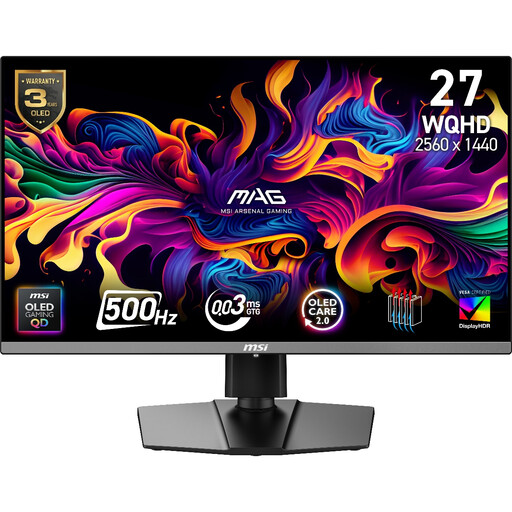
MAG 272QP QD-OLED X50 27-inch WQHD 500Hz
This 2560 × 1440 model is an option if WQHD slide-editing space is your priority. Its gaming-focused 500 Hz specification is not a reason on its own to choose it for slides; check reflections and desk positioning, and confirm whether any intended USB-C connection meets your laptop’s charging needs.
Joybuy
 No image available
ASUS ProArt PA278CFRV IPS QHD 100Hz
Consider this QHD model for slide panes and notes, while checking its screen finish and adjustment range against your desk layout. If laptop docking matters, confirm the connections and any USB-C charging capability for this exact variant.
Joybuy
 No image available
BenQ EW3290U 4K UHD
Its 3840 × 2160 resolution makes this a 4K option for dense slide layouts or detailed visual material. Check the exact screen size before planning desk space, as the product information gives both 31.2-inch and 31.5-inch figures; also confirm stand adjustment and laptop compatibility. If using automatic brightness adjustment, still plan for direct window reflections.
Joybuy
 No image available
ASUS ProArt PA27DCE-K OLED 4K UHD
Consider this 4K OLED model if detailed graphics are a substantial part of your slide work. Confirm the screen finish for the bright-window position and any USB-C charging requirements; follow the product’s guidance on prolonged static images at high brightness when planning slide-editing use.
Joybuy
Common questions
Do I need 4K to edit classroom slides?
Not for routine slide text, thumbnails and notes: a 27-inch QHD monitor is a reasonable starting point. Consider 4K if you regularly inspect detailed images or keep dense layouts open, and check that your laptop and connection support the monitor’s native resolution. HP makes that compatibility point for its QHD E27u G5.
Will an anti-glare screen fix reflections from a bright window?
No: screen treatment can help with reflected light, but it cannot replace a workable screen position. The Health and Safety Executive advises arranging screens and lighting to avoid reflections and glare; consider the screen angle, blinds and desk position where you can change them.
Is an ambient-light sensor useful for changing daylight?
It may be useful if the room’s light changes while you work, provided the exact monitor has the feature. Dell lists an ambient-light sensor on the U2724D and U2725QE, while BenQ says its Brightness Intelligence feature adjusts brightness in response to ambient light; neither claim means direct window reflections will disappear.
Can one USB-C cable connect and charge a classroom laptop?
It can when the laptop port supports the required video connection and the monitor supplies enough power for that laptop. Dell specifies up to 90 W power delivery for the P2725QE and LG up to 60 W for the 27QN880; check the exact laptop, monitor and cable before relying on a one-cable setup.
What should staff consider for regular screen work?
Consider the whole workstation, not just the monitor specification. The UK Health and Safety Executive says its display-screen-equipment rules apply to workers who use a screen daily for continuous periods of an hour or more, and that workstation assessment should consider equipment, furniture and working conditions.


