For desk-based map checking, a 27-inch 4K IPS monitor is a useful starting point when small labels and boundaries matter. Choose USB-C connectivity only after checking your laptop’s video output, charging requirements and cable; also make sure the screen can sit comfortably on your desk. Colour-workflow features become more relevant if you review map exports or imagery, rather than only reading maps.
Who this setup suits
Detail-first map reviewers
If you regularly inspect small place names, boundaries, contours or layered imagery, start by comparing native resolution and screen size. A higher-resolution specification is most useful when your computer can run the display at that setting and the resulting interface remains comfortable to read.
Laptop-based home workers
A separate monitor can make room for maps and supporting windows while letting you position the screen independently of your laptop. If you want one cable for video and charging, check the laptop, monitor and cable together before relying on that arrangement.
Colour-sensitive map publishers
If your work includes reviewing cartographic exports or imagery, model-specific colour-coverage and calibration specifications may matter alongside resolution. They do not, on their own, establish how every map source will appear in your workflow.
What to check before choosing
For home-office map checking, identify the need that would decide your purchase: fine detail, room for reference material, a simpler laptop connection or a workable screen position.
| Concern |
What to check |
Who this matters to |
| Fine map detail |
Compare native resolution and physical size; check that your computer can output the intended resolution. |
When small labels and boundaries drive the work, I want enough detail without making the interface awkward to read. Around 31% of consumers put fine-detail inspection first. |
| Map and reference space |
Consider desk width and the operating-system scaling you would use with a map and reference panes open. |
If I keep a legend or another document beside the map, switching between windows breaks my flow. Keeping reference material visible is the main concern for around 25% of consumers. |
| Laptop connection |
Check USB-C video support, the laptop’s charging requirement and the cable needed for the monitor’s stated functions. |
I would rather connect my work laptop without juggling display and charging cables, provided that connection works with my computer. A simpler laptop connection comes first for around 19% of consumers. |
| Screen position |
Check stand adjustment against your desk and viewing position. The Health and Safety Executive advises placing the screen top around eye level, about an arm’s length away. |
For long map-review sessions, I need to place the screen where I can work without leaning towards it. Around 25% of consumers make workstation positioning their primary concern. |
Common buying mistakes
-
Assuming USB-C will replace your laptop charger
A monitor’s stated power delivery does not establish that your laptop accepts video through its USB-C port or that it will receive the charging level it needs.
Check the laptop’s video-capable port and charging requirement against the exact monitor specification, then confirm the cable requirements.
-
Choosing a larger 4K screen just for finer detail
At the same native resolution, spreading the pixels across a larger panel reduces pixels per inch. A larger image area may still suit you if you sit farther back or prefer physically larger windows.
Compare screen size, viewing distance and your preferred interface scaling rather than using size alone as a measure of detail.
-
Expecting the stand to solve the whole desk setup
Height adjustment gives you placement options, but the desk, chair, keyboard and viewing distance still affect where the screen can sit comfortably.
Check the stand’s adjustment range against your desk. The Health and Safety Executive advises positioning the screen top around eye level and the display about an arm’s length away.
-
Choosing colour-workflow features for routine map reading
Stated colour coverage and factory calibration are model-specific specifications; they do not automatically make ordinary map navigation easier.
Give those features more weight if you review colour-sensitive exports or imagery. Otherwise, assess resolution, placement and connection compatibility first.
Relevant brands to consider
Dell
The Dell UltraSharp U2725QE is a 27-inch 4K hub-monitor example for a laptop-based desk.
- Dell specifies height adjustment, an integrated USB hub and 90 W power delivery for the U2725QE.
- Dell states that this model has no built-in audio. Check laptop compatibility and whether you need separate speakers.
BenQ
The BenQ PD2705U is a 27-inch 4K IPS option to examine when map work also involves colour-aware visual material.
- BenQ specifies 99% sRGB/Rec.709 coverage, a KVM switch and 65 W USB-C power delivery for the PD2705U.
- Its stated colour figures are manufacturer specifications for this model, not a guarantee about every map source. Check whether 65 W meets your laptop’s charging requirement.
ASUS ProArt
The ASUS ProArt PA279CRV is a 27-inch 4K IPS example for work that extends from map inspection to reviewing imagery or exports.
- ASUS specifies an adjustable stand, 96 W USB-C power delivery and factory pre-calibration for the PA279CRV.
- Its colour-coverage and calibration claims apply to this model and do not establish that a colour-managed workflow is needed for routine map reading.
LG
The LG 27UP85ZK-W is a 27-inch 4K IPS reference for an adjustable display with USB-C laptop connectivity.
- LG specifies height, pivot and tilt adjustment, with USB-C power delivery up to 90 W for the 27UP85ZK-W.
- LG says its stated USB-C operation requires the included USB-C cable; check your laptop’s video and charging compatibility as well.
Joybuy monitors for map checking
These monitor choices are relevant to checking detailed maps at a home-office desk. Compare each model’s stated screen features with the connections and positioning your own setup requires.
 No image available
LG 27UP650K white 27-inch 4K IPS monitor
For desk-based map inspection, consider whether a 27-inch 4K screen gives you a comfortable balance of detail and physical size.
The product name specifies 60 Hz, HDMI and DisplayPort. If you need one-cable laptop video and charging, confirm the required USB-C functions before choosing it.
View on Joybuy
 No image available
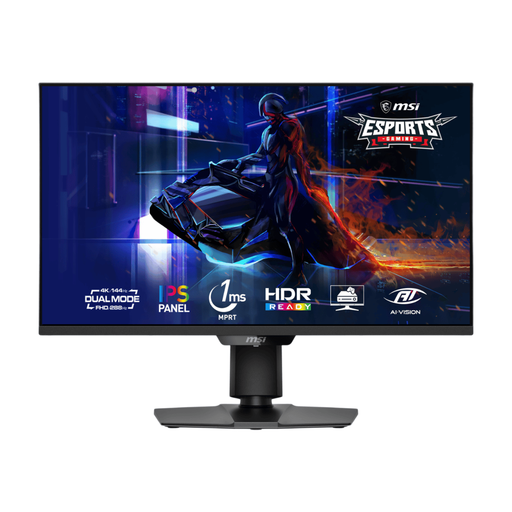
MSI MAG 275UPD E14 27-inch 4K dual-mode monitor
Its named 27-inch 4K mode makes this a model to compare for examining maps at a desk.
The product name lists UHD at 144 Hz and FHD at 288 Hz. Check that your computer and chosen connection support the display mode you intend to use.
View on Joybuy
 No image available
iiyama ProLite XUB2792UHSU-B6 27-inch 4K UHD monitor
If you want a separate display for detailed maps, compare this named 27-inch 4K model with the space available on your desk.
Confirm its connection and stand options against your setup. If USB-C video or laptop charging is important, check those exact functions before ordering.
View on Joybuy
 No image available
BenQ MA270UP Nano Glossy 27-inch 4K USB-C monitor
For map work from a laptop, this model combines a named 27-inch 4K IPS screen with a height-adjustable stand.
It is described as a Mac monitor with USB-C. Confirm video output, charging requirements and cable compatibility for your specific computer before planning a one-cable setup.
View on Joybuy
 No image available
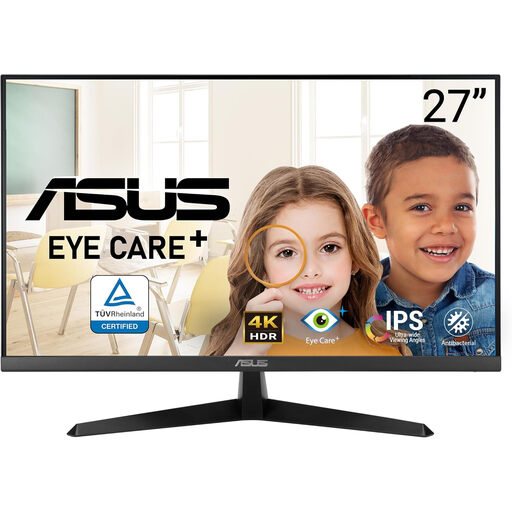
ASUS Eye Care VY27UQ 4K UHD 60 Hz monitor
For detailed map checking, compare its named 4K UHD display with the physical size and viewing position you need.
The product name specifies 60 Hz. Check the available connections and whether the stand or a compatible mount will place the screen at a suitable height.
View on Joybuy
Frequently asked questions
Should I choose a 27-inch or a larger 4K monitor for detailed maps?
Start with the detail you need to inspect and the distance at which you sit. BenQ specifies about 163 pixels per inch for its 27-inch 4K PD2705U; a larger screen at the same resolution spreads those pixels over a wider area, but may suit you better if you prefer physically larger windows or sit farther away.
Can one USB-C cable carry video and charge my laptop?
It can when the laptop’s port supports the required video output, its charging needs fit the monitor’s power-delivery specification and the cable supports the connection. For the models discussed here, BenQ specifies 65 W for the PD2705U, Dell 90 W for the U2725QE, LG up to 90 W for the 27UP85ZK-W and ASUS 96 W for the PA279CRV; check the exact model you intend to buy.
Where should I position a monitor for long map-checking sessions?
The Health and Safety Executive advises placing the top of the screen around eye level and the display about an arm’s length away. Check that your desk and stand allow that position; for prolonged laptop use, a separate keyboard and mouse let you position the screen independently.


