What to check before choosing
Start with screen positioning and your usual window layout, then check the connection your computer can actually use. Treat resolution and docking features as choices for particular working habits, not substitutes for a comfortable desk setup.
| Concern |
What to check |
Who this matters to |
| Comfort during long sessions |
Check stand adjustment or VESA mounting, and assess reflections from your desk lighting. The Health and Safety Executive also advises adjusting the wider workstation and changing activity during prolonged screen use. |
If I write and proofread for a long stretch, I need to place the screen without awkward posture or distracting glare. Around 50% of consumers would put comfortable positioning first. |
| Space for a draft and references |
Compare native resolution with your preferred text size and desk space. A 27-inch QHD display is one option; check whether your computer can output its native resolution. |
Keeping instructions or a dictionary visible beside my draft matters more to me than using one full-screen document. Around 30% of consumers would make that shared workspace their main priority. |
| Connection to an existing computer |
Match the monitor’s inputs to your computer. For one-cable USB-C use, confirm laptop video output and compare the monitor’s power delivery with the laptop’s charging requirement. |
I want my current laptop to connect without relying on a feature its USB-C port cannot provide. For around 20% of consumers, a workable connection would be the deciding need. |
Brands to consider
These examples illustrate features worth comparing on specific monitor models; they are not claims about every display made by each brand.
Dell
The Pro 27 QHD E2726DS is a conventional option to examine for desk-based writing.
- Dell specifies a 27-inch QHD screen and a height-adjustable stand for the E2726DS.
- Check the exact listing’s connections and adjustment range against your computer and desk.
Lenovo
The L27h-4A is relevant to a laptop-based workspace where a USB-C connection would be useful.
- Lenovo specifies a 27-inch QHD IPS screen, 75 W USB-C power delivery and four USB-A ports.
- One-cable use requires compatible laptop video output and a charging requirement the monitor can meet.
Philips
Its 27E1N1800A models are relevant if you are considering 4K for text-heavy work.
- Philips specifies a 4K IPS screen for the 27E1N1800A.
- Philips describes a height-adjustable stand for the distinct 27E1N1800AE variant; check the complete suffix.
Acer
The CB272U is worth examining if physical adjustment and mounting flexibility matter at your desk.
- Acer specifies a 2560 × 1440 IPS screen, 120 mm height adjustment, pivot and VESA 100 × 100 mounting for the CB272U.
- Check that its particular adjustment and connections fit your desk and computer.
BenQ
Its GW2790 and GW2790QT illustrate two different 27-inch routes for writing setups.
- BenQ specifies a Full HD IPS screen for the GW2790 and describes the GW2790QT as a QHD USB-C model with a USB hub.
- Check the precise model code before relying on QHD resolution or USB-C connectivity.
Joybuy monitors for writing
These monitors offer Full HD, QHD and 4K options for desk-based writing. Compare each model’s resolution with your usual window layout, then check its stand and connections for your own computer and workspace.
 No image available
ASUS ProArt PA278CV IPS WQHD
Consider this WQHD option if you often keep a writing task beside reference material. Check the stand’s adjustment range for your desk and confirm any USB-C charging requirement against your laptop.
View on Joybuy
 No image available
iiyama ProLite XUB2792UHSU-B6 27-inch 4K UHD
Consider this 4K UHD model if finer on-screen detail matters to you. Check that your computer supports your intended display setting, set text to a readable size and confirm the stand and connections you need.
View on Joybuy
 No image available
ASUS ProArt PA278CFRV IPS QHD 100Hz
This QHD model is another option for writing beside reference material. If you want to use USB-C with a laptop, confirm the exact model’s video and charging configuration before choosing it.
View on Joybuy
 No image available
Samsung Odyssey G6 S27DG612 27-inch QHD OLED 240Hz
Consider the QHD screen for a draft-and-reference layout, rather than assuming its gaming specifications improve writing tasks. The model name specifies an OLED panel and 240Hz refresh rate; check its connections if you need a one-cable laptop setup.
View on Joybuy
 No image available
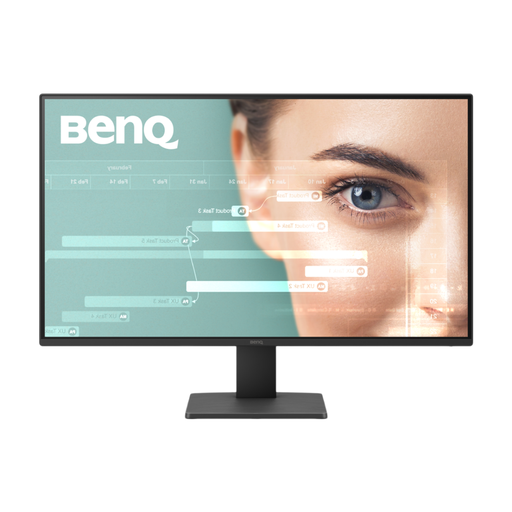
BenQ GW2791 27-inch IPS Full HD 100Hz
This Full HD option is worth considering if you usually work in one main document. If you often place references alongside it, compare the available space at your preferred text size; also check the supplied stand and the exact connections.
View on Joybuy
Frequently asked questions
Do I need 4K for writing language exercises?
No: 4K is an option if you value finer detail and can set the interface to a readable size. For a draft beside reference material, a 27-inch QHD screen is another route; Full HD may suit a simpler, mostly single-document layout. Philips specifies 4K for its 27E1N1800A, while Lenovo and Acer specify QHD models.
Will a USB-C monitor work with any USB-C laptop?
No: the connector alone does not establish video or charging compatibility. Confirm that the laptop supports display output through its USB-C port and compare its charging requirement with the monitor’s power delivery. Lenovo specifies up to 75 W for the L27h-4A.
Does an employer need to assess a monitor workstation?
For work use covered by display screen equipment rules, the Health and Safety Executive says employers must carry out a workstation assessment. That employer duty should not be confused with a requirement imposed on every purchase of a monitor for personal study.
Are eye-comfort features enough to address discomfort?
No: a product feature is not a replacement for arranging the workstation to suit its user. The Health and Safety Executive advises attention to posture, desk space, screen position and lighting to avoid glare, as well as breaks or changes of activity during prolonged screen work.


