Start with a position that avoids window reflections, then look for an anti-glare surface and enough stand adjustment to keep the screen comfortably placed. A 27-inch QHD or 4K monitor suits many document-marking setups; consider more screen space for several open documents only if your desk can accommodate it. If you want one cable to a laptop, check video output and charging compatibility before choosing a USB-C monitor.
Who this setup suits
Window-side long-session markers
If you mark for sustained periods beside daylight, screen reflections and the position of the display both matter. The Health and Safety Executive advises adjusting screens and lighting to avoid reflections and glare.
Dense-PDF and rubric multitaskers
If you keep a submission, marking criteria and feedback form open together, consider the resolution and usable workspace you need before prioritising gaming-oriented features.
Single-cable laptop workers
If you want the display connection and laptop charging through one cable, check that both the monitor and laptop support the required USB-C functions.
What to check when buying
For marking digital assignments beside a bright window, deal with reflections and screen placement before choosing how much document space or laptop connectivity you need.
| Concern |
What to check |
Who this matters to |
| Window glare |
Check the exact screen finish and whether the stand lets you turn and raise the panel away from reflections. |
If daylight catches the screen during long marking sessions, I need to position it without losing sight of the text. Roughly 42% of consumers put glare control first. |
| Document workspace |
Compare screen size, native resolution and aspect ratio, then check that your computer can drive the chosen resolution. |
With a submission and rubric open together, I want enough room to read both without constant window switching; about 33% of consumers make workspace their primary concern. |
| Laptop and desk setup |
Check USB-C video support, charging requirements and the monitor’s power-delivery limit; measure the desk for the screen and stand. |
If I move a laptop between workspaces, I want a connection and screen position that fit my desk routine. For around 25% of consumers, setup and connectivity come first. |
Buying pitfalls
-
Expecting brightness to overcome window reflections
A brighter setting does not necessarily remove a reflection or direct light entering your eyes. BenQ UK describes reflected light, direct light and large brightness differences as distinct sources of glare.
Try the intended screen position first. Look at surface treatment and stand movement, then adjust brightness for the surrounding light.
-
Choosing USB-C by connector shape alone
A USB-C port does not, by itself, establish that a laptop can send video to the monitor or receive enough charging power from it.
Check the laptop’s video-output and charging requirements against the monitor’s USB-C functions and power-delivery limit, including the cable needed.
-
Choosing a large screen before measuring the desk
A larger panel needs room to be placed at a comfortable viewing position and away from troublesome reflections.
Measure desk width and depth, then check the exact monitor’s dimensions and stand movement before deciding between a 27-inch and larger format.
-
Relying on an eye-care label instead of the workstation setup
Display features do not replace suitable lighting and screen placement. The Health and Safety Executive’s display-screen guidance includes adjusting screens and lighting to avoid glare.
Assess the whole marking position, including posture, lighting and changes of activity, rather than choosing by a feature label alone.
Brands to consider
Dell
A reference point for a conventional 27-inch QHD productivity monitor with adjustment features.
- Dell UK lists an anti-glare surface, ambient-light sensor and height, pivot, swivel and tilt adjustment for the U2724D.
- Its QHD resolution offers fewer pixels than the 4K models discussed here when arranging dense documents.
BenQ
Relevant if changing daylight or vertical document space shapes your choice.
- BenQ UK lists an adjustable stand for the GW2790T and a 3840 × 2560 display with Nano Matte coating for the RD280UA.
- The GW2790T is Full HD; do not treat its document workspace as equivalent to the RD280UA’s higher-resolution format.
LG
A reference for 4K document displays with USB-C options in different screen sizes.
- LG UK lists a 27-inch 4K anti-glare display and 90W USB-C power delivery for the 27U730A-B.
- LG labels the larger 32UN88A-W discontinued; use its specifications as a format reference rather than assuming it is available to buy.
Samsung
A connectivity reference for a workspace that uses a USB-C laptop or switches between computers.
- Samsung Business UK lists USB-C charging and data, LAN and a built-in KVM switch for the ViewFinity S8 S80UD.
- For a position beside a bright window, check the exact model’s screen finish rather than assuming its connectivity features address reflections.
Joybuy monitor choices
These monitors offer different screen sizes and resolutions for desk-based marking. Check each model’s screen finish, positioning options and laptop connections against your window-side setup before choosing.
 No image available
ASUS ProArt Display PA32UCG-K 32-inch 4K HDR monitor
Consider its 32-inch 4K format if you need room for several marking documents and have space to position a large screen comfortably.
The product name specifies IPS Mini LED and HDR. Check the brightness specification for this exact variant before relying on a particular figure, and confirm the laptop port functions you need.
View on Joybuy
 No image available
ASUS ZenScreen MB249C IPS USB-C monitor
Consider this model if flexible placement would help you move the display out of a reflection path; check that its mounting arrangement fits your desk.
Its name identifies an IPS display and USB-C connection. Confirm the exact screen finish, USB-C video function and laptop-charging compatibility before buying for a window-side position.
View on Joybuy
 No image available
iiyama ProLite XUB2792UHSU-B6 27-inch 4K monitor
Its 27-inch 4K format is worth considering when you keep dense PDFs and marking criteria open together.
The product name specifies a 16:9 display and a matte-black finish, which does not establish the screen surface treatment. Check the panel finish and any USB-C video or charging functions you intend to use.
View on Joybuy
 No image available
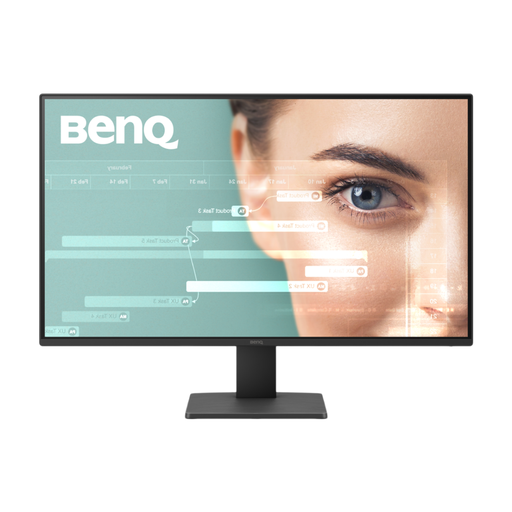
BenQ GW2791 27-inch IPS Full HD 100Hz monitor
For marking one document at a time, consider whether this 27-inch Full HD format gives you enough room for your text and feedback windows.
Check whether the stated tilt-only stand adjustment lets you position the screen away from reflections. If automatic adjustment as daylight changes matters, confirm that feature for this exact model.
View on Joybuy
 No image available
ASUS VY27UQ 4K UHD 60Hz monitor
Consider its 4K format if document detail matters more to you than a larger physical screen.
Check the exact screen finish for reflections beside the window. The stated stand adjustment is tilt only, so assess whether that provides enough positioning flexibility at your desk.
View on Joybuy
Common questions
Should I choose a brighter monitor for a desk beside a window?
Not on brightness alone: a brighter screen setting will not necessarily remove a window reflection. Position the display and lighting to avoid glare, then set a readable brightness level; an adjustable stand and suitable screen finish are also worth checking.
Will an anti-glare screen deal with all window glare?
No. Anti-glare treatment concerns light reflected at the panel, while direct light entering your eyes and strong brightness contrast can also affect the setup, as BenQ UK explains. Check where the window sits relative to both your eyes and the screen.
Will any USB-C monitor show video and charge my laptop through one cable?
No. Check that your laptop sends video over its USB-C connection and that the monitor’s power delivery meets the laptop’s charging requirements. Confirm the required cable as well; a USB-C connector alone does not establish those functions.
Is a 31.5-inch monitor worth choosing for marking?
Choose a 31.5-inch format if you want more physical room for documents and your desk lets you place it comfortably away from reflections. Measure the available width and depth first; screen size alone does not resolve glare or positioning.


