For a fixed desk used mainly to draft and revise theatre scripts, start by considering a 27-inch QHD monitor with an adjustable stand: it offers more native screen space than Full HD without making 4K a requirement for writing. Consider 4K if you also work with detailed visual materials, and choose USB-C charging only after checking that your laptop supports video through the connection and can use the monitor’s stated power delivery. Screen position, lighting and the rest of the workstation matter alongside the monitor.
Who is this for?
Writers revising for long sessions
If you spend extended periods reading dialogue and comparing drafts, screen positioning and the wider desk setup deserve attention. The Health and Safety Executive identifies workstation design and working conditions as relevant to fatigue, eye strain and discomfort.
Laptop-based writers seeking a simpler desk
If you move a laptop to a dedicated writing desk, a compatible USB-C monitor may combine display output, charging and peripheral connections. Check the particular laptop and monitor rather than relying on the USB-C label alone.
Writers prioritising initial cost
If straightforward drafting is your main task, you may be willing to consider Full HD instead of paying for resolution or connections you will not use. Check text size and screen positioning before choosing a 27-inch model.
What matters when choosing?
For theatre-script writing, settle how you will position the screen and arrange drafts and notes first; then decide whether your laptop connection needs to do more than carry video.
| Concern |
What to check |
Who this matters to |
| Positioning for long sessions |
Check height, tilt, swivel and pivot adjustment or mounting options; consider desk position and glare too. |
If I spend hours revising dialogue, I want to place the screen comfortably without neglecting my chair or lighting. Around 33% of consumers put workstation adjustability first. |
| Space for drafts and notes |
Compare screen size and native resolution, then try your usual font size, zoom and window layout. |
Keeping a script and research visible together matters more to me than laptop docking. For around 27% of consumers, workspace and text density are the primary concern. |
| Laptop connection |
Confirm USB-C video support, the monitor’s power delivery, your laptop’s charging requirement and the cable needed. |
When I sit down with my laptop, I want fewer connections to manage, provided the setup works with my computer. Roughly 20% of consumers prioritise compatible one-cable use. |
| Initial cost |
Compare resolution at the chosen size, stand adjustment and the ports you need before choosing a simpler screen. |
I mainly write at home and would rather avoid paying for features I do not expect to use. Keeping initial cost down comes first for around 20% of consumers. |
What should you avoid overlooking?
-
Assuming every 27-inch screen shows text at the same density
BenQ lists 82 pixels per inch for its 27-inch Full HD GW2790 and 109 pixels per inch for its 27-inch QHD GW2790QT. Screen size alone does not tell you their native pixel density.
Compare size and resolution together, and view your usual script font and zoom level if you can.
-
Assuming USB-C guarantees a one-cable laptop setup
LG specifies charging up to 90 W on the 27UP850K-W, while BenQ specifies 65 W power delivery and DisplayPort Alt Mode on the GW2790QT. Whether either arrangement works depends on the laptop and cable.
Check the laptop’s USB-C video capability and charging requirement, plus the monitor’s connections and the cable you plan to use.
If video output or charging is incompatible, you may still need a separate charger, cable or dock.
-
Expecting the monitor alone to fix an awkward desk setup
The Health and Safety Executive advises considering the whole workstation, including equipment, furniture, working conditions and the task. Glare and screen position can still be troublesome with a new display.
Arrange the screen with the desk, chair and lighting in mind, and allow for breaks during long writing sessions.
Brands to consider for these monitor types
Dell
Dell’s UltraSharp U2724D is a 27-inch QHD option to examine if screen adjustment is central to your writing desk.
- Dell lists a 2560 × 1440 IPS Black panel and height, pivot, swivel and tilt adjustment for the U2724D.
- Check the connections on the exact Dell model you choose; these U2724D display and stand specifications do not establish USB-C laptop charging.
LG
LG’s 27UP850K-W is relevant when scriptwriting shares the desk with visually detailed work or a compatible USB-C laptop.
- LG specifies a 27-inch 4K IPS display and USB-C display, data and charging support up to 90 W for this model.
- Check whether you will use its visual-work features and whether its USB-C capabilities match your laptop; 4K is not required simply to write a script.
BenQ
BenQ’s GW2790 and GW2790QT illustrate two different 27-inch choices: Full HD for simpler requirements and QHD with more specified desk connections.
- BenQ lists 1920 × 1080 and 82 pixels per inch for the GW2790; the GW2790QT lists 2560 × 1440, 109 pixels per inch and 65 W USB-C power delivery.
- Do not treat the two models as interchangeable: compare their resolution, stand and laptop connections against your own setup.
Joybuy monitor choices
These Joybuy choices include a WQHD screen and several 4K monitors, including models aimed at creative work and gaming. For scriptwriting, compare their stated display features with the positioning and connection options your desk requires.
 No image available
ASUS ProArt PA278CV IPS WQHD
Consider this WQHD option if writing with drafts and notes on screen is your main use.
IPS and WQHD are stated in the product name. Before planning a one-cable laptop desk, check its USB-C video support and power delivery against your laptop.
View on Joybuy
 No image available
iiyama ProLite XUB2792UHSU-B6 27-inch 4K UHD
This is a 4K option to consider if your script desk also serves detailed visual work.
The product name identifies a 27-inch 4K UHD LED monitor. Check the stand and your preferred text scaling, and confirm any required USB-C functions before relying on laptop docking.
View on Joybuy
 No image available
ASUS ProArt PA27DCE-K OLED 4K UHD
Consider this model if you want a 4K screen for writing alongside visual projects and have a reason to choose OLED.
OLED and 4K UHD are identified in the product name. Check text scaling and confirm the connections and charging capability your laptop needs.
View on Joybuy
 No image available
ASUS Eye Care VY27UQ 4K UHD 60Hz
This 4K model is worth comparing if you want the resolution for tasks beyond drafting scripts.
The product name states 4K UHD and 60Hz. Check its stand adjustment or mounting options against your desk; the Eye Care name alone cannot replace a suitable workstation setup.
View on Joybuy
 No image available
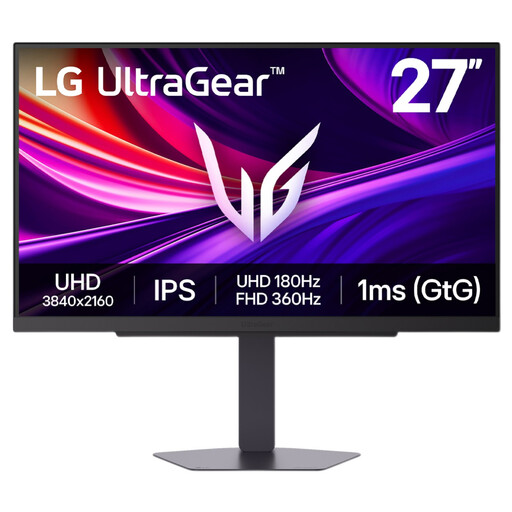
LG UltraGear 27G810A-B 27-inch IPS 4K UHD
Consider this gaming-oriented model for scriptwriting only if its other uses matter to you too; gaming features alone do not establish a writing advantage.
The product name identifies a 27-inch IPS 4K UHD display with Dual Mode. Check the connections, stand and text-scaling options you would use at your writing desk.
View on Joybuy
Common questions
Do I need 4K to write theatre scripts?
No: 4K is a choice for your wider screen use, not a prerequisite for drafting. Dell and BenQ specify 2560 × 1440 for their respective 27-inch U2724D and GW2790QT QHD models; consider 4K if you also work with detailed visual materials, and check how your writing software looks at a comfortable text size.
Can one USB-C cable connect and charge my laptop?
It can when the laptop supports compatible video output and the monitor supplies suitable charging power. LG specifies display, data and charging up to 90 W on the 27UP850K-W; BenQ specifies DisplayPort Alt Mode, data and 65 W power delivery on the GW2790QT. Check your laptop’s port, charging requirement and cable before choosing either setup.
Will an eye-care monitor make desk setup less important?
No. The Health and Safety Executive advises considering equipment, furniture, working conditions and the task as part of the workstation. Check screen position and glare, as well as the chair, desk arrangement and breaks, rather than relying on a monitor label alone.


