Quiet, detail-focused route planners
You spend time zooming, panning and scrolling through cycle-route maps near colleagues. You want controllable pointer movement without making every click or turn of the wheel noticeable.


For frequent map panning and scrolling, consider a quiet productivity mouse with adjustable pointer sensitivity and a controllable wheel. A vertical mouse is worth considering when hand fit during long sessions matters more; a compact silent model suits simpler shared-desk use. Whichever shape you choose, check wheel noise, your desk surface and the connection allowed by your work computer.
You spend time zooming, panning and scrolling through cycle-route maps near colleagues. You want controllable pointer movement without making every click or turn of the wheel noticeable.
You plan routes for extended periods and want a mouse shape that suits your hand and desk arrangement. Hand-size guidance and your working position matter alongside the shape itself.
You want straightforward, quiet operation on workplace hardware. Bluetooth and receiver connections are useful options to compare when desks or computers change.
Choose the grip and controls for your mapping work, then check whether the mouse can connect to your work computer and sit comfortably within your desk setup.
Consider it when: frequent panning and scrolling make pointer and wheel control central to your work.
Bear in mind: its conventional grip may not suit someone seeking a different hand position.
Consider it when: a vertical grip suits your hand during longer planning sessions.
Bear in mind: check your accuracy when repeatedly dragging and tracing routes; the shape alone does not establish a comfortable fit.
Consider it when: uncomplicated controls and a compact shape matter more than specialised scrolling or extra buttons.
Bear in mind: compact models such as Dell’s three-button MS355 offer fewer controls for shortcut-heavy work.
| Concern | What to check | Who this matters to |
|---|---|---|
| Click and scroll noise | Check quiet-click and quiet-wheel claims separately; wireless connectivity does not tell you how the wheel sounds. | I scroll through maps beside colleagues and want both button presses and wheel use to be less distracting. Keeping those sounds down is the main concern for around 33% of consumers. |
| Map navigation | Look for adjustable pointer sensitivity and wheel controls you can use comfortably; check whether changing settings requires software. | Small map targets and repeated panning make a controllable pointer more important to me than a high DPI figure alone. Around 27% of consumers put navigation control first. |
| Long-session comfort | Check hand size and handedness guidance. The Health and Safety Executive advises keeping the mouse in line with your elbow. | When I plan routes for a long stretch, I need a shape and desk position that work for my hand. Fit is the primary concern for around 27% of consumers. |
| Shared-desk connection | Confirm Bluetooth availability, receiver and port compatibility, and workplace IT rules. | If I change desks or use managed hardware, I need a connection my computer will actually permit. That practical requirement comes first for around 13% of consumers. |
Long stretches of route browsing may involve more scrolling than clicking, and quiet buttons do not establish that the wheel is quiet.
Check the two claims separately. Logitech describes both Quiet Clicks and quiet MagSpeed scrolling for the MX Master 3S.
A different grip may not suit your hand or the repeated dragging involved in mapping. Desk arrangement matters too.
Check the model’s hand-size and handedness guidance. The Health and Safety Executive advises keeping the mouse in line with your elbow; raise persistent discomfort through a workstation assessment.
DPI describes pointer sensitivity, not how precisely you will handle small targets on a particular map and display.
Look for adjustable sensitivity and check how to change it, including whether your work computer permits the required software.
A receiver needs a suitable port, while Bluetooth may be unavailable or restricted on managed hardware.
Check the computer’s ports, Bluetooth capability, operating system and IT rules before choosing a connection method.
Its MX Master 3S and Lift illustrate different approaches to quiet office work: conventional productivity controls and a vertical grip.
The Pro Compact Silent Mouse MS355 is an example of a compact office mouse with Bluetooth and RF-receiver connectivity.
The HP 280 Silent Wireless Mouse illustrates a straightforward wireless office option.
These mice cover conventional map-navigation use, vertical grips and simpler shared-desk options. Check click and wheel noise on each model where quiet operation matters; the same features are not established for every product here.
 No image available
Consider this conventional mouse if frequent map navigation is your priority. Check that any pointer or button customisation you need can be used on your work computer; for a glass desk, confirm the applicable surface conditions.
 No image available
Consider its vertical shape and detachable wrist rest if hand position matters during longer sessions. Check how it fits your hand, whether both clicking and scrolling are quiet enough for your office, and whether workplace rules permit any customisation software you need.
 No image available
This is an option if quiet clicks and a choice of 2.4G or Bluetooth connection suit your shared desk. Check wheel noise separately for frequent map scrolling, and confirm that your computer has a suitable port if you intend to use a receiver.
 No image available
Consider this vertical model if its grip and extra buttons suit how you navigate route maps. Check hand fit and click and wheel noise before choosing it for a shared office, and confirm compatibility with your work computer.
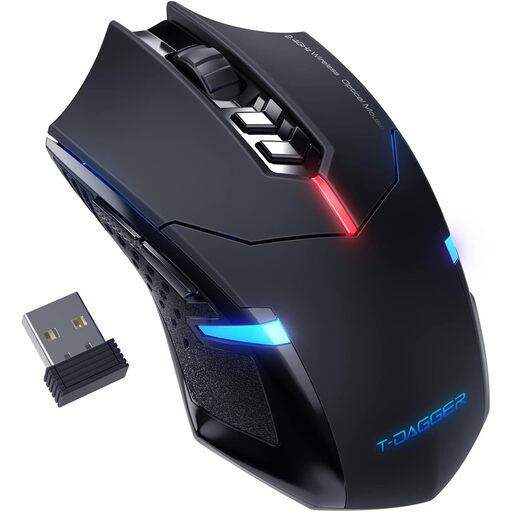 No image available
Consider this USB-receiver mouse if adjustable pointer sensitivity and quiet left and right clicks meet your needs. Check wheel noise for frequent scrolling and whether its side buttons work with your computer; the described side buttons are unavailable on Mac.
No: mouse shape is only one part of the workstation. The Health and Safety Executive says employers must assess the workstation when workers use display screen equipment daily as part of normal work for continuous periods of an hour or more; the assessment considers the workstation and individual needs.
Keep the mouse in line with your elbow, as the Health and Safety Executive advises. Its workstation guidance also says to keep the screen and keyboard central and avoid twisting your back.
No: Logitech describes Lift as a vertical mouse for small to medium hands and offers a left-handed variant. Check the variant and whether its grip feels controllable when you drag and trace routes; its 57° shape does not establish a comfortable fit for everyone.
Use the connection your work computer and IT rules allow. Bluetooth does not occupy a USB port, while a receiver needs a compatible one; Dell specifies both Bluetooth and RF connectivity for the MS355, and Logitech specifies Bluetooth Low Energy and a Logi Bolt receiver for Lift.
No: DPI describes pointer sensitivity, not proven accuracy in a map application. Adjustable sensitivity lets you find a controllable setting for your display; check whether changing it requires software your work computer can use.