High-volume catalogue editors
If you spend long sessions scrolling product lists, selecting fields and repeating browser actions, wheel control and buttons you can reach easily deserve particular attention.


For catalogue work dominated by long product lists and repeated actions, start with a conventional mouse whose wheel and controls suit those tasks. Consider a vertical mouse if hand fit and grip are your priority, or a trackball if you have little room to move a mouse. Whichever shape you choose, check connection and software compatibility and position the mouse comfortably within your workstation.
If you spend long sessions scrolling product lists, selecting fields and repeating browser actions, wheel control and buttons you can reach easily deserve particular attention.
If a conventional mouse feels uncomfortable during extended work, consider how another shape fits your hand and how it sits within your desk setup. The Health and Safety Executive advises positioning the mouse in line with your elbow.
If space beside your keyboard is tight, a stationary trackball is worth considering. If you move between computers, check the mouse’s connection methods, available ports and any software you need.
For catalogue updates, choose the control style that fits your most frequent task, then check hand fit and computer compatibility before deciding.
Consider it when: Long lists, repeated field selection and shortcuts take up much of your working day.
Trade-off: Extra controls are useful only if you can reach them comfortably and any shortcut software works with your computer.
Consider it when: You prefer a handshake-style grip and can find a shape suited to your hand and dominant side.
Trade-off: Button reach and the different grip can take getting used to; the shape does not replace a well-positioned workstation.
Consider it when: Desk space is tight or you would rather move a ball than move the whole mouse.
Trade-off: Pointer control feels different, so assess whether its ball and buttons suit frequent selection and dragging.
| Concern | What to check | Who this matters to |
|---|---|---|
| Comfort during long sessions | Hand fit and button reach; whether the mouse can sit in line with your elbow. | After hours of pointing and clicking, I want a grip I can use comfortably without reaching across the desk. Roughly 36% of consumers would make comfort their primary concern. |
| Scrolling and repeated actions | Wheel control and reachable extra buttons; operating-system support for shortcuts. | When product lists are long, I need to move between pages and fields without fighting the controls. Around 29% of consumers would put navigation efficiency first. |
| Computer compatibility | Bluetooth or receiver requirements and available ports; support for any configuration software. | If I work across devices, I need a connection and button setup that works with each computer I use. About 21% of consumers would prioritise compatibility. |
| Limited desk space | Room beside the keyboard and whether ball-operated pointing suits selection and dragging. | With little space to move a mouse, I would consider a stationary trackball, provided I can control it accurately. Roughly 14% of consumers would put space or alternative control first. |
Mouse position still matters. The Health and Safety Executive advises keeping the screen and keyboard central and the mouse in line with your elbow.
Arrange your chair, screen, keyboard and mouse so you are not reaching or twisting, then assess which mouse shape suits your work.
Vertical models differ in size and handedness. Logitech describes Lift as suited to small to medium hands and offers a left-handed version; that guidance does not apply to every vertical mouse.
Check the manufacturer’s hand-size guidance, the correct handed version and whether you can reach the buttons comfortably.
Adjustable pointer sensitivity does not tell you how controllable the wheel feels or whether extra buttons help with catalogue updates.
Assess scrolling and button placement for your usual tasks, then adjust pointer speed to suit your setup.
As Posturite explains, a trackball moves the pointer through the ball rather than by moving the whole device. That changes how selection and dragging feel.
Consider the ball position and button layout in relation to the tasks you perform most often.
Its MX productivity mice, Lift vertical mouse and MX Ergo trackball represent different control styles for catalogue work.
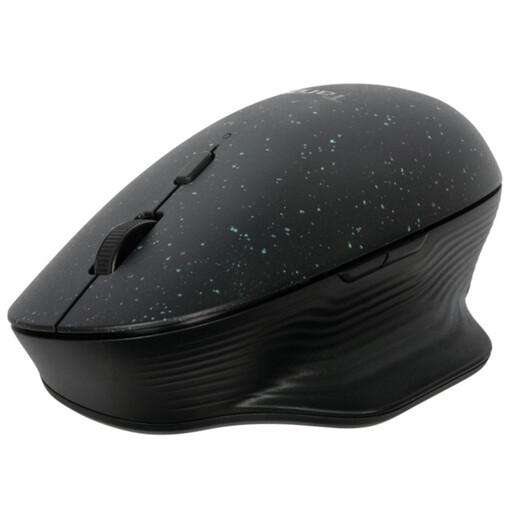
The Pro Premium Mouse MS900 is a conventional wireless option with controls aimed at desktop productivity.
Its trackball options are relevant if you want pointer control without moving a mouse across the desk.
These mice offer vertical-grip and other wireless control options for a home-office desk. Compare their fit, connection method and controls against the catalogue tasks you perform most often.
 No image available
Consider this vertical-grip option if you want to assess wrist-rest placement alongside the controls you use for catalogue work.
The named variant includes a detachable wrist rest. Check hand fit, handedness and whether HP Accessory Center works with your computer if you intend to customise buttons.
 No image available
Consider its vertical grip if hand position is your priority, while checking whether its controls suit frequent browser navigation.
The product name specifies 2.4 GHz dual-mode connectivity, six buttons and an adjustable sensor up to 1600 DPI. Check hand-size fit and handedness before choosing it.
 No image available
Consider this option if switching between left- and right-handed use matters at your desk.
Check how its shape fits each hand and whether the wheel and buttons suit long lists and repeated actions. Its BlueTrace tracking may not work on some glass or mirrored surfaces.
 No image available
Consider it if configurable actions matter to your workflow, but assess the wheel separately for long catalogue pages.
The product name specifies Bluetooth, 2.4 GHz and USB-C modes, a PAW3311 sensor and a charging dock. Check that any button-mapping software works with your computer and usual applications.
 No image available
Consider it if quieter clicks and switching between devices are priorities in your home-office setup.
The product name specifies adjustable DPI and a 1×AA battery. Check the wheel and button controls if repeated scrolling or shortcuts are central to your catalogue work, and confirm package contents if the battery matters to you.
A vertical mouse is worth considering if you prefer its grip and can find one that fits your hand, but its shape alone is not a solution to discomfort. Check button reach and control during selection and dragging, and follow the Health and Safety Executive’s advice to keep the mouse in line with your elbow.
A separate mouse can give you more freedom to arrange a laptop workstation for prolonged catalogue work. Choose one you can position comfortably beside the keyboard, then check its connection requirements against your laptop’s available ports and Bluetooth support.
Choose the method your computer supports and that leaves you with the ports you need. Bluetooth avoids occupying a USB port; a receiver needs a compatible port. For either method, check the exact mouse model’s operating-system requirements and any software needed to configure its buttons.