For detailed portfolio-homepage work near colleagues, start with a conventional productivity mouse if controlled scrolling, shortcuts and quieter clicks are your priorities. A vertical mouse is worth considering if you prefer a more upright grip; a stationary trackball makes more sense when moving a mouse across the desk is awkward. Check hand fit and connection options whichever shape you choose, and do not treat a high DPI figure alone as a promise of precise control.
Who each mouse type may suit
Layout-focused designers
If you move between a design canvas, browser previews and long pages, adjustable pointer speed and a scroll wheel you can control may matter more than a headline sensitivity figure. Logitech describes these controls on its MX Master 3S.
People working close to colleagues
If repeated clicking could disturb nearby desks, look for a model whose maker explicitly specifies quieter clicks. Logitech and Kensington identify quiet-click options, but the claim does not mean the whole mouse is silent.
People prioritising grip or desk space
A vertical mouse offers a different grip, while a thumb trackball stays in place on a crowded desk. Check hand fit and whether the unfamiliar control style suits detailed layout adjustments; neither shape replaces a suitable workstation setup.
What to check before choosing
Conventional productivity mouse
Choose it when: You want familiar pointer control, long-page scrolling and shortcuts alongside a stated quiet-click feature.
Bear in mind: It still needs room to move across the desk; adjustable sensitivity does not guarantee accurate layout work.
Vertical mouse
Choose it when: You would rather try an upright grip than retain a conventional mouse shape.
Bear in mind: Grip and hand-size fit vary by model, and pointer movement may take time to get used to.
Stationary trackball
Choose it when: Desk space is tight and moving the pointing device across the surface is inconvenient.
Bear in mind: Thumb control differs from mouse movement, and the ball area needs cleaning.
| Concern | What to check | Who this matters to |
|---|
| Pointer control and navigation |
Look for adjustable sensitivity and a scroll mode you can control on your display and desk surface. |
When I am placing images and checking long homepage layouts, I need to move quickly without overshooting small targets. Around 42% of consumers would put pointer control and navigation first. |
| Click disturbance |
Check for an explicit quiet-click claim; do not assume it covers wheel or movement noise. |
If colleagues sit close by, I want repeated clicks to be less intrusive during design work. Roughly 33% of consumers would make quieter clicking their primary concern. |
| Grip and desk space |
Compare the stated hand fit and the room needed to operate the mouse or trackball. |
I may prefer a different grip or need a controller that stays put on a crowded desk, even if it takes practice to use. About 25% of consumers would prioritise grip or desk space. |
Buying mistakes to avoid
-
Choosing by the highest DPI figure
DPI describes pointer sensitivity, not the accuracy of a finished design. A setting that moves the cursor too far for your display and hand control can make small adjustments harder.
Choose adjustable sensitivity and set it to a speed at which you can position elements without overshooting.
-
Assuming an upright grip will fit every hand
Vertical shapes differ. Logitech positions Lift for small to medium hands, while Kensington describes its TB550 trackball for average to larger hands.
Check the maker's dimensions and stated fit before committing to a different control shape.
-
Expecting a new mouse to resolve workstation discomfort on its own
The Health and Safety Executive advises considering the wider display screen equipment workstation, including equipment, furniture and working conditions.
Keep the controller within comfortable reach and raise persistent discomfort through your workplace's workstation assessment process.
-
Choosing a trackball solely to save desk space
Stationary placement can free movement space, but thumb-operated cursor control may feel different during fine layout adjustments.
Allow time to assess the control style and check how the ball is cleaned; Kensington describes a ball-ejection design on its TB550.
Brands to consider
Logitech
Offers conventional productivity mice, a vertical mouse and a stationary trackball relevant to these different desk needs.
- Logitech specifies quiet clicks on the MX Master 3S and MX Anywhere 3S; the MX Master 3S also has a MagSpeed wheel.
- The Lift's stated small-to-medium-hand fit may not suit everyone, and a trackball requires a different control motion.
Kensington
Provides office-oriented alternatives for people considering a different grip or a stationary controller.
- Kensington specifies quiet clicking for its Pro Fit Ergo Wireless Mouse and a removable-ball cleaning design for its TB550 trackball.
- The models have different stated hand-size fits: small to medium for the mouse and average to larger for the TB550.
Razer
The Pro Click V2 is a right-handed productivity option with configurable shortcuts and multi-device features.
- Razer describes an extended thumb rest, a dual-mode scroll wheel and device switching on the Pro Click V2.
- If low click disturbance is essential at a shared desk, confirm that requirement separately before choosing this model.
Joybuy mouse choices
These choices cover conventional mice for pointer work and shared desks, plus vertical mice for consumers considering a different grip. Compare their stated features against your connection, noise and hand-fit priorities.
 No image available
Logitech MX Master 3S mouse, black
Consider this conventional mouse if controlled scrolling and quieter clicks matter during layout and browser work.
Logitech specifies quiet clicks, adjustable tracking and a MagSpeed wheel for the MX Master 3S. Its conventional shape still needs room to move.
View on Joybuy
 No image available
HOFOTEK M311 2.4G+BT Silent Mouse, white-grey
The silent-click description makes this a conventional option to examine for a desk close to colleagues.
The product name specifies 2.4G+BT connectivity and a 1xAA battery requirement. Check hand fit and scroll-wheel behaviour if you will use it for extended design sessions.
View on Joybuy
 No image available
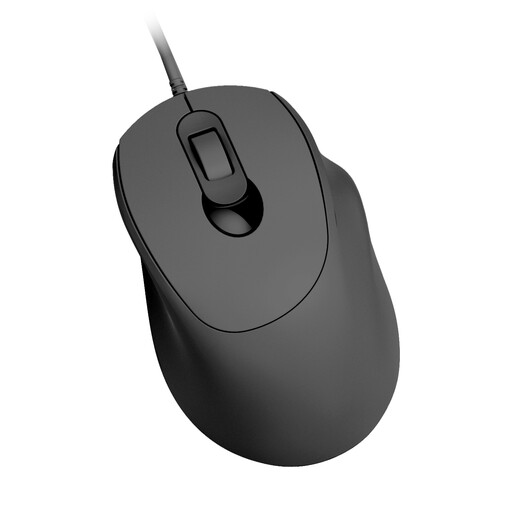
Rexsun V2 wired USB mouse, black
Consider it if a wired connection suits your shared desk and silent-click buttons are a priority.
The product name specifies four buttons and selectable 1000, 1200 and 1600 DPI settings. Confirm that your setup has a suitable USB port and space for the cable.
View on Joybuy
 No image available
HP 920 Ergonomic Wireless Mouse, black, with detachable wrist rest
This is a vertical-shape option if changing grip matters more to you than retaining conventional mouse control.
The product name identifies a detachable wrist rest. Check hand fit and confirm click-noise characteristics if quieter operation is essential.
View on Joybuy
 No image available
V7 MW500BT Bluetooth vertical mouse
Consider its more upright shape if you want to try a different grip for desk-based design work.
The product name specifies 2.4GHz dual-mode connectivity, six buttons and an adjustable sensor up to 1600 DPI. Check hand fit and click noise before choosing it for a shared office.
View on Joybuy
Common questions
Do I need a high-DPI mouse to design a portfolio homepage?
No particular DPI figure is required for portfolio-homepage design. Adjustable pointer speed is more useful than choosing by the largest number: set it so that small cursor movements remain controllable on your display.
Is a vertical mouse automatically more suitable for long design sessions?
No; a vertical grip is an option to assess, not a universal fit. Check the model's stated hand-size range and whether you can comfortably control the pointer during detailed work. Logitech positions Lift for small to medium hands.
Do UK workplace rules specify which mouse I should use?
The Health and Safety Executive's display screen equipment guidance does not prescribe a particular mouse model. It says employers must assess workstations for workers who use display screen equipment daily as part of their normal work, continuously for an hour or more, and address identified risks.
What if using a mouse causes discomfort at my shared-office desk?
Raise the discomfort through your workplace's display screen equipment assessment process rather than relying on a replacement mouse alone. The Health and Safety Executive advises reassessment when a worker reports pain or discomfort, with changes to the equipment or workstation where needed.


