For portfolio-homepage design, choose configurable controls if repeated scrolling and tool changes dominate your work. Consider a vertical mouse if an upright grip and hand fit matter more, or a gesture-focused mouse if you use a compatible Apple device and prefer swiping to physical shortcuts. Check software compatibility and keep the mouse in line with your elbow rather than expecting a different mouse shape to address discomfort on its own.
Who each mouse may suit
Shortcut-heavy homepage designers
If you move repeatedly between design tools, files and browser previews, configurable buttons or wheels may put frequent actions within reach. Logitech and Razer describe these controls on their respective productivity mice; check whether their configuration software works with your setup.
Comfort-first desk users
If long pointer sessions make grip and placement your main concerns, assess the mouse shape alongside your desk setup. Logitech describes Lift as a vertical option for small to medium hands, while the Health and Safety Executive advises keeping the mouse in line with the elbow.
Mac-centred portfolio builders
If you mainly review pages on a compatible Mac or iPad, swipe and scroll gestures may matter more to you than extra physical controls. Apple describes these gestures for its Magic Mouse; check the requirements for the exact version you intend to buy.
What to check before choosing
Start with the part of homepage design that shapes your daily mouse use: repeated navigation, grip during long sessions or gestures on an Apple device.
| Concern |
What to check |
Who this matters to |
| Scrolling and repeat actions |
Check wheel behaviour, button placement and whether your device permits the software needed to assign useful shortcuts. |
When I move between design tools and long browser previews, I want frequent actions within easy reach; around 45% of consumers put workflow efficiency first. |
| Hand fit and posture |
Check the maker’s hand-size and handedness guidance, and whether the mouse can sit in line with your elbow. |
For long desk sessions, I would rather assess how a grip fits than choose by button count; roughly 33% of consumers prioritise hand fit and posture. |
| Apple-device gestures |
Check the exact mouse version and operating-system requirements, then decide whether gestures or dedicated shortcut buttons suit your work. |
If my portfolio work stays on a Mac or iPad, I want swipe navigation for reviewing pages; about 22% of consumers put compatible gesture controls first. |
Mistakes to avoid
-
Choosing a vertical mouse without checking fit
A vertical shape does not suit every hand or preferred grip. Logitech positions Lift for small to medium hands and offers a separate left-hand version.
Check the maker’s sizing and handedness guidance. If you cannot try the mouse first, review the retailer’s applicable return policy before buying.
-
Expecting an ergonomic mouse to resolve persistent pain
A mouse is only one part of a workstation. The Health and Safety Executive advises keeping it in line with the elbow, and the NHS notes that repetitive use can contribute to repetitive strain injury.
Review your workstation and work routine. If symptoms persist or worsen, seek appropriate medical advice rather than relying on another peripheral change.
-
Assuming shortcuts work without setup
Logitech associates MX Master 3S for Business customisation with Logi Options+, while Razer associates Pro Click V2 shortcut configuration with Synapse 4. Physical controls alone do not establish that your preferred assignments will work.
Check operating-system compatibility, permission to install software and the actions available in your design tools before choosing for programmable controls.
-
Choosing by DPI alone
DPI describes pointer sensitivity, not how conveniently you can scroll through a page, reach a control or hold a mouse during a long session.
Prioritise the control layout, grip and device compatibility you need, then adjust pointer speed to allow comfortable selection in your design tools.
Brands to consider
Logitech
Its MX Master 3S for Business and Lift illustrate different choices: configurable productivity controls or a vertical grip.
- Logitech specifies seven buttons, a thumb wheel and 200–8000 DPI tracking for MX Master 3S for Business.
- Logitech describes Lift as a 57° vertical mouse for small to medium hands; check fit and select the appropriate handedness version.
Razer
Pro Click V2 is relevant if your mouse also needs to switch among devices or serve other precision-heavy PC tasks.
- Razer specifies five-way multi-device connectivity and a scroll wheel with selectable behaviour for Pro Click V2.
- Its optional shortcut configuration uses Synapse 4; decide whether those controls are useful in your own design workflow.
Apple
Magic Mouse is a gesture-focused option for compatible Mac and iPad workflows.
- Apple describes a Multi-Touch surface for swiping between webpages and scrolling through documents.
- For the USB-C Magic Mouse described by Apple, the stated requirements are macOS 15.1 or later or iPadOS 18.1 or later. Check the requirements of the exact version you choose.
Joybuy mice for homepage design
These options span configurable controls for scrolling and repeat actions, a vertical grip, a convertible left- or right-hand design and Multi-Touch navigation. Compare the features you will use with hand fit and device compatibility.
 No image available
Logitech MX Master 3S Black
Consider this mouse if long-page scrolling and repeat actions are central to your design and preview work.
The listing describes MagSpeed scrolling, a thumb wheel, seven programmable buttons, 200–8000 DPI settings and Bluetooth or Logi Bolt connectivity.
Button customisation requires Logi Options+. Check software permissions and whether the sculpted shape fits your hand.
Joybuy
 No image available
RAPOO MT760L-LG Mouse
This is an option if you want side scrolling and assignable controls while moving through layouts and browser previews.
The listing describes 11 programmable buttons, seven DPI settings and Bluetooth 5.0 or 2.4 GHz connectivity.
Cross-computer control requires a driver and computers on the same Wi-Fi or Ethernet network. Wireless charging requires a separately purchased P3 Wireless Charging Module; check hand fit before choosing.
Joybuy
 No image available
V7 MW500BT Bluetooth Vertical Mouse
Consider its vertical shape if an upright grip is more important to you than a large set of configurable shortcuts.
The listing specifies six buttons, including Forward and Back controls, 800, 1200 and 1600 DPI settings, and Bluetooth or 2.4 GHz connectivity.
Check that its shape and handedness suit you; the stated button layout should not be mistaken for software-programmable shortcuts.
Joybuy
 No image available
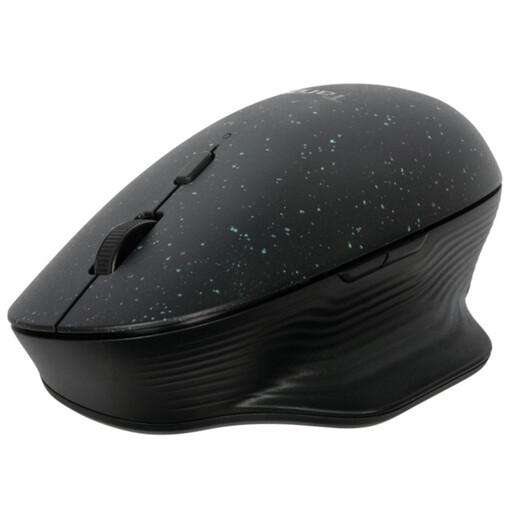
Targus Ergoflip EcoSmart® Wireless Mouse
Its convertible design is worth considering if a mouse needs to accommodate left- or right-hand use.
The listing describes a top that twists to change handedness, six buttons, Bluetooth 5.0 LE and sensitivity up to 4000 DPI.
Check hand fit and your desk surface: the stated BlueTrace tracking may not work on some glass or mirrored surfaces.
Joybuy
 No image available
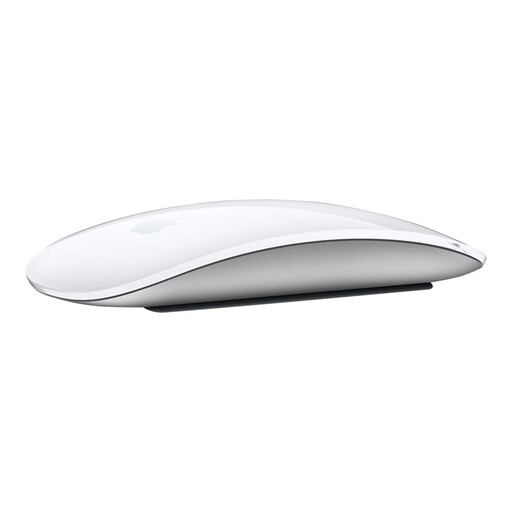
Apple Magic Mouse White Multi-Touch Surface
Consider this mouse if swiping through webpages and scrolling during portfolio review matter more to you than dedicated physical shortcut buttons.
The listing describes a Multi-Touch surface, Bluetooth connectivity and rechargeable operation.
Confirm this exact mouse version and its compatibility with your Mac or iPad before buying; do not apply the requirements of a different Magic Mouse version without checking.
Joybuy
Common questions
Do I need a high-DPI mouse to design a portfolio homepage?
No particular DPI figure establishes that a mouse will suit homepage design. Logitech specifies adjustable 200–8000 DPI tracking for MX Master 3S for Business, but you should choose a pointer speed that lets you select and align elements comfortably in your own tools.
Can a vertical mouse fix wrist pain from computer work?
Do not rely on a vertical mouse as a treatment for pain. A shape such as Logitech Lift’s 57° design may appeal if you prefer a more upright grip, but fit is individual; review your workstation and seek medical advice if symptoms persist or worsen.
Where should I place my mouse during long design sessions?
Keep the mouse in line with your elbow, as the Health and Safety Executive advises. Assess its position as part of your whole desk setup, rather than judging comfort by mouse shape alone.
Will every Magic Mouse work with my Mac or iPad?
Check the requirements for the exact Magic Mouse version before buying. Apple states that its USB-C Magic Mouse requires macOS 15.1 or later on a Mac or iPadOS 18.1 or later on an iPad; those requirements should not be assumed for a different version.


