Shared-desk dashboard builders
If you change desks or sit close to colleagues, click noise, available space and the connection permitted on your work computer can shape the choice before scrolling features do.


For sales dashboards at a shared desk, start with a conventional mouse if familiar control, scrolling and easy movement between desks matter most. Consider a vertical mouse if its grip and hand fit suit long sessions, or a stationary trackball if there is little room to move a mouse; none replaces checking the whole workstation setup.
If you change desks or sit close to colleagues, click noise, available space and the connection permitted on your work computer can shape the choice before scrolling features do.
If you move repeatedly through long tables, charts and filters, consider how the wheel handles both small adjustments and longer scrolls. Device switching and shortcuts matter chiefly if your work setup allows you to use them.
If extended pointer use makes fit your priority, compare the grip, hand-size guidance and placement of each mouse. The Health and Safety Executive advises considering the whole display-screen-equipment workstation, not the pointing device alone.
Choose the control method that fits the space and your hand first, then check scrolling and work-device connections against the dashboard tasks you perform.
Choose it when: you change desks and want familiar pointer control for selecting cells and navigating pages.
Trade-off: a compact shape still needs to fit your hand, and you need room to move it.
Choose it when: an upright grip feels controllable during your longer dashboard sessions.
Trade-off: hand fit and handedness vary by model, and the unfamiliar grip may take getting used to.
Choose it when: the desk leaves little space for moving a mouse beside the keyboard.
Trade-off: thumb-operated cursor control feels different, so check whether it suits precise dashboard work.
| Concern | What to check | Who this matters to |
|---|---|---|
| Quiet, portable use | Check stated click noise, connection options and whether the required receiver is included. | When I change desks and work near colleagues, I want to set up without disturbing them. Around 30% of consumers put quiet, portable use first. |
| Dashboard navigation | Look for the wheel modes you need and confirm whether work-device software permits button shortcuts. | Long tables call for quick scrolling, but I still need control when selecting individual rows; around 30% of consumers prioritise dashboard navigation. |
| Hand and wrist comfort | Check hand-size and handedness guidance, grip fit and whether the mouse can sit within easy reach. | During prolonged pointer use, I need a shape I can control comfortably. Hand and wrist comfort comes first for around 30% of consumers. |
| Limited movement space | Measure the clear area beside the keyboard and, for a trackball, check thumb control and cleaning access. | With documents and equipment crowding the desk, I may have too little room to move a mouse; around 10% of consumers make movement space their primary concern. |
Poor reach or workstation arrangement may remain a problem after a mouse change. The Health and Safety Executive advises placing the mouse within easy reach so it can be used with a straight wrist.
Check the full desk setup and use your employer’s display-screen-equipment assessment process where it applies, particularly if you experience discomfort.
Bluetooth, USB receivers and optional configuration software may be treated differently by work-device settings and IT policy.
Confirm the exact model’s connection method, operating-system support, supplied accessories and permitted software before buying.
An upright grip and thumb-operated cursor control are different from using a conventional mouse; a product’s ergonomic description does not establish your personal fit.
Use model-specific hand-fit guidance and, where practical, try the grip while selecting cells and moving through dashboard controls.
Logitech says the compatible Logi Bolt receiver is not included with its MX Anywhere 3S, so its Bluetooth option may be important on a work device without a suitable receiver.
Check the exact box contents and whether your work computer permits the connection you intend to use.
Its relevant lines span compact conventional mice, hand-size variants, vertical mice and stationary trackballs.
Its Pro Fit Ergo range offers vertical-mouse and trackball options for different desk and control preferences.
Its Pro Click V2 line is relevant if scrolling modes, shortcuts or device switching are central to your dashboard work.
These mice offer conventional and upright-grip choices for shared-desk dashboard work. Compare each one’s fit, scrolling and connection requirements against your own desk; the products below are not trackball options.
 No image available
Consider this conventional mouse if scrolling through long dashboard pages and controlling multiple work devices are priorities.
Check that its grip suits you, that any button-configuration software is permitted at work and whether the receiver you need comes in the box.
 No image available
Its stated silent-click design may interest you if nearby colleagues make click noise a priority.
The title specifies 2.4G+BT connectivity, adjustable DPI and one AA battery. Check the wheel’s behaviour on long dashboard pages and whether the shape fits your hand.
 No image available
Consider it if grip and wrist-rest arrangement are important during longer dashboard sessions.
Check the shape against your hand and desk position. If click noise or customisable controls matter, confirm how this model meets those needs and whether workplace software rules permit configuration.
 No image available
Its vertical shape is worth considering if you prefer an upright grip while working through dashboards.
The title specifies six buttons and an adjustable 1600 DPI sensor. Check hand fit, pointer control and whether its wireless connection is permitted on your work computer.
 No image available
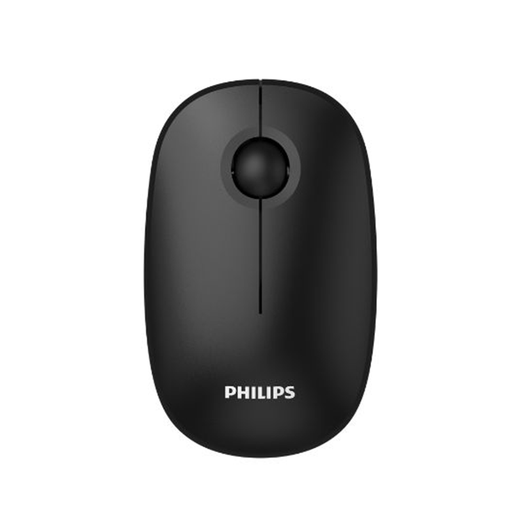
Its stated quiet clicks suit a shared desk where nearby colleagues make mouse noise a concern.
The title specifies 2.4GHz wireless, a USB receiver and a 1600 DPI optical sensor. Confirm that receiver use is permitted and that the wheel suits your dashboard pages.
Hot-desking does not remove the assessment requirement for workers covered by it. The UK Health and Safety Executive says employers must assess workstations when workers use display screen equipment daily as part of normal work for continuous periods of an hour or more, and its guidance expressly includes hot-desking.
A vertical mouse alone is not a reliable answer to discomfort. The Health and Safety Executive advises considering the whole workstation, the task and individual requirements; check reach and desk arrangement as well as whether an upright grip suits you.
Keep it within easy reach so you can use it with a straight wrist. The Health and Safety Executive also advises positioning the mouse in line with your elbow rather than stretching your arm across the desk.
Choose a connection your work computer and IT policy permit. Check the exact mouse model’s supported connection, the available USB ports, operating-system compatibility and whether the required receiver is supplied.
A stationary trackball can be practical when there is little room to move a conventional mouse, provided thumb control suits your dashboard tasks. Check hand fit and the cleaning method; Kensington says its Pro Fit Ergo TB550 has a removable ball to make cleaning easier.