For routine help-centre formatting near colleagues, start with a quiet mouse that fits your hand. A mouse with more scrolling and shortcut controls is worth considering if you repeatedly navigate long pages; consider a vertical shape when comfort is your main concern, but assess it as part of the whole workstation. Before buying for a managed office, check that the connection method and any configuration software are permitted.
Who needs which features?
Shared-office formatting staff
If you edit help-centre pages beside colleagues, quiet clicking and straightforward scrolling may matter more than extra controls. Check the particular mouse rather than assuming every model described as quiet behaves alike.
High-volume content navigators
If you regularly move between long articles, menus and editing fields, pay attention to how the wheel scrolls and whether any shortcut controls suit your workflow and assigned computer.
Regular display-screen users prioritising comfort
If you use a mouse for sustained work or experience discomfort, consider hand fit and mouse position alongside the rest of the workstation. The Health and Safety Executive advises assessing the whole workstation, not just one device.
What to check before buying
For help-centre work in a shared office, identify the issue that most affects your day-to-day use, then check fit and workplace compatibility before choosing a model.
| Concern |
What to check |
Who this matters to |
| Click noise |
Check which buttons are described as quiet and whether wheel noise matters at your desk. |
When colleagues sit close by, I want repeated clicks to be less distracting without making ordinary editing awkward. Around 33% of consumers put quieter operation first. |
| Long-page navigation |
Check the wheel’s scrolling modes and whether shortcut controls require approved software. |
Moving between lengthy articles and editing fields makes controllable scrolling my main priority. For around 27% of consumers, navigation comes first. |
| Comfort and fit |
Check hand-size and handedness guidance, then assess mouse position within the whole workstation. |
If regular mouse work is uncomfortable, I need a shape I can use comfortably at my desk, not simply an ergonomic label. Comfort is the primary concern for around 20% of consumers. |
| Workplace compatibility |
Confirm permitted Bluetooth or USB connections and access to any configuration software. |
At a managed desk, a mouse is useful only if I can connect and use it under workplace rules. Around 20% of consumers place connection compatibility first. |
Common buying mistakes
-
Treating a vertical mouse as the whole comfort solution
A different grip does not address an awkward mouse position or other workstation issues. The Health and Safety Executive advises looking at equipment, furniture and working conditions together.
If discomfort is affecting regular display-screen work, ask for a workstation assessment rather than relying on a mouse purchase alone.
-
Choosing Bluetooth before checking the office computer
The assigned computer must support the mouse’s connection method, and organisational controls may restrict peripherals. The National Cyber Security Centre advises organisations to manage the risks of external device connections.
Check approved connection types, available ports and permission for any configuration software before ordering.
-
Assuming an ergonomic shape fits every hand
Fit varies by model. Logitech specifies Lift for small-to-medium hands and offers a left-handed version, so its shape and handedness should be checked against the intended user.
Use the exact model’s size and handedness guidance; if you cannot try it first, check the applicable return terms before buying.
-
Assuming quiet clicks mean every control is quiet
Manufacturers describe noise features by model and control. Kensington describes quiet clicking on particular mice, while Logitech separately describes the clicks and wheel on MX Master 3S.
Check the wording for the exact buttons and wheel you will use most around colleagues.
Relevant brands to consider
Logitech
Its Signature M650, MX Master 3S and Lift lines cover different shared-office needs, from routine navigation to more specialised scrolling or a vertical shape.
- Logitech describes different scrolling, tracking and quiet-click features for individual models.
- Check the variant: Logitech specifies Lift for small-to-medium hands, and its MX Master 3S glass-tracking condition applies to glass at least 4 mm thick.
Kensington
Its examined office mice include an ergonomic dual-wireless model and a compact ambidextrous Bluetooth model.
- Kensington specifies quiet clicking and both 2.4 GHz and Bluetooth connections for the Pro Fit Ergo Wireless Mouse.
- Confirm the chosen model’s hand fit, operating-system support and permitted connection method at work.
Microsoft
The Bluetooth Ergonomic Mouse is a consideration for a compatible Windows-focused setup.
- Microsoft says this mouse can pair with and be manually switched among up to three PCs.
- Microsoft specifies Bluetooth 4.0 or later and says full customisation and Smart Switch require Microsoft Mouse and Keyboard Center; check whether workplace IT permits it.
Joybuy product choices
These mice cover several ways to approach shared-office formatting: quieter routine clicking, controls for longer pages and an alternative shape for those assessing comfort. Check each model’s fit, controls and permitted connection before deciding.
 No image available
Logitech MX Master 3S Mouse, Black
Consider this model if navigation through long help-centre pages is your priority; check the controls and any software needed for your particular workflow. Confirm that its connection method is permitted at work and that the exact variant meets your requirements.
View on Joybuy
 No image available
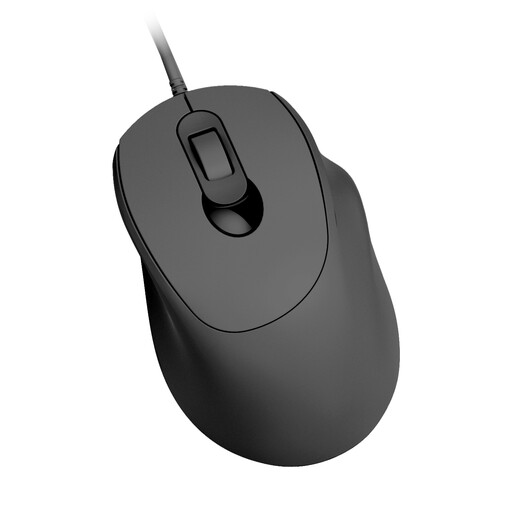
Rexsun V2 Wired Mouse, Black
A wired option to consider for routine editing where a USB mouse is permitted. Its stated features include four buttons, silent clicking and selectable 1000, 1200 and 1600 DPI settings; check wheel noise separately if that matters at your desk.
View on Joybuy
 No image available
HOFOTEK M311 2.4G+BT Silent Office Mouse, White-Grey
Consider its stated quiet clicks if you edit beside colleagues and want a wireless connection. The product name specifies 2.4G+BT connectivity, adjustable DPI and one AA battery; check hand fit, scrolling behaviour and which connection modes workplace IT allows.
View on Joybuy
 No image available
HP 920 Ergonomic Wireless Mouse, Black, with Detachable Wrist Rest
Consider this shape if hand fit is a priority during regular formatting work. The named variant includes a detachable wrist rest; assess the mouse at your workstation, and check click noise, connection approval and access to any software you intend to use.
View on Joybuy
 No image available
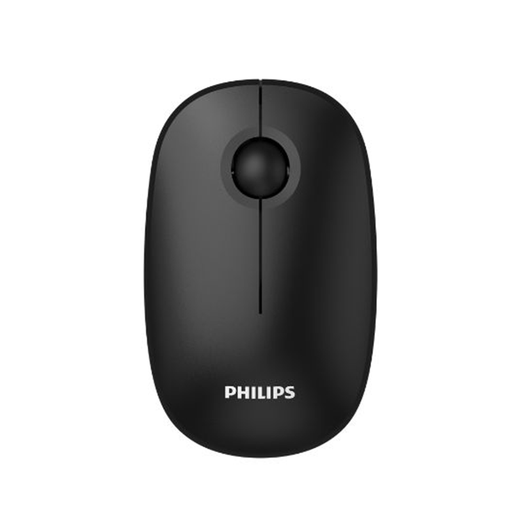
Philips 3000 Series SPK7378B/00 Wireless Mouse, EU Version, Black
A receiver-based option for routine editing where USB peripherals are allowed. The product name specifies 2.4 GHz wireless connectivity, a USB receiver, 1600 DPI and silent clicks; check wheel behaviour separately if you regularly navigate long pages.
View on Joybuy
Frequently asked questions
Should I choose Bluetooth or a USB receiver for an office mouse?
Choose a connection method approved for your assigned computer and workplace. Bluetooth requires compatible hardware, while a receiver needs a permitted, available USB port; the National Cyber Security Centre advises organisations to assess the security risks of connected peripherals.
What should I check when moving between hot desks?
Check both the mouse connection and your working position at each desk. The Health and Safety Executive includes hot-desking in its display-screen guidance and advises considering the whole workstation, so do not assume a setup that suited one desk will suit another.
Where should I place a mouse for regular display-screen work?
The Health and Safety Executive advises positioning the mouse in line with the elbow while keeping the screen and keyboard central. Check that you can use the chosen mouse in that arrangement rather than judging its shape in isolation.
Will a quiet-click mouse make the shared office silent?
No: a quiet-click description applies to the controls specified for that particular model, not every sound it or the workspace makes. Check the manufacturer’s wording for the buttons and wheel most relevant to your work.


