What matters when choosing one?
Start with the slide controls and the computer you will use. Then decide whether you need to point at anything, taking the display and school rules into account.
| Concern | What to check | Who this matters to |
|---|
| Slide control |
Look for distinct next and previous buttons; check for any other slideshow control you need. |
If I am speaking through a short project, I want to change slides without looking down or returning to the laptop. Around 40% of consumers put straightforward slide control first. |
| Connection |
Check for a usable USB-A port or permitted Bluetooth pairing on the actual computer. |
An unfamiliar school computer makes me wary of a remote I cannot connect when it is my turn to present. Roughly 30% of consumers prioritise connection certainty. |
| Screen visibility |
Identify whether you will use a projector, an LCD/TV or screen sharing; check any digital pointer against your presentation app. |
If my project appears on a classroom display or in a call, I need the audience to see what I am indicating. Around 20% of consumers make screen or hybrid visibility their primary concern. |
| Laser rules |
Ask whether the school permits lasers; for a permitted laser model, check its declared class. |
I would rather choose a laser-free remote if the school does not allow laser devices. Approximately 10% of consumers put laser-policy and safety fit first. |
Joybuy presentation remotes
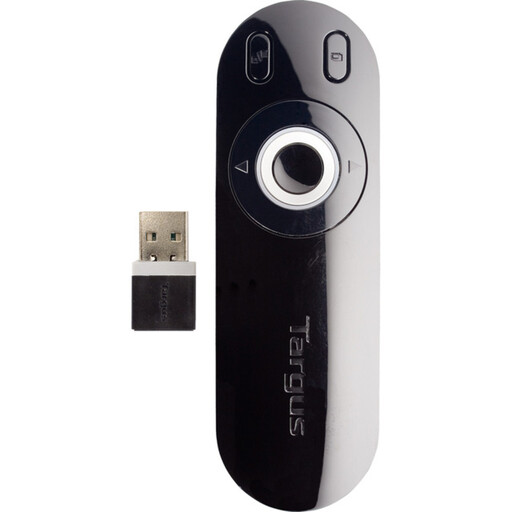
This USB-receiver remote is a choice for basic school-project slide navigation when the computer has a compatible port. Its physical laser also makes the school’s rules and the presentation display important checks.
 No image available
Targus Laser Presentation Remote
For a school project using a computer with a compatible USB port, its receiver and dedicated slide controls address basic slideshow navigation.
Check that the school allows laser pointers and that a physical laser suits the display you will use.
View on Joybuy
Frequently asked questions
Will a presentation remote work with the school computer?
It will depend on the computer’s connection and the remote’s requirements. Check for an accessible USB-A port if the model uses a receiver, or permitted Bluetooth pairing if it connects wirelessly without one; then test it in the actual slideshow app. Logitech lists both connection methods for the R500s, while the cited Kensington models use USB receivers.
Should I choose a remote with a laser pointer?
Choose a physical laser only if the school permits it and it suits an in-person presentation on the intended screen. For a no-laser rule, consider a laser-free presenter; for an LCD/TV or shared presentation, check on-screen pointer options instead. The Health and Safety Executive advises never shining a laser pointer into people’s faces.
Do presentation remotes need special software?
Not always for basic slide control: Kensington describes its 33374EU and K33373EU USB presenters as plug-and-play. Optional customisation is a separate check; Microsoft says its Accessory Center app for Presenter+ is unavailable on macOS. Test the controls you need with the school’s computer and presentation app.
What should I do with an old remote and its batteries?
Use an appropriate electrical-waste or battery collection route rather than putting marked electrical products or batteries in household rubbish, as GOV.UK advises. Check the collection arrangements available locally for the remote and its batteries.


