Relevant brands to consider
Compare the specific printer line and model against your record workflow rather than treating a brand name as a substitute for the functions you need.
Brother
Relevant to black-and-white A4 records through its mono laser print-only and all-in-one models.
- Brother lists automatic two-sided printing for the HL-L2445DW; the DCP-L2627DW adds print, copy and scan functions.
- These cited models print in mono, so choose another route if colour output is necessary.
Epson
Relevant to regular colour-document workflows through EcoTank refillable-ink all-in-ones.
- Epson lists print, copy, scan and double-sided printing for the ET-2950, and an automatic document feeder for the ET-5150.
- Check ADF provision on the model you choose; ink-yield statements should be read with the maker's conditions.
Canon
Relevant to home-office colour printing and paper handling through its MAXIFY range.
- Canon specifies a 35-sheet ADF for the refillable-ink MAXIFY GX2051, a feature to consider for repeated multi-page scanning.
- Functions vary by MAXIFY model; confirm the exact printer's scanning, paper-handling and ink arrangement.
Printers on Joybuy
These models offer different approaches to printing donation records, from mono laser document printing to colour all-in-ones. Check each model's scanning workflow and consumables against the paperwork you handle.
 No image available
Canon MAXIFY GX6150
Consider this model if colour documents and repeated paper-record handling are part of your home-office routine. Confirm its print, scan and feeder functions against the originals you need to process.
View on Joybuy
 No image available
Epson EcoTank ET-5150 +Ink A4 Multifunction Printer
For a workflow combining A4 printing with copying and scanning paper records. The product title specifies Wi-Fi; Epson lists a 35-page automatic document feeder for the ET-5150. Check that the +Ink bundle matches what you intend to order.
View on Joybuy
 No image available
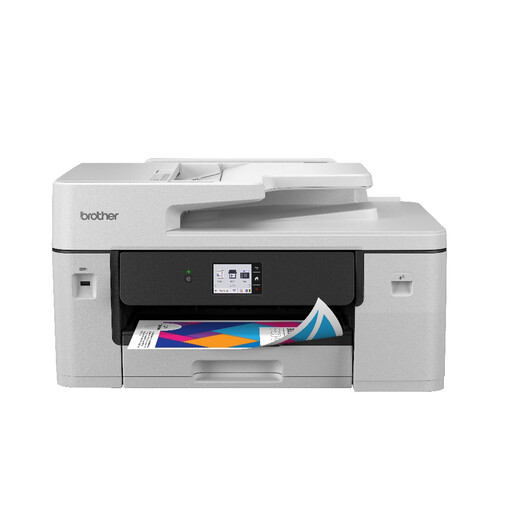
Brother MFC-J6760DW All-in-One Inkjet Printer
Consider this inkjet all-in-one if you need colour documents alongside paper-record digitisation. If regular colour printing or desk placement matters, check the exact model's replacement cartridges and dimensions.
View on Joybuy
 No image available
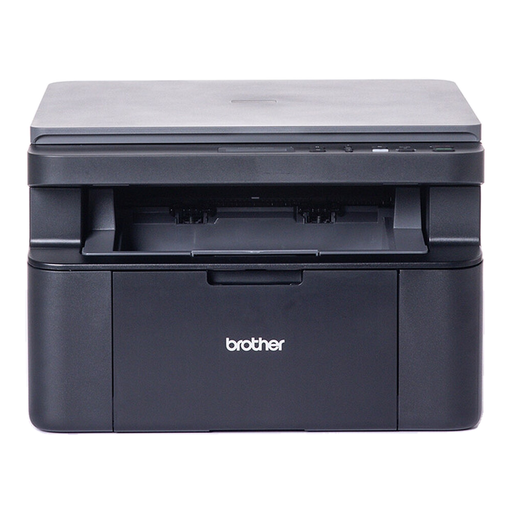
Brother DCP-L1640W Mono Laser Printer
Suited to black-and-white records when occasional single-sheet scanning is also needed. Two-sided printing requires turning sheets manually, and there is no ADF for feeding multi-page originals.
View on Joybuy
 No image available
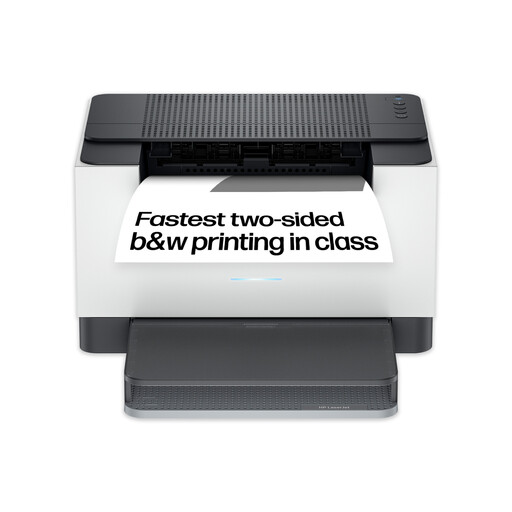
HP LaserJet M209dw Wireless Black-and-White Printer
For black-and-white document printing where two-sided output is useful. The product title specifies a 150-sheet input tray; if you need to scan or copy paper records, confirm how those functions work on the exact model before ordering.
View on Joybuy
Frequently asked questions
Do I need to print donation records to claim UK tax relief?
No printer is prescribed in GOV.UK's guidance on keeping donation records. For relevant claims, keep records showing the donation date, amount and charity; print copies if paper helps you organise them.
Does a charity claiming Gift Aid need different records?
Yes. The Donations to Charity (Gift Aid Declarations) Regulations 2016 require a charity to maintain an auditable record of the declarations used for its Gift Aid claims. That is distinct from an individual donor's records, so choose a printing and scanning workflow that fits the charity's declarations.
Can Gift Aid declarations be handled without a printer?
Yes. HMRC's Gift Aid guidance recognises written, verbal and online declarations. A printer can help with paper forms or confirmations, but it is not a prerequisite for every declaration workflow.
When is an automatic document feeder useful?
An ADF is worth checking if you routinely scan multi-page paper records rather than occasional single sheets. Canon specifies a 35-sheet ADF for the MAXIFY GX2051; confirm the feeder and its capacity on whichever exact model you choose.
What should I check before setting up a record-printing printer?
Confirm that the exact printer supports your computer's operating system and the connection you intend to use. Follow its manual for placement, cleaning and ink or toner replacement.


