What to check before buying
Check screen position at your working desk heights first, then decide how much layout detail and laptop connectivity you need.
| Concern | What to check | Who this matters to |
|---|
| Screen position |
Compare the stand’s height range with your sitting and standing positions; check arm compatibility if you plan to use one. |
When I raise the desk, I need the screen to remain within a comfortable viewing position rather than adjusting my posture to suit it. Around 40% of consumers put screen positioning first. |
| Layout detail |
Check native resolution and screen size, plus whether your laptop connection supports the resolution you want. |
If I review small labels and spacing alongside design tools, I want enough visible detail for that work. Roughly 30% of consumers prioritise layout detail. |
| Laptop connections |
Match USB-C or Thunderbolt display support, charging wattage and available ports to your laptop and peripherals. |
I would rather reconnect fewer cables when moving my laptop, but the monitor still needs to power and connect the equipment I use. Around 20% of consumers make laptop connectivity their primary concern. |
| Setup simplicity |
List the connections and adjustments you will use before choosing extra docking or display features. |
If my form work calls mainly for an adjustable external screen, I do not need features that complicate my setup without helping it. Approximately 10% of consumers put a straightforward setup first. |
Joybuy monitor choices
These monitors offer different ways to approach contact-form layout at a standing desk, including 4K screens for inspecting detail and QHD screens for an adjustable workspace. Check each model’s positioning and laptop connections against your own setup.
 No image available
BenQ MA270UP 27-inch 4K USB-C monitor
Consider this for inspecting form-layout detail with a height-adjustable screen. Its listed features include a Nano Glossy IPS panel; check the stand’s reach at your standing height and USB-C compatibility with your laptop.
View on Joybuy
 No image available
MSI MD272UPSW Smart 27-inch 4K IPS monitor with Google TV
Consider this if you want a 4K screen for form layouts and are assessing a USB-C laptop connection. The product name specifies 65 W USB-C power delivery; check laptop display compatibility and whether the stand reaches your required height.
View on Joybuy
 No image available
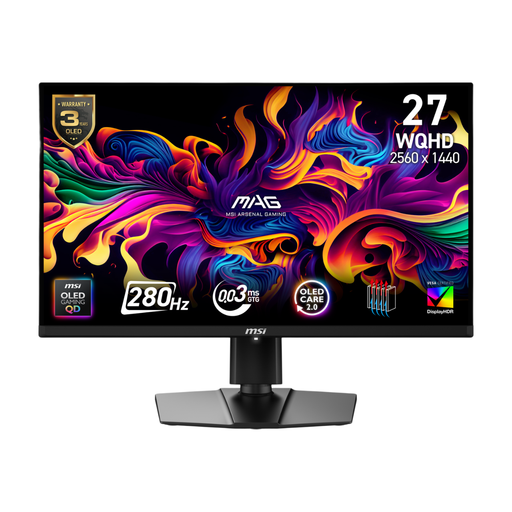
MSI MAG 271QP QD-OLED X28 27-inch QHD monitor
Consider this QHD display if it fits your layout workspace and the stand can reach your working position. Check its USB-C display functions and the stated 15 W power delivery against your laptop before relying on it for a single-cable setup.
View on Joybuy
 No image available
ASUS ProArt PA278CFRV IPS QHD 100 Hz monitor
Consider this QHD model for an adjustable screen alongside your form-layout tools. Confirm the stand’s height range and the exact USB-C port configuration before planning a laptop connection or charging setup around it.
View on Joybuy
 No image available
LG 27UP650K 27-inch 4K IPS monitor
Consider this for reviewing fine layout detail when a 4K screen is the priority. Its product name lists HDMI and DisplayPort; check how your laptop will connect and charge, and whether the stand reaches your standing position.
View on Joybuy
Questions about the setup
Where should the screen sit when I’m standing?
Aim to place the top of the screen at eye level and the screen about an arm’s length away, in line with Health and Safety Executive guidance. Check the position after raising the desk to the height you actually use.
Can one USB-C cable connect the display and charge my laptop?
It can with a compatible monitor, laptop and cable. LG specifies USB-C display, data and up to 90 W charging for the 27UP850K-W; BenQ specifies USB-C data transfer and 65 W laptop power delivery for the GW2790QT. Check your laptop’s video and charging requirements against the exact model.
Do I need a monitor arm at a standing desk?
Not necessarily: a stand may provide enough adjustment for your sitting and standing positions. Consider an arm if the stand cannot place the screen where you need it, and check mounting compatibility before choosing one.
What should I do about glare during longer work sessions?
Position the screen and lighting to limit reflections rather than relying on resolution to compensate for glare. Ergotron also advises regular movement and switching between sitting and standing instead of staying in one posture continuously.
What else should I check before ordering?
Check the seller’s warranty and returns terms, the cables supplied with the exact monitor, and whether your setup also needs an arm or dock. Those practical details can affect whether the screen works with your desk and laptop as planned.


