Choose a Windows 2-in-1 if preparing lesson plans depends on desktop Office or sustained keyboard work. An iPad or Android tablet makes more sense when reading, handwriting and annotation are the main tasks, provided your school’s apps work on the device. Check your account’s Microsoft 365 editing permissions and the pen, keyboard and charger needed for your setup before choosing.
Who is each route for?
Teachers working with desktop documents
If you prepare detailed Word, Excel or PowerPoint materials and rely on desktop software, consider a Windows 2-in-1. Microsoft says Surface Pro can install Office as a desktop computer would; confirm that any device you choose also meets your school’s software requirements.
Handwriting and annotation planners
If you mainly read resources, mark up PDFs or sketch lesson ideas between classes, start with a device and pen that work together. Apple and Samsung document pen options for their relevant tablet lines, but check the exact model and whether its pen is supplied.
Portable planners keeping the setup simple
If web research, reading and light planning cover most of your work, a tablet may be sufficient once its required apps are confirmed. Check which accessories you would need to add: Lenovo lists a pen and keyboard separately for the Tab Plus, for example.
What matters when choosing?
Windows 2-in-1
Choose it when: Desktop Office or other required computer software is central to preparing your lesson plans.
Bear in mind: Microsoft describes the Surface Pro keyboard and Slim Pen as optional, so its tablet configuration alone may not provide your intended writing setup.
iPad
Choose it when: Reading and annotating resources on iPadOS matter more than installing desktop software.
Bear in mind: Apple lists Pencil and keyboard options separately for iPad Air, while Microsoft 365 mobile editing depends on the applicable plan and screen-size conditions.
Android tablet
Choose it when: Your approved Android apps cover planning and you want a tablet-led handwriting or reading workflow.
Bear in mind: Accessories vary by model: Samsung lists an S Pen with the Galaxy Tab S10 FE, while Lenovo lists a pen separately for the Tab Plus.
| Concern |
What to check |
Who this matters to |
| Document editing and typing |
Confirm your school’s required apps and whether your account permits the editing features you use. Decide whether you need a keyboard and desktop software. |
I regularly build and revise detailed lesson documents, so opening a file without being able to edit it properly would interrupt my work. Around 36% of consumers put desktop-document work first. |
| Handwriting and annotation |
Check pen compatibility and inclusion for the exact model, then check your approved PDF-marking or note-taking app. |
Marking up resources and sketching lesson ideas are my main tasks; long, formatted documents are less important. Handwriting is the first concern for around 29% of consumers. |
| Workspace and portability |
Compare screen size and device weight for your typical documents; check that any local storage fits your school’s rules. |
I move between rooms but still need enough screen space to read planning materials comfortably. Around 21% of consumers prioritise that balance. |
| Complete setup |
Check whether the exact configuration supplies the pen, keyboard and charger you need, and whether your software plan covers your tasks. |
I want to avoid choosing a tablet and then discovering that the parts needed for my routine must be obtained separately. That is the primary concern for around 14% of consumers. |
Mistakes to avoid
-
Assuming that opening an Office file means you can complete your usual edits
Microsoft says mobile-app features depend on the plan, and editing can also depend on screen size. Viewing a lesson plan does not establish that every editing task available on your school computer will work.
Check the required Word, Excel, PowerPoint, Teams, learning-platform and PDF workflow with your school account before choosing a device.
-
Choosing the tablet before checking the writing setup
A suitable pen or keyboard is not necessarily supplied with the tablet. Apple lists Pencil and Magic Keyboard options separately for iPad Air; Samsung lists an S Pen with the Galaxy Tab S10 FE but says its travel adapter is not included.
Check the contents and compatibility of the exact tablet configuration, including any pen, keyboard and charger you expect to use.
-
Assuming a larger screen settles the choice
More display space can help when viewing planning materials, but size also affects what you carry and can matter to Microsoft 365 mobile editing conditions.
Compare the exact screen size with your usual documents and check editing permissions for that device and account.
Brands to consider for these workflows
Apple
The iPad Air line is relevant to teachers who prefer iPadOS for portable reading, handwriting and annotation.
- Apple lists 11-inch and 13-inch iPad Air options and support for Apple Pencil Pro and Apple Pencil (USB-C).
- Apple lists Pencil and Magic Keyboard as separate options; confirm which accessories fit the configuration you choose.
Samsung
The Galaxy Tab S10 FE is an Android option for pen-led notes and reading, subject to your school-app requirements.
- Samsung lists a 10.9-inch display, S Pen and microSD support up to 2TB for the Tab S10 FE.
- Samsung says a travel adapter is not supplied; Microsoft 365 mobile editing still requires a check of the applicable plan and device conditions.
Microsoft
Surface Pro is relevant when lesson planning calls for a Windows computer that can also be used as a tablet.
- Microsoft says Surface Pro can install Office and email as a desktop computer would.
- Microsoft describes its keyboard and Slim Pen as optional accessories; check the complete configuration for your workflow.
Lenovo
The Tab Plus is an Android tablet to consider for reading, web research and light planning if your required apps work on it.
- Lenovo lists an 11.5-inch display, 8GB memory and 128GB storage for the referenced Tab Plus configuration.
- Lenovo lists the Tab Pen Plus and a UK-English keyboard as add-ons; confirm the school workflow before treating it as a computer replacement.
Joybuy products for lesson planning
These choices span tablet setups for touch and pen input, a dedicated E-Ink notebook and a Windows 2-in-1 for keyboard-led work. Check each device against your school’s applications and account before deciding whether it can handle your lesson plans.
 No image available
TABWEE T20 10.1-inch tablet with keyboard and stylus
Consider this setup if you want to alternate between typing and pen input while preparing materials. The product name lists 256GB storage, TF-card support up to 2TB, and a keyboard, mouse and stylus. Confirm the supplied Android version and whether your school’s apps and Microsoft 365 account meet your editing needs.
View on Joybuy
 No image available
Apple 11-inch iPad Air (2026, M4), Wi-Fi 128GB, Starlight
The 11-inch format is worth considering for reading and annotating lesson resources on iPadOS. Apple documents Pencil support for iPad Air, but check the compatible pen and keyboard for this exact model and whether your school apps and Microsoft 365 account support your intended edits.
View on Joybuy
 No image available
iFLYTEK AINOTE 2 10.65-inch E-Ink notebook with case
This dedicated notebook is relevant if handwriting and reading are the centre of your planning routine. Its product name specifies a 10.65-inch E-Ink screen. Check its document functions and required school-app compatibility rather than assuming it can replace a general-purpose tablet.
View on Joybuy
 No image available
TECLAST ArtPad Pro 2025 Edition, 12.7-inch, 256GB
Consider its larger screen and supplied stylus if you plan to annotate or sketch lesson materials. The product name specifies a 12.7-inch 2K display, 256GB storage and Android 15. Check keyboard arrangements, school-app compatibility and Microsoft 365 editing permissions for this screen size.
View on Joybuy
 No image available
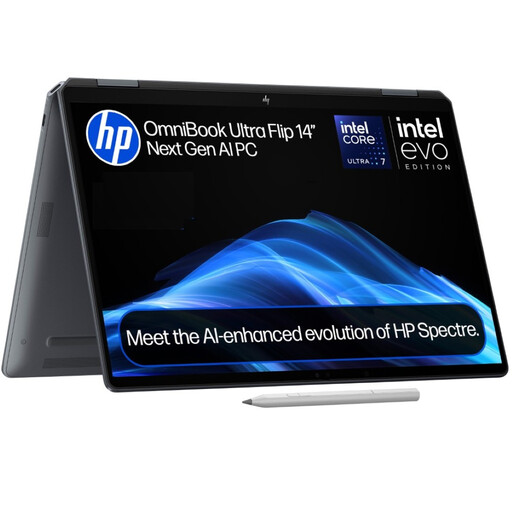
HP OmniBook Ultra Flip 14-fh0006na, 16GB RAM, 1TB SSD
This Windows 11 Home 2-in-1 is a route to consider if keyboard-led document work is your priority. Check the desktop applications and school-account requirements you rely on, and confirm stylus compatibility if you also intend to handwrite.
View on Joybuy
Questions about lesson-planning tablets
Do I need a Windows tablet to prepare lesson plans?
No, if your approved iPad or Android apps handle the documents and annotations you need. Choose a Windows device when your school workflow requires desktop Office or other desktop software; Microsoft says Surface Pro can install Office as a desktop computer would.
Can I edit Microsoft 365 files on any tablet screen size?
Do not assume editing works under the same conditions on every tablet. Microsoft says mobile-app features depend on the plan and includes screen-size conditions for editing, so check your account and the exact device before choosing.
Will the pen and keyboard come with the tablet?
That depends on the model and configuration. Apple lists Pencil and Magic Keyboard options separately for iPad Air, Samsung lists an S Pen with the Galaxy Tab S10 FE, and Microsoft describes Surface Pro keyboards and Slim Pen as optional. Check the contents of the exact product you choose.


