What matters when choosing?
Settle software compatibility before choosing a screen size: a roomy display cannot compensate for a missing campaign control.
Windows detachable
Choose when: Your newsletter workflow requires Windows software, desktop browser tools or a regular laptop-style setup.
Trade-off: Microsoft's Surface Pro keyboard is optional, and the assembled setup is less like a simple slate tablet.
iPad Air
Choose when: Your complete newsletter workflow runs in the iPad browser or an iPad app, and you want a choice of 11-inch or 13-inch screens.
Trade-off: Check advanced editor functions on iPadOS; Apple's compatible Magic Keyboard is a separate accessory.
Large Android tablet
Choose when: Your editor works fully on Android and you want the Galaxy Tab S11 Ultra's 14.6-inch display and optional DeX workflow, as described by Samsung.
Trade-off: The large tablet is less convenient to hold for review, and Samsung's model-specific keyboard is separate.
| Concern | What to check | Who this matters to |
|---|
| Editor compatibility |
Try your actual template and required creation, image, link, preview and sending controls on the intended operating system. |
If my campaigns depend on a desktop-only tool, I need that tool to run before the tablet can replace my usual computer. Around 33% of consumers put access to their required desktop workflow first. |
| Typing and precise editing |
Confirm keyboard compatibility with the exact tablet variant and check its layout and pointing options. |
Long drafts and repeated link changes make touch-only editing a poor fit for my routine; around 25% of consumers prioritise sustained typing and precise control. |
| Workspace and multitasking |
Check the exact model's windowing and external-display options, including any connection requirements. |
Keeping source copy beside the campaign canvas matters more to me than working in a single full-screen view. Around 25% of consumers make a workable multi-window setup their primary concern. |
| Mobile review and proofing |
Check the platform's preview and test-send controls as well as the tablet's size for carrying and hand-held use. |
I mainly review and correct campaigns away from a desk, but still need to check how they render before sending; around 17% of consumers place mobile review and portability first. |
Joybuy product choices
These tablets offer different screen sizes and approaches to typing or review. Before choosing one for newsletter work, check your editor's complete workflow on its operating system and confirm the accessories you need.
 No image available
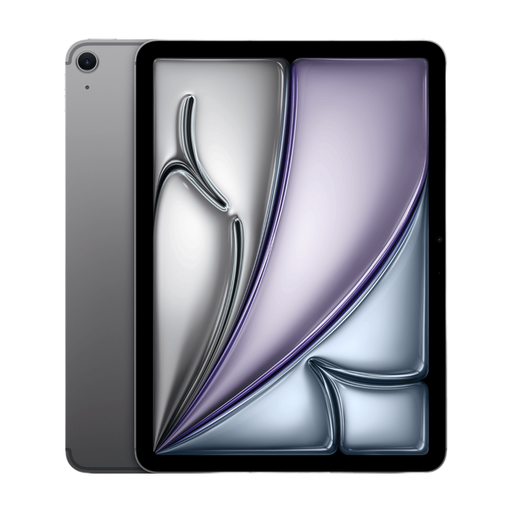
Apple 11-inch iPad Air (2026, M4), Wi-Fi 128GB, Space Grey
Consider this 11-inch option for newsletter editing away from a desk if your editor works fully on iPadOS. The title specifies Wi-Fi and 128GB storage. Check the exact compatible keyboard separately for frequent typing.
View on Joybuy
 No image available
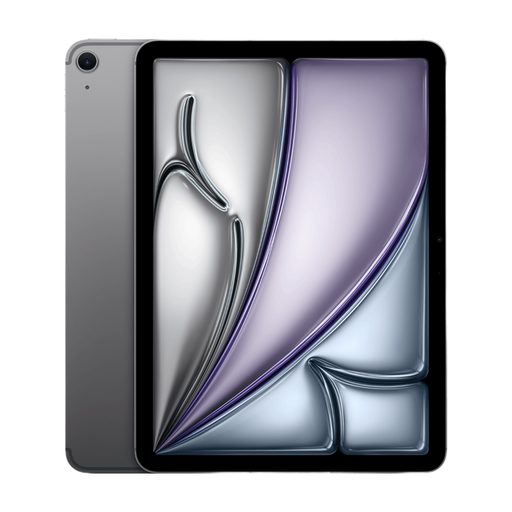
Apple 13-inch iPad Air (2026, M4), Wi-Fi 256GB, Space Grey
Consider the larger iPad Air route if you want more on-device room for campaign layout and your editor works fully on iPadOS. The title specifies Wi-Fi and 256GB storage. Confirm the screen size before buying, as the accompanying description also calls it 14 inches, and check keyboard compatibility separately.
View on Joybuy
 No image available
TABWEE T20 10.1-inch tablet with keyboard, mouse and stylus
The named keyboard and mouse make this a typing-and-pointer option to examine if your newsletter editor works on the supplied tablet. The title specifies 256GB storage. Confirm the Android version and the exact bundle contents before choosing it.
View on Joybuy
 No image available
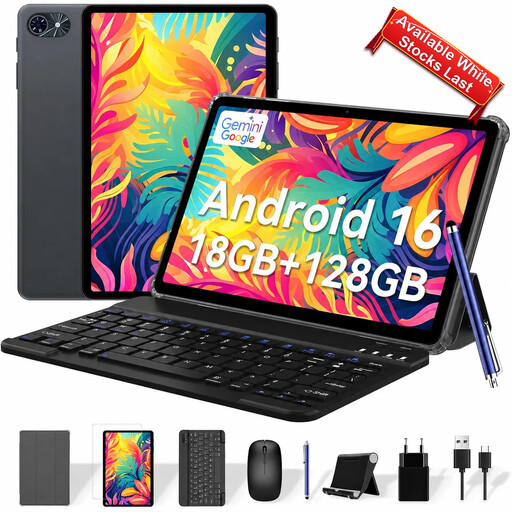
TABWEE T80 10-inch tablet with keyboard, 128GB
This compact tablet-and-keyboard listing is worth checking for shorter writing and review sessions if your newsletter editor works on it. The title specifies a 10-inch screen and 128GB storage. Confirm the keyboard bundle and RAM configuration, which is described inconsistently, before buying.
View on Joybuy
 No image available
TECLAST ArtPad Pro 2025 Edition, 12.7-inch, 256GB with stylus
The larger display and included stylus make this an option to examine for reviewing or marking up newsletter layouts. The title specifies a 12.7-inch 2K display, Android 15 and 256GB storage. Check your editor's workflow and whether you need a separate keyboard for sustained drafting.
View on Joybuy
Frequently asked questions
Can a tablet replace my laptop for editing newsletters?
Yes, if your newsletter service supports every step you need on that tablet, from drafting through sending. Mailchimp says its full campaign builder works in a tablet browser, but its mobile app does not cover every task. If your workflow requires Windows software or desktop-only tools, consider a Windows 2-in-1 or keep access to a laptop.
Do I need a keyboard and trackpad?
For occasional approvals or small corrections, touch may be enough; for regular long-copy drafting and precise link or layout changes, check a compatible keyboard-and-pointer setup. Apple's Magic Keyboard includes a trackpad, while Microsoft describes its Surface Pro keyboard as optional and Samsung offers a separate, model-specific keyboard for the Galaxy Tab S11 Ultra.
How do I check a newsletter before sending it from a tablet?
Use your platform's preview and test-send controls, then inspect both desktop and mobile layouts and check important links and images. Mailchimp advises testing before sending because appearance can vary between recipients' devices and email applications.
What should I do with an old tablet?
Remove your personal data and use an appropriate electrical-waste collection route rather than putting the tablet in general household waste. GOV.UK explains that UK waste electrical and electronic equipment rules are intended to reduce electrical waste and support its recovery, reuse and recycling.


