Choose a tablet that can show your intended recipe and shopping-list apps side by side: Samsung documents Multi Window, while Apple documents side-by-side Windowed Apps on supported iPads. Check the exact model, software version and apps before buying; a larger display gives two panes more room but is less convenient to carry.
Who this suits
Two-app meal planners
If you want a recipe or supermarket basket visible beside a list, calendar or notes, look for a layout that works with both of your chosen apps. Apple and Samsung document ways to position apps side by side on supported devices.
Kitchen-table organisers
If you plan a full week at a table or counter, give both panes enough space to read ingredients and dates. Samsung documents an 11-inch display and multi-window capability for the Galaxy Tab A9+; consider how comfortable that size is to hold and store.
Households with established apps
If your plans already live in particular notes, calendar or shopping apps, check that those apps and your accounts work on the tablet you choose. Apple, Samsung and Lenovo describe different windowing controls, so a familiar workflow may matter more than a feature name.
What matters when choosing
Start with the two apps you need open together, then judge the display, your existing accounts and the exact bundle.
| Concern |
What to check |
Who this matters to |
| Side-by-side apps |
Check multitasking on the exact model and software version, including whether your chosen pair of apps works together. |
I want to keep a recipe visible while updating my shopping list rather than switch between them; around 40% of consumers put a dependable two-app workflow first. |
| Readable workspace |
View two representative panes at your preferred text size and check how much space the on-screen keyboard takes. |
When I plan several meals at once, I need to read quantities and dates without making either pane too cramped; readable screen space comes first for around 30% of consumers. |
| Existing apps and accounts |
Confirm app availability and the sign-in, sync and offline behaviour your household relies on. |
My calendar, notes and saved lists need to fit the routine I already use; around 20% of consumers prioritise continuity with their existing apps and accounts. |
| Bundle contents |
Compare the exact storage, connectivity and included accessories; compatibility alone does not mean an accessory is in the box. |
I would use a folio or pen for planning only if it comes with the configuration I choose or suits my routine; around 10% of consumers put the bundle first. |
Buying pitfalls
-
Assuming every tablet gives your apps the same split-screen layout
Samsung notes that Multi Window steps can differ by model and operating system, and some apps may not support multitasking. A tablet-level feature does not settle how your particular recipe and list apps will behave together.
Identify the two apps you will use and confirm their behaviour on the exact model and software version before ordering.
-
Choosing a compact screen without viewing two panes
Samsung lists the Galaxy Tab A9 at 8.7 inches and the A9+ at 11 inches. Both panes may be open without being comfortable to read at your preferred text size.
Compare a recipe page beside a list on the display size you are considering, including when the keyboard is visible.
-
Treating regional variants as interchangeable
A Joybuy Galaxy Tab A9+ listing identifies an HK Version, while Samsung’s UK specifications refer to a UK model identifier. Do not assume that model details, accessories or support arrangements are identical.
Check the full model number, region, included accessories, charging arrangement and warranty terms for the listing you intend to order.
Brands to consider
Samsung
A relevant Android route if you want documented Multi Window controls. Samsung describes two apps side by side and an 11-inch Galaxy Tab A9+ that can show up to three apps on one screen.
- Samsung documents split-screen controls and a relevant larger-display model.
- Controls can vary by model and operating system; check your chosen apps on the exact tablet.
Apple
A route for households using iPad apps for plans, notes and calendars. Apple documents how supported iPads can place two windows side by side.
- Apple provides a supported-model list and instructions for positioning windows.
- Check the iPad generation and required iPadOS configuration rather than assuming the same workflow on every model.
Lenovo
Another Android route to consider if a larger planning area or an accessory bundle matters. Lenovo describes Split Window in its tablet software material and lists a Tab P12 configuration with a pen and folio.
- Lenovo identifies the Tab P12 8GB/128GB Wi-Fi pen-and-folio configuration.
- Lenovo’s general Split Window description does not establish identical behaviour on every model or with every third-party app.
Joybuy tablet choices
These Android tablets offer 11-inch screens to consider for a recipe beside a list or calendar. Confirm that your two intended apps work together in split-screen on the exact model and software version.
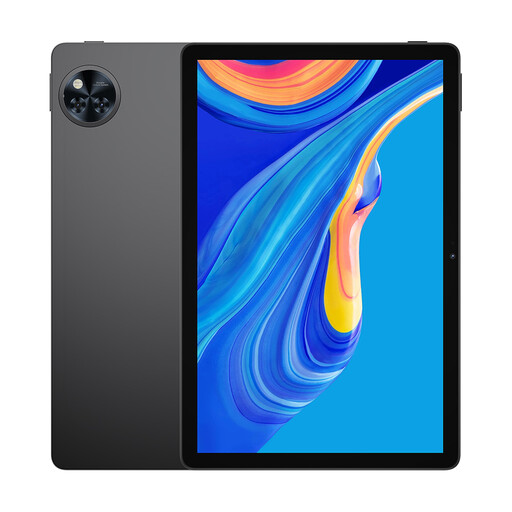 Image unavailable
DOOGEE U11 PRO 11-inch tablet, 256GB, Black
Consider this model if you want an 11-inch display for two meal-planning panes; confirm that your chosen apps work together on it.
The product name lists Android 15, a 90Hz IPS screen and an 8580mAh battery. Check the processor specification if it affects your choice, as the product information gives conflicting processor names.
View on Joybuy
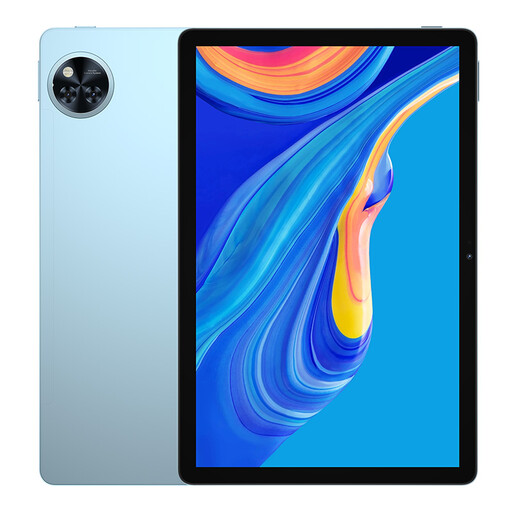 Image unavailable
DOOGEE U11 11-inch tablet, 128GB, Blue
Consider the 11-inch screen for viewing a recipe alongside another planning pane, and confirm the two apps you use will work together on this model.
The product name lists Android 15, 5GHz Wi-Fi and Bluetooth 5.0.
View on Joybuy
 Image unavailable
TABWEE W90 11-inch tablet, 256GB, 4G LTE
Consider this 11-inch model if you also want cellular connectivity for planning away from Wi-Fi; confirm your two apps work together before relying on its split-screen layout.
The product name lists dual 4G SIM support and an 8000mAh battery. Confirm the Android version before buying, as the product information gives conflicting versions.
View on Joybuy
Frequently asked questions
How do I keep two meal-planning apps visible on one tablet?
Use the tablet’s supported windowing or split-screen controls to position the apps side by side. Apple documents dragging an app to an edge on supported iPads using Windowed Apps; Samsung documents opening split-screen view from recent apps and adjusting the divider. Check the instructions for your exact model and software version.
Will every recipe and shopping app work in split-screen?
No: a tablet’s multitasking feature does not mean every app supports the layout you want. Samsung notes that some applications may not support multitasking, so confirm the behaviour of your chosen pair on the exact tablet.
Do I need a keyboard, stand or stylus for weekly meal planning?
Choose an accessory only if it helps with how you plan, such as positioning the screen at a counter or typing longer notes. Check the exact bundle: Lenovo lists a Tab P12 configuration with a pen and folio, while compatibility with an accessory does not by itself mean it is included.


