
24/7 Customer Support

Free returns

Same-day & Next-day Delivery

Quality Guaranteed

Unlock Your Welcome Offers: FREE Delivery | Up to 80% OFF | Free 30-day JoyPlus trial
Download the APP
Modern laptops, from the MacBook Pro to the latest Windows ultrabooks, are celebrated for their sleek, minimalist designs. But this often comes at a cost: a severe lack of ports. If you have ever found yourself needing to connect an external monitor, a keyboard and charge your device all at once, you understand the frustration of having only one or two USB-C ports available.
A USB-C hub is the essential accessory that solves this problem, transforming a single port into a versatile workstation. However, the market is filled with options, from simple adapters to complex docks. This guide is designed to help you understand the key features to look for and to highlight a few standout models that cater to different needs, whether you are a student, a creative professional or a hybrid worker in the UK.
Before diving into specific products, it is helpful to know what to look for. Focusing on these three areas will ensure you select a hub that truly meets your requirements.
The most important factor is the number and type of ports. A simple multiport adapter might be sufficient for some, while others require a more comprehensive solution. Consider what you connect daily:
Not all hubs are created equal when it comes to power and video output.
Your ideal hub depends on where you work. If you are constantly on the move, a compact, lightweight and portable USB C hub is ideal. These are easy to slip into a laptop bag. For a permanent desk setup, a larger USB C docking station might be more suitable, offering more ports and potentially its own power source for maximum performance.
Here are our recommendations, selected to cover a range of common user needs, from ultimate portability to desktop-level power.
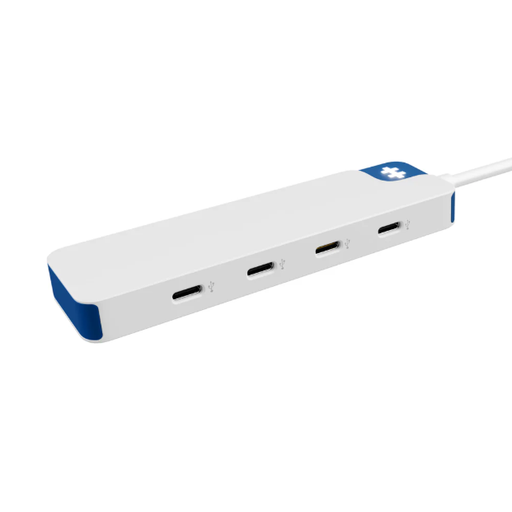
Why It Stands Out: This hub is the definition of streamlined efficiency. It focuses on providing the four most essential ports in an incredibly compact and durable aluminium body, making it an ideal travel companion.
Pros:
Who is it for?: Students, presenters and hybrid workers who prioritise portability. It is the perfect portable USB C hub for those who need to connect to a display and a USB device on the go without any bulk.
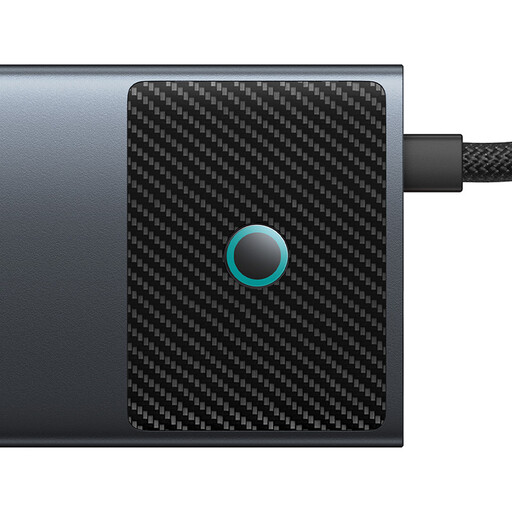
Why It Stands Out: This model blurs the line between a hub and a full-featured docking station. With 10 ports and high-performance specifications, including 4K@120Hz video output, it is built for demanding, professional-grade setups.
Pros:
Who is it for?: Power users, video editors, designers and anyone needing to create a powerful dual monitor hub workstation. It is an excellent choice for turning a laptop into a desktop replacement.
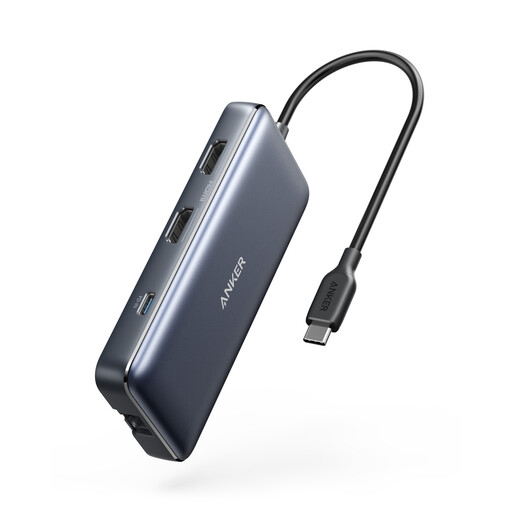
Why It Stands Out: The Anker PowerExpand 8-in-1 strikes a fantastic balance between comprehensive features and a manageable size. It is a versatile all-rounder that serves a wide variety of productivity and media needs.
Pros:
Who is it for?: The versatile professional. Whether you are a photographer needing card readers, an office worker requiring Ethernet and dual displays, or just someone who wants a reliable hub that can do it all, this is a strong contender.
While these three hubs cover many use cases, your perfect setup might require a different combination of ports or features. If you need more USB-A ports, a different video output, or a more specialised design, there are many other models to consider.
Explore our full collection of high-speed USB hubs to find the perfect match for your devices and workflow.
1. Do USB-C hubs slow down my laptop's charging speed? A USB-C hub consumes a small amount of power to operate its own electronics, typically between 5W and 15W. This means that if you connect a 100W charger to a hub with 100W Power Delivery, your laptop will receive slightly less power (around 85-95W). For most laptops, this is still more than enough for a full-speed charge.
2. Can I use a USB-C hub with any laptop? For data transfer (USB-A, card readers) and charging, most USB-C hubs will work with any device that has a USB-C port. However, for video output via HDMI or DisplayPort, your laptop's USB-C port must support DisplayPort Alternate Mode (DP Alt Mode). Most modern devices from Apple, Dell, HP and Microsoft support this, but it is always a good idea to check your device's specifications if you are unsure.
3. What is the difference between a USB-C hub and a USB-C docking station? The terms are often used interchangeably, but there is a general distinction. A USB-C hub is typically smaller, more portable, and draws power directly from the laptop (bus-powered). A USB-C docking station is usually larger, designed for a stationary desk setup, and often comes with its own dedicated power supply. This allows it to support more high-power ports and peripherals simultaneously.