
24/7 Customer Support

Free returns

Same-day & Next-day Delivery

Quality Guaranteed

Unlock Your Welcome Offers: FREE Delivery | Up to 80% OFF | Free 30-day JoyPlus trial
Download the APP
Modern laptops, with their sleek, minimalist designs, have embraced the power and versatility of the USB-C port. However, this often comes at the cost of other essential connections. If you've ever found yourself unable to connect to a projector, use a wired mouse or access files from an SD card, you understand the challenge. A USB-C multiport adapter is the key to unlocking your laptop's full potential, transforming a single port into a powerful hub for all your peripherals.
As a Joybuy Product Recommendation Officer, my role is to help you navigate the options and find a device that genuinely suits your needs, whether you're building a productive home office, presenting on the go or simply need to connect more devices. This guide will walk you through key considerations and highlight some of our top recommendations for 2026.
Selecting the right adapter can feel overwhelming with all the technical specifications. Focusing on these three areas will help you make a confident choice.
Before you buy, take stock of the devices you use daily. Do you need to connect to an external monitor? A simple USB-C to HDMI adapter might suffice. However, for a more complete setup, consider a hub that includes:
Not all hubs are created equal when it comes to power and video. A 100W PD docking station is crucial for power-hungry laptops like a MacBook Pro or Dell XPS. The "PD" stands for Power Delivery, which allows the hub to pass power from your charger to your laptop, so you can charge your device and use all your peripherals simultaneously through a single port.
For display, check the resolution and refresh rate. A USB-C hub 4K capability is common, but pay attention to the refresh rate. A 60Hz output provides a much smoother, more fluid visual experience than 30Hz, especially for video editing or even just moving your cursor across the screen.
Think about where you'll be using the adapter most. If you are constantly moving between home, the office and client sites, a compact and lightweight USB-C travel hub is your best companion. These are typically bus-powered (drawing power from the laptop) and easy to slip into a bag. For a permanent desk setup, a larger docking station offers more ports and can help you create a tidier, more organised workspace.
Based on features, user needs and overall utility, here are our recommendations to help expand your laptop's connectivity.
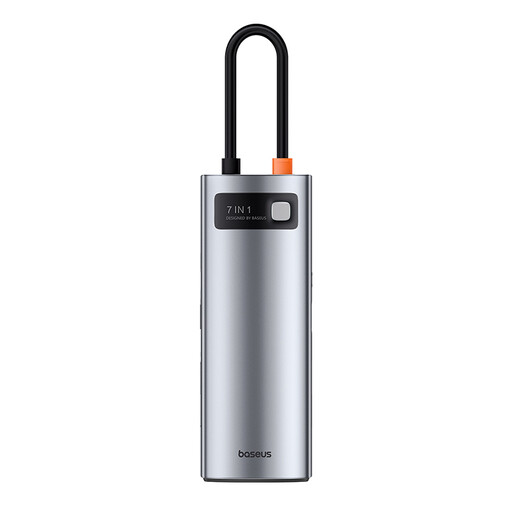
Why It Stands Out: The Baseus Metal Gleam hub strikes an excellent balance between portability and functionality. Its durable metal alloy casing not only looks professional but also aids in heat dissipation. It packs a surprising amount of connectivity into a compact form, making it a fantastic all-rounder.
Pros:
Who is it for? This is an ideal choice for students, remote workers and professionals who need a reliable and portable MacBook Pro adapter or a hub for their Windows laptop. It covers the most common connectivity needs without being bulky.
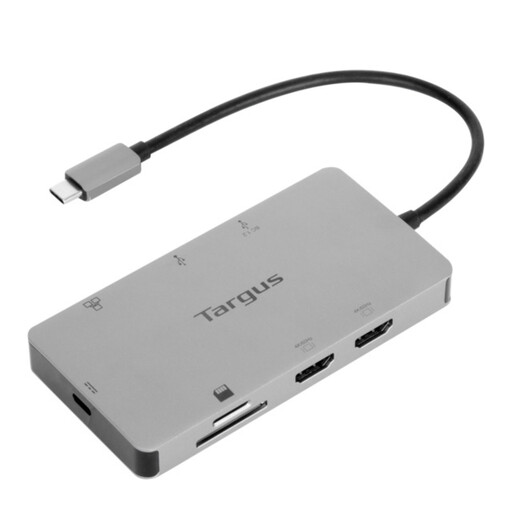
Why It Stands Out: This Targus docking station is built for serious productivity. Its standout feature is the ability to drive two 4K monitors simultaneously at 60Hz, turning your laptop into a true multi-screen workstation. It's a comprehensive solution for a permanent desk setup.
Pros:
Who is it for? This is aimed at power users—video editors, developers, financial analysts and anyone who relies on a dual-monitor setup to maximise their workflow. It’s the core of a high-performance home or office workstation.
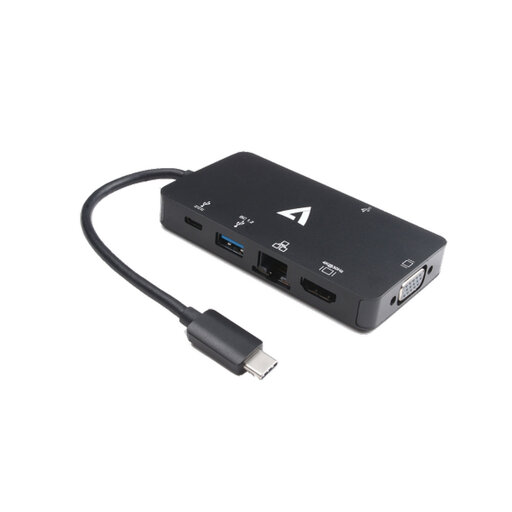
Why It Stands Out: The V7 adapter is the ultimate tool for road warriors and presenters. Its inclusion of a VGA port alongside a modern 4K HDMI port ensures you can connect to virtually any display you encounter, from new conference room TVs to older university projectors.
Pros:
Who is it for? This is the quintessential USB-C travel hub for business travellers, consultants and educators who need to be prepared for any technical setup. Its versatility removes the anxiety of not having the right connection.
While these three adapters cover a wide range of common scenarios, your specific setup might require a different combination of ports or features. From minimalist single-port adapters to expansive 12-in-1 docking stations, there is a solution for every need.
For a wider selection of hubs, docks and specialised adapters, explore our full range of USB-C solutions.
Generally, a USB-C hub is a smaller, more portable device that is "bus-powered," meaning it draws power directly from your laptop. A docking station is typically larger, designed for a stationary desk setup, and often requires its own external power adapter. Docks usually offer more ports, higher power output and support for multiple external displays.
This depends on your laptop. High-performance machines like a 16-inch MacBook Pro or a gaming laptop often come with a charger rated at 96W or higher. For these devices, a 100W PD docking station is recommended to ensure it charges at full speed while powering other peripherals. For smaller laptops like a MacBook Air or Dell XPS 13, a hub with 60W PD is usually sufficient. You can check the wattage printed on your laptop's original power adapter.
Yes, this is a known issue with some poorly constructed adapters. High-speed data transfer through USB 3.0 ports can generate radio frequency interference in the 2.4GHz band, which is also used by Wi-Fi and Bluetooth. To avoid this, look for adapters with metal casings and specifications that mention EMI/RF shielding, as these are designed to contain the interference and ensure your wireless connections remain stable.