Choose the physical key layout and operating-system input settings around the two languages you actually type; a UK-labelled keyboard alone may not give you the characters or printed legends you need. Then decide whether device switching, a full-size layout, or a different keyboard shape matters most to your editing. Position the screen to reduce window reflections rather than expecting keyboard lighting to solve display glare.
Who this guidance is for
Bilingual editors who rely on key legends
If you regularly enter characters or punctuation from two languages, start with the printed layout and your input settings. Logitech’s ISO layout guidance and Keychron’s regional variants show why the specific layout matters more than a general QWERTY label.
Editors working across devices
If leaflet copy moves between your computer and another device, check how a keyboard switches between them and whether its shortcuts work with each operating system. Logitech lists device-switching options for MX Keys S and Wave Keys.
Editors working for long stretches
If extended correction and formatting sessions make desk setup a priority, consider keyboard shape alongside screen position and breaks. The Health and Safety Executive advises arranging screens and lighting to avoid reflections and glare.
What to check before choosing
For bilingual leaflet editing beside a bright window, settle character entry first, then consider your editing workflow and desk setup. The concerns below describe different priorities consumers may bring to the same task.
| Concern |
What to check |
Who this matters to |
| Layout and character access |
Confirm the printed regional layout and the input settings needed for both languages. |
If I regularly type characters from both languages, mismatched legends or symbol positions would interrupt copy edits. Around 42% of consumers put layout and character access first. |
| Editing workflow |
Check the keys needed for navigation and shortcuts, plus device-switching and software compatibility. |
When I move between devices or use repeated editing shortcuts, I want the keyboard to fit that workflow. Roughly 33% of consumers make editing workflow their primary concern. |
| Comfort and visibility |
Assess keyboard shape and legend visibility; position the screen to reduce window reflections. |
During longer sessions beside the window, I need a workable desk position and keys I can see comfortably. About 25% of consumers prioritise comfort and visibility. |
Buying pitfalls
-
Assuming QWERTY means a UK layout
QWERTY does not identify the physical key arrangement. Logitech’s layout guidance distinguishes ISO from ANSI, and a Joybuy-listed AULA F75 PRO is labelled as a US-layout keyboard.
Check the exact regional layout and printed legends against the characters you need, then select the matching input settings on your device.
-
Choosing backlighting to fix screen glare
Illuminated keys can help you see their legends, but they cannot prevent a bright window reflecting in your display. The Health and Safety Executive advises arranging screens and lighting to avoid glare.
Address the screen position and window light first; consider keyboard illumination separately if key visibility is also a concern.
-
Assuming every variant has the same legends
Keychron lists different regional layouts and keycap options within the V6 Max family. A model-family name alone does not identify the keys on the version you order.
Check the selected layout, keycap option and photographs of that configuration before deciding whether it suits both languages.
Brands to consider
Logitech
Its MX Keys S and Wave Keys lines offer different approaches to multi-device editing: low-profile illuminated keys or a wave-shaped frame with a palm rest.
- Logitech lists switching across up to three devices for MX Keys S and Bluetooth or receiver connectivity for Wave Keys.
- Confirm the selected physical layout and shortcut-software compatibility; illumination does not address display reflections.
Keychron
The V6 Max line is relevant if you want a full-size mechanical keyboard with a specified UK-ISO or other regional layout.
- Keychron lists regional ISO variants, Mac and Windows keycaps, and QMK/VIA remapping for the V6 Max.
- Check the ordered layout, switches and keycaps: their feel and legend visibility can differ by configuration.
Apple
Apple’s British English Magic Keyboard is an option for an editing setup built around compatible Apple devices.
- Apple lists a wireless, rechargeable British English model with USB-C charging.
- Check your device and operating-system compatibility before choosing it for a workflow involving other platforms.
Microsoft
Surface Keyboard (2nd Edition) is relevant to Windows-focused editing where a number pad and dedicated shortcuts matter.
- Microsoft lists a number pad, dedicated shortcut keys and Bluetooth connectivity.
- Verify the physical layout of the version you order and whether its shortcut features suit your Windows setup.
Joybuy keyboards for this task
These keyboards offer different starting points for the editing task, including UK-labelled wireless models, full-size formats and a split-layout option. For any of them, check the exact printed keys and your two language input settings before ordering.
 No image available
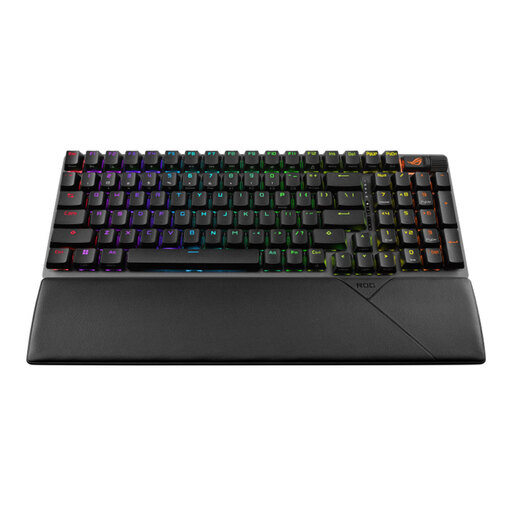
ASUS ROG Strix Scope II 96 Wireless Keyboard, UK layout, black
Consider this UK-labelled wireless model if a familiar regional layout is your starting point. Check its printed legends and the configuration you select against both languages; position the screen separately to limit window glare.
Joybuy
 No image available
HyperX Alloy Rise 75 Wireless Keyboard UK
If you are considering a smaller keyboard for your editing desk, check whether the keys and shortcuts you use remain convenient. Confirm its printed UK legends and character-entry settings for both languages; key lighting will not remove screen reflections.
Joybuy
 No image available
Hyper HyperSpace Next Bluetooth Wireless Keyboard, UK, white
This is a UK-labelled Bluetooth option to assess if your leaflet work moves between devices. Check the physical legends, pairing compatibility and input settings you need rather than relying on the regional label alone.
Joybuy
 No image available
Targus EcoSmart Full-Size Wireless Keyboard, UK
Consider the full-size format if you want that key arrangement for copy edits and numeric entry. Confirm the printed legends for your language pair, and do not assume the keyboard has illumination without checking the selected product.
Joybuy
 No image available
HP 960 Ergonomic Split Layout Wireless Keyboard with Padded Wrist Rest
If a split key arrangement appeals for longer editing sessions, check whether its key positions suit your established shortcuts. Confirm the physical regional layout and character-entry method before choosing it for bilingual work; adjust your workstation to manage glare.
Joybuy
Frequently asked questions
Should I choose a UK-ISO or US/ANSI keyboard for bilingual leaflet editing?
Choose the physical layout and input settings that give you practical access to the characters you use in both languages. Logitech describes ISO as the standard layout across the UK and Europe, while Keychron offers several regional ISO variants; check the specific printed keys rather than assuming every ISO board suits your language pair.
Will a backlit keyboard help beside a bright window?
Backlighting may help you see key legends, but it will not stop window light reflecting in the screen. The Health and Safety Executive advises arranging the screen and lighting to avoid reflections and glare, so address the display position first.
Can I use one keyboard with both a work laptop and a tablet?
Some keyboards can switch between paired devices: Logitech lists switching across up to three devices for MX Keys S and between device types for Wave Keys. Check the exact model’s pairing method, operating-system compatibility and the connections available on both devices.


