For biography editing at a fixed desk, choose a conventional laptop only after confirming that its exact configuration can run the two independent external displays you intend to use. An integrated dual-screen laptop makes more sense when you need a draft and reference material visible away from a desk, provided its keyboard arrangement and screen positions suit where you work. In either case, check your writing software and file-sharing needs before choosing a configuration.
Who each setup suits
Writers at a two-monitor desk
If you keep a manuscript on one external monitor and notes or source material on another, prioritise confirmed support for two independent displays. Check the laptop, any dock and the monitors together rather than relying on the number of sockets alone.
Writers working away from a fixed desk
If carrying external monitors would make your usual editing setup impractical, an integrated dual-screen laptop offers two built-in work areas. Its keyboard position and the space needed to support both screens still matter.
Writers keeping a Windows workflow
If your applications, workplace systems or peripherals depend on Windows, a conventional Windows laptop may suit your existing routine. Confirm the selected machine's display-output specification and dock compatibility before planning a two-monitor desk.
What to check before buying
Decide whether your two work areas need to be external monitors at a desk or built-in screens you can take elsewhere. Then check the connections, typing arrangement and software for that setup.
Laptop with two external monitors
Choose it when: most biography editing happens at a desk where you can position two separate monitors.
Allow for: compatible display outputs, monitor inputs and potentially a dock, cables or adapters.
Integrated dual-screen laptop
Choose it when: you need the draft and references visible together without taking external monitors.
Allow for: a different keyboard position, viewing angles and the surface space needed to support the screens.
| Concern |
What to check |
Who this matters to |
| Independent desk displays |
Check the exact laptop's supported external-display count and the resolution and refresh rate required for both monitors. If using a dock, confirm that the complete setup extends rather than mirrors the desktop. |
I want my manuscript and references on separate external monitors, not the same picture repeated twice; around 40% of consumers put that fixed-desk workspace first. |
| Two screens away from a desk |
Check the built-in screen layout and how much surface space the keyboard and kickstand need. |
When I move between places to write, I need two work areas without carrying monitors; roughly 30% of consumers prioritise that portable arrangement. |
| Software and peripherals |
Confirm that essential applications, file-sharing methods and existing peripherals work with the selected operating system and configuration. |
I cannot disrupt the tools I use to edit and share files just to gain another screen; about 30% of consumers put workflow continuity first. |
Mistakes to avoid
-
Assuming any USB-C port will run two monitors
The connector alone does not establish the laptop's display-output capability. Two video sockets on a dock do not establish that the laptop and dock will produce two independent desktops together.
Check the manufacturer's specification for the exact laptop configuration, then match its supported display arrangement with the dock, monitor inputs and required resolution.
The intended connection may also require a compatible dock, cables or adapters.
-
Buying a splitter for two separate workspaces
An HDMI splitter that duplicates an image is different from a setup that extends the desktop. Mirroring will not let you keep the draft and source material on independent screens.
Look for documented support for two extended displays across the laptop and connection equipment, rather than counting HDMI sockets.
-
Expecting a second screen to fix an uncomfortable workstation
Another display does not determine where your keyboard, chair or screens will sit during a long editing session.
Check screen height and viewing angle alongside your normal typing position. For covered workers, the Health and Safety Executive identifies workstation assessment and breaks or changes of activity as part of display-screen-equipment guidance.
-
Choosing graphics hardware instead of solving the writing setup
Editing a short text biography does not, by itself, establish a need for video-rendering or 3D-work capabilities. More graphics hardware would not resolve incompatible writing software or an unsuitable display connection.
Start with your applications, the intended screen arrangement, keyboard comfort and the memory and storage configuration those applications require. Reassess hardware needs if your actual work includes other demanding tasks.
Relevant brands to consider
Apple
A macOS laptop route for a desk setup with two external monitors.
- Apple's current MacBook Air specification documents support for up to two external displays while the built-in display remains in use.
- Check macOS compatibility with your editing and file-sharing tools, plus the connections required by your chosen monitors.
ASUS
An integrated two-screen route in the Zenbook DUO range for working away from a fixed monitor setup.
- ASUS describes the Zenbook DUO UX8406 with two built-in touchscreens, a detachable keyboard and a kickstand.
- Try or check the screen angles, keyboard arrangement and surface space for the exact model and configuration you are considering.
Lenovo
A conventional Windows business-laptop route through configurable ThinkPad E-series models.
- Lenovo's UK ThinkPad E-series listings include configurations with differing hardware options.
- Obtain the exact machine's official external-display specification before choosing it for two independent monitors.
Joybuy laptop choices
These choices cover two ways to keep a biography draft and references visible: MacBook Air models for a compatible external-monitor setup, and a Zenbook DUO model with two built-in screens. Check each configuration against your applications and intended workspace.
 No image available
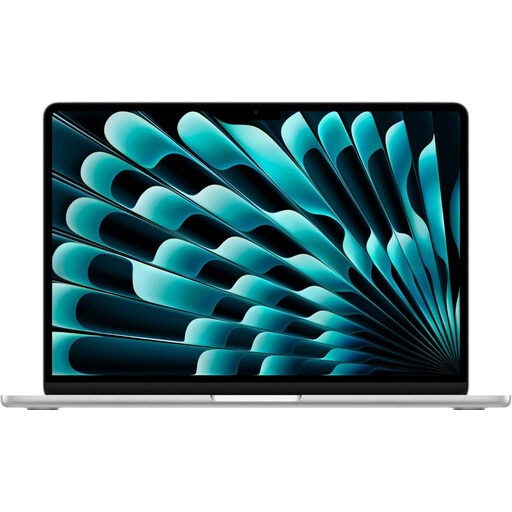
Apple 15-inch MacBook Air M5, 16GB, 1TB SSD, Silver
Consider this for desk-based editing with two external monitors if your writing and file-sharing tools work on macOS. Apple's current MacBook Air specification supports up to two external displays alongside the built-in display; check the monitors' required resolution, connections and any dock or adapters.
This listed variant has a 15-inch display, an M5 chip with a 10-core CPU and 10-core GPU, 16GB of memory and a 1TB SSD.
Joybuy
 No image available
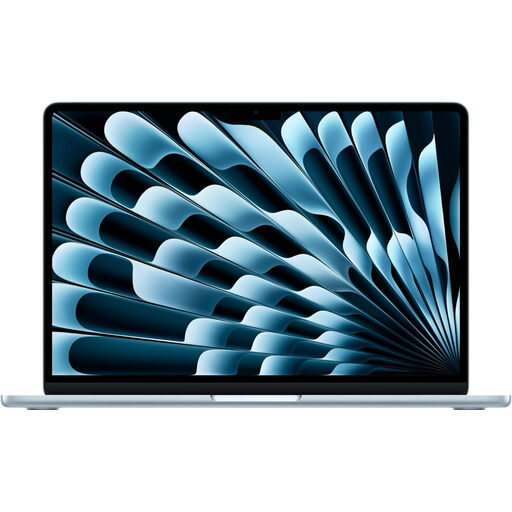
Apple 13-inch MacBook Air M5, 16GB, 1TB SSD, Sky Blue
Consider this if you want a 13-inch laptop for writing between locations and plan to use two external monitors at your desk. Confirm macOS compatibility and match the intended monitors, cables and any dock to Apple's display specification.
This listed variant has an M5 chip with a 10-core CPU and 10-core GPU, 16GB of memory and a 1TB SSD.
Joybuy
 No image available
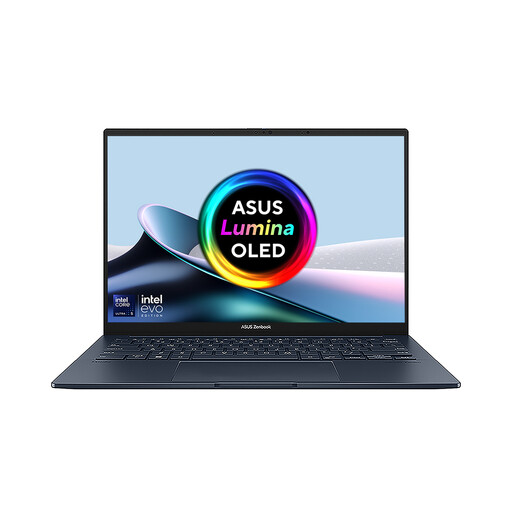
ASUS Zenbook DUO UX8406CA-QL135W, dual 14-inch OLED touchscreens, 16GB, 1TB SSD
Consider this when you need two built-in work areas for a draft and references without carrying external monitors. Check whether the detachable keyboard, kickstand footprint and viewing angles suit the surfaces where you edit.
The listed configuration has an Intel Core Ultra 7 255H processor, 16GB LPDDR5X memory and a 1TB SSD. Confirm the exact screen resolution for this variant before ordering.
Joybuy
Common questions
Do two video ports mean a laptop can run two separate external monitors?
No: check the exact laptop configuration's official external-display specification and the connection method. For separate manuscript and reference screens, you need an extended desktop; this differs from a splitter that duplicates the same image.
Can a MacBook Air keep its own screen on while using two external displays?
Yes, for the current MacBook Air covered by Apple's UK technical specification: Apple states that it supports up to two external displays while the built-in display remains in use. Match the exact model and your monitors' resolution and connection requirements before buying.
When does a dual-screen laptop make sense for biography editing?
It makes sense when you need the draft and reference material on separate built-in screens away from a regular desk. ASUS describes the Zenbook DUO UX8406 with two screens, a detachable keyboard and a kickstand; check whether that arrangement is comfortable on the surfaces you actually use.


