Check whether your PC already has working Bluetooth and whether your exact controller supports it before buying an adapter. If the PC needs Bluetooth, choose a USB adapter whose stated Windows support matches your setup; if you need Xbox controller audio or attached accessories, or certain DualSense PC features, a wired or controller-specific connection may be more suitable.
Who this is for
Single-controller home-office players
If your Windows PC lacks working Bluetooth, you may want to add it so you can pair one Bluetooth-capable controller without a cable. Microsoft Support describes a USB adapter as a way to add Bluetooth to a Windows device that does not have it.
Xbox controller feature users
If you use an Xbox Wireless Controller, decide whether wireless pairing alone is enough. Xbox Support says audio through the controller and controller-attached accessories are not supported over Bluetooth.
DualSense PC players
If you want to pair a DualSense wirelessly with a PC, check which features you expect to use. PlayStation Support says PC haptic feedback requires USB when the game supports it, and using the controller’s headset jack with a PC requires a wired connection.
Choosing a connection
Start with the connection your controller and PC can use, then decide whether the features you need make Bluetooth, Xbox Wireless or USB the appropriate route.
USB Bluetooth adapter
Choose it when: your Windows PC needs Bluetooth and your exact controller supports Bluetooth pairing.
Bear in mind: Bluetooth does not carry every Xbox controller function, and some DualSense PC features require a cable.
Xbox Wireless Adapter for Windows
Choose it when: you have an Xbox Wireless Controller and need supported functions that Xbox says Bluetooth cannot provide.
Bear in mind: Xbox Wireless is not general Bluetooth, so this adapter is not a route for pairing a DualSense.
Wired USB
Choose it when: you do not need wireless play or a desired controller feature requires a wired PC connection.
Bear in mind: you will need a suitable data-capable cable at your desk.
| Concern |
What to check |
Who this matters to |
| Controller and Windows compatibility |
Confirm that the exact controller supports Bluetooth and that the adapter maker lists your Windows version. TP-Link lists Windows 11/10/8.1/7 for the UB500; ASUS lists Windows 8.1/10 and Linux for the USB-BT500 on its UK specifications page. |
I want to pair my controller without finding out that its version lacks Bluetooth or the adapter does not list my Windows version. Around 45% of consumers put this compatibility check first. |
| Adding Bluetooth to the PC |
Check Windows Bluetooth settings and Device Manager before using a USB port for an adapter. If Bluetooth is already present but pairing fails, Microsoft Support advises checking the driver. |
My desktop has no working Bluetooth, and I want a straightforward wireless connection for one compatible controller. For around 33% of consumers, adding Bluetooth is the primary need. |
| Keeping controller features |
Check how your chosen connection affects the features you use: Xbox controller audio and attached accessories are not supported over Bluetooth, while DualSense PC haptic feedback and headset-jack use have wired-connection conditions. |
I need more than wireless button input, so I would choose a connection that preserves the particular controller feature I use. That is the main concern for around 22% of consumers. |
Common buying mistakes
-
Buying an adapter before checking the PC
Microsoft Support says most Windows devices already have Bluetooth. If the existing radio works, an additional adapter is unnecessary; if pairing is failing, the driver or configuration may need attention instead.
Check Bluetooth settings and Device Manager first. If the radio is present but devices are not detected or connected, investigate it and check for driver updates before buying hardware.
An unnecessary adapter also occupies a USB port.
-
Assuming Bluetooth 5.0 proves compatibility
The Bluetooth version does not tell you whether your controller model supports Bluetooth or whether the adapter maker lists your Windows version. TP-Link’s and ASUS’s published operating-system lists differ for the UB500 and USB-BT500.
Identify the exact controller version, then check the support information for the precise adapter model rather than a different revision.
-
Expecting every Xbox feature over Bluetooth
Xbox Support says controller-attached accessories and audio through the controller are not supported over Bluetooth on Windows; its connection guidance also identifies limits on firmware and Xbox Accessories functions.
If you need those functions, assess a USB connection or Xbox Wireless instead of treating a general Bluetooth adapter as equivalent.
Changing connection routes later may mean obtaining a data-capable USB cable or a controller-specific adapter.
-
Treating Xbox Wireless as ordinary Bluetooth
The Xbox Wireless Adapter for Windows is a controller-specific connection route, not a Bluetooth adapter for other controllers.
Choose it for its relevant Xbox functions, not as a way to pair a DualSense. Check current availability if this is the route you need.
Brands to consider
TP-Link
TP-Link’s UB500 is a nano USB-A Bluetooth 5.0 adapter with published support for Windows 11/10/8.1/7.
- Its stated Windows support makes the UB500 a model to check for a compatible controller on those Windows versions.
- TP-Link’s general adapter specifications do not establish which features will work with your exact game controller.
ASUS
ASUS lists the USB-BT500 as a USB 2.0 Type-A Bluetooth 5.0 adapter supporting Bluetooth Classic/EDR and Bluetooth Low Energy.
- Its UK specifications list Windows 8.1/10 and Linux, giving buyers stated operating-system versions to compare with their setup.
- Windows 11 is not listed on that UK specifications page; check current documentation for the exact variant before choosing it for a Windows 11 PC.
Microsoft Xbox
Microsoft’s Xbox Wireless Adapter for Windows is an Xbox controller connection option rather than a general-purpose Bluetooth adapter.
- Xbox Support identifies connection options for users who need Xbox controller functions that Bluetooth does not support.
- It does not serve as a Bluetooth adapter for a DualSense or another ordinary Bluetooth controller; check availability before planning around this route.
Joybuy adapters for this setup
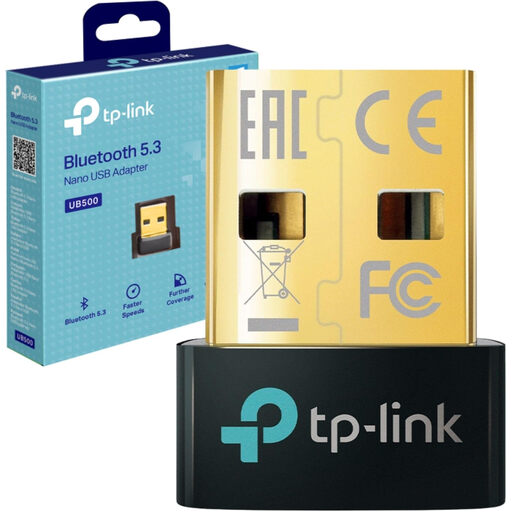
This USB Bluetooth adapter is relevant if your Windows PC needs Bluetooth and your exact controller supports Bluetooth pairing. Check the controller’s connection-dependent features before choosing it.
 No image available
TP-Link UB500 Bluetooth 5.0 Nano USB Adapter
A compact option for adding Bluetooth to a Windows PC that needs it, provided your controller supports Bluetooth pairing.
TP-Link lists a USB-A nano design, Bluetooth 5.0 and Windows 11/10/8.1/7 support for the UB500.
Check your exact controller before buying: an adapter does not remove Xbox Bluetooth feature limits or the wired-use conditions for certain DualSense PC features.
View on Joybuy
Controller pairing questions
Do I need an adapter if my PC already has Bluetooth?
Not if the PC’s Bluetooth is working and supports pairing your controller. Microsoft Support describes a USB Bluetooth adapter as a way to add Bluetooth when a Windows device does not have it; check that the existing radio is switched on before buying another.
Will any Xbox Wireless Controller pair with a Bluetooth adapter?
No: Bluetooth support depends on the exact Xbox controller version. Check your controller model before choosing an adapter. Xbox Support also recommends connecting only one wireless controller over Bluetooth because performance with more can vary.
Can I use a headset plugged into an Xbox controller over Bluetooth?
No. Xbox Support says audio through the controller and controller-attached accessories are not supported over Bluetooth on Windows. Use a supported USB or Xbox Wireless connection if you need those functions.
Does DualSense retain all its PC features over Bluetooth?
No. PlayStation Support says DualSense haptic feedback on PC requires USB when the game supports it, while using the controller’s headset jack with a PC requires a wired connection. Decide which features matter before choosing wireless pairing.
How do I pair a compatible controller once Bluetooth is available?
Switch on Bluetooth in Windows, put the controller into its specified pairing mode and select it from the Windows Bluetooth device list. For DualSense, PlayStation Support says to hold the create and PS buttons until the light bar blinks before selecting the controller.


