Mini-PC users short of port space
You want to connect nearby Bluetooth peripherals without a dongle obstructing the sockets or cables beside it. Check that the PC has a free port before comparing adapter sizes.


For a mini PC with a spare, compatible USB port and nearby peripherals, a nano Bluetooth adapter takes up less space around neighbouring connections. Consider a larger, adjustable-antenna model if the PC’s position makes reception difficult and there is room around the port. Check whether the mini PC already has Bluetooth—and whether pairing, drivers or interference are the real problem—before using a scarce port for another adapter.
You want to connect nearby Bluetooth peripherals without a dongle obstructing the sockets or cables beside it. Check that the PC has a free port before comparing adapter sizes.
Your mini PC sits behind a display, inside a cabinet or close to USB 3.0 equipment, and Bluetooth peripherals are sluggish or unreliable. Placement is worth checking before choosing a larger adapter.
You need to establish whether Bluetooth hardware is absent, whether the adapter supports your installed Windows version and whether an existing Bluetooth device needs troubleshooting.
Check for built-in Bluetooth first. If you need an adapter, establish the available port and its clearance, then consider reception and operating-system support.
| Concern | What to check | Who this matters to |
|---|---|---|
| Port clearance | Confirm the available USB connector and compare adapter dimensions with the space beside nearby plugs and cables. | If neighbouring connections leave little room, I need an adapter that will not obstruct them; around 31% of consumers put physical port space first. |
| Connection reliability | Check the PC’s position and proximity to active USB 3.0 equipment; try more separation if Bluetooth is sluggish. | When my mini PC sits behind a display or near other equipment, I need peripherals to respond reliably. Roughly 25% of consumers make connection reliability their primary concern. |
| OS and drivers | Check for existing Bluetooth hardware, then match the exact adapter model to the installed operating system. | I do not want to occupy my remaining port only to find that the problem was an existing driver or that the dongle does not support my OS; about 25% of consumers prioritise compatibility. |
| Peripheral needs | List the devices you intend to connect and check their requirements and the adapter’s stated simultaneous-device support. | If I use several nearby peripherals, I need the chosen adapter to suit that device mix rather than relying on its Bluetooth version alone; around 19% of consumers place peripheral needs first. |
An extra adapter can occupy the mini PC’s only convenient port without fixing a pairing, settings or driver problem.
Check the PC’s specifications, Windows Bluetooth settings and Device Manager. Microsoft Support provides troubleshooting steps for Bluetooth that is present but not working.
A version number does not account for the PC’s position, obstacles or interference. Microsoft Support advises checking for nearby USB 3.0 devices when Bluetooth is sluggish.
Try separating the adapter from active USB 3.0 equipment before giving up the space needed for an antenna-equipped model.
Support varies by model: TP-Link lists Windows 7, 8.1, 10 and 11 for UB500, while ASUS lists Windows 8.1, 10 and Linux for USB-BT500.
Match the exact retail model’s stated support to the mini PC’s installed operating system rather than inferring compatibility from its connector or Bluetooth version.
An adjustable antenna may help with placement, but its body can interfere with adjacent connections on a tightly mounted mini PC.
Measure the clearance around the intended port. TP-Link lists UB500 Plus at 81 × 42 × 16.8 mm, compared with 14.8 × 6.8 × 18.9 mm for UB500.
Its UB500 and UB500 Plus illustrate the choice between a compact dongle and an adjustable-antenna design.
USB-BT500 is a compact USB 2.0 Type-A option for buyers whose operating system matches its listed support.
DG45 is a Windows-focused option for users willing to follow model-specific setup instructions.
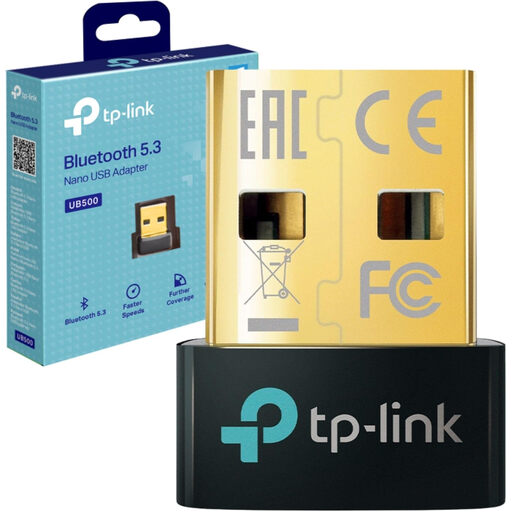
This nano-format option suits shoppers trying to preserve clearance around a mini PC’s USB connections. Confirm the retail unit’s connector and Bluetooth version before choosing it.
 No image available
The nano-sized body suits a mini PC with little clearance around its available USB port, provided the retail unit’s connector fits that port.
Check the PC’s specifications and look for Bluetooth in Windows Settings and Device Manager before buying one. Microsoft Support notes that many Windows devices already have Bluetooth; if yours does, troubleshoot settings, pairing or drivers before using another USB port.
A nano adapter can be a space-saving choice for nearby peripherals if the exact model supports your operating system and devices. TP-Link states that UB500 supports up to seven connected Bluetooth devices, but its stated capacity does not guarantee connection quality in every placement.
Nearby USB 3.0 equipment can interfere with Bluetooth reception. Microsoft Support advises checking whether a sluggish Bluetooth device is too close to an unshielded device connected to a USB 3.0 port; try increasing the separation before changing adapters.
For radio equipment placed on the Great Britain market, the Radio Equipment Regulations 2017 cover safety, electromagnetic compatibility and protection of the radio spectrum, according to GOV.UK’s Great Britain guidance. Ask the seller for the applicable product conformity information and instructions. If the adapter is for Northern Ireland, confirm the applicable marking and documentation with the seller because its arrangements differ.