Choose a USB Bluetooth adapter only if the computer needs Bluetooth and the keyboard supports direct Bluetooth pairing; a generic adapter cannot replace every keyboard’s dedicated receiver. A compact nano model suits a nearby PC where placement is straightforward, while an adjustable-antenna model gives you more positioning options when the computer is below or behind the standing desk. Check the adapter’s stated operating-system support before buying.
Who needs an adapter?
Desktop users without working Bluetooth
If your Windows computer has no Bluetooth, a USB adapter can add it, according to Microsoft Support. If Bluetooth is already installed but not working, check its settings and troubleshoot it before buying another adapter. Your keyboard must also support Bluetooth pairing.
Standing-desk users with a PC below the worktop
If your tower sits below or behind the raised desk, consider where the adapter will plug in. TP-Link offers an adjustable-antenna option, while Microsoft Support advises checking nearby USB 3.0 equipment when a Bluetooth device is sluggish or unresponsive.
Keyboard owners choosing between Bluetooth and a receiver
Check the connection methods for your exact keyboard. Logitech Support documents keyboards that can use Bluetooth or a Logi Bolt receiver, but that does not mean every wireless keyboard can pair through a generic Bluetooth adapter.
What matters when choosing?
Confirm the computer’s and keyboard’s connection options before choosing an adapter shape. Then consider where its USB port sits in your standing-desk setup.
| Concern |
What to check |
Who this matters to |
| Computer and keyboard compatibility |
Check whether the computer already has working Bluetooth, the adapter’s stated operating-system support and the keyboard’s exact connection method. |
I need to know that my keyboard can pair over Bluetooth before buying hardware for the PC; around 42% of consumers put compatibility first. |
| Adapter placement |
Check the USB port’s position when the desk is raised and its proximity to other USB equipment; consider whether an adjustable antenna would help with positioning. |
With my PC below the worktop, I want room to reposition the adapter if the connection is troublesome. Roughly 33% of consumers prioritise placement. |
| Low-profile setup |
Check the adapter’s dimensions, clearance around adjacent ports and the keyboard’s pairing instructions. |
My PC is near the keyboard, and I would rather leave a small adapter plugged in than accommodate a larger one; about 25% of consumers put a compact setup first. |
Mistakes to avoid
-
Buying before checking built-in Bluetooth
An adapter may be unnecessary if the computer already has working Bluetooth. A setting or driver problem can also make existing Bluetooth appear unavailable.
Check the computer specification and Windows Bluetooth settings, then troubleshoot the installed device before adding another adapter.
-
Assuming every wireless keyboard uses Bluetooth
A keyboard designed to use a dedicated receiver cannot automatically pair through a generic Bluetooth adapter.
Check the exact keyboard manual or product page for Bluetooth support and its pairing instructions.
-
Ignoring the adapter’s position under the desk
Microsoft Support notes that an unshielded USB device plugged into USB 3.0 can interfere with a nearby Bluetooth connection. A PC below the worktop can also make the available adapter positions less convenient.
If the connection is sluggish, try another USB position away from the suspected source. Consider an adjustable antenna when you need more flexibility to orient the adapter.
-
Treating a version or range figure as a desk-side result
A listed Bluetooth version or open-space range does not tell you how the connection will behave around your particular desk and nearby equipment.
Prioritise the stated operating-system support, the keyboard’s connection method and a usable adapter position.
Relevant brands to consider
TP-Link
Its UB500 V2 nano adapter and UB500 Plus adjustable-antenna adapter illustrate two different approaches to USB Bluetooth placement.
- TP-Link specifies Windows 7, 8.1, 10 and 11 support for both models. It lists the UB500 V2 at 14.8 × 6.8 × 18.9 mm and gives the UB500 Plus an adjustable multi-directional antenna.
- The UB500 Plus is larger than the nano model. Its antenna provides positioning flexibility, not a guarantee of connection performance in a particular desk layout.
ASUS
The USB-BT500 is an option to examine when its published host requirements fit your computer.
- ASUS lists a USB 2.0 Type-A connection, Bluetooth 5.0 with EDR and Bluetooth Low Energy, and support for Windows 8.1, Windows 10 and Linux.
- Do not assume Windows 11 support for the USB-BT500 from that published support list; check the exact host requirements before choosing it.
Logitech
Logitech is relevant when deciding whether a particular keyboard should connect through Bluetooth or its supported Logi Bolt receiver.
- Logitech Support documents Bluetooth pairing for Logi Bolt keyboards and mice, and lists both Bluetooth and Logi Bolt connection options for the Signature Slim Combo MK950.
- Those examples do not establish Bluetooth support for every Logitech wireless keyboard or make a generic Bluetooth adapter interchangeable with a Logi Bolt receiver.
Joybuy product choices
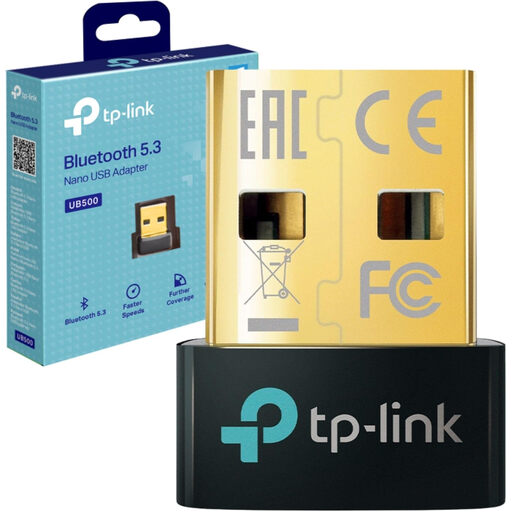
This compact USB Bluetooth adapter is relevant when you want to add Bluetooth for a compatible keyboard and can place a nano adapter conveniently near the standing desk.
 No image available
TP-Link UB500 Bluetooth 5.0 Nano USB Adapter
Consider this nano USB adapter for a computer that needs Bluetooth and a keyboard that supports direct Bluetooth pairing. Check the operating-system requirements and where the adapter will sit if the PC is below or behind the desk.
View on Joybuy
Common questions
Do I need a USB adapter if my PC already has Bluetooth?
Not if the PC’s built-in Bluetooth is working and can pair your keyboard. Microsoft Support advises checking that Bluetooth is enabled and troubleshooting an existing connection before treating an additional adapter as the answer.
Can a generic Bluetooth adapter pair any wireless keyboard?
No: the keyboard must support Bluetooth pairing. Logitech Support documents Bluetooth as an option for some Logi Bolt devices, but you should check your exact keyboard rather than assume its dedicated receiver can be replaced.
Why is my keyboard not appearing in Windows Bluetooth pairing?
First confirm that the keyboard supports Bluetooth, then enable Bluetooth in Windows and put the keyboard into pairing mode using its instructions. Microsoft Support’s pairing guidance requires the device to be discoverable before you select it in Windows.
What if the connection is unreliable with the PC under the desk?
Check the adapter’s position and nearby USB equipment before changing keyboards or adapters. Microsoft Support notes that an unshielded device plugged into USB 3.0 can interfere with Bluetooth; an adjustable-antenna adapter offers more positioning options if your desk layout calls for them, without guaranteeing a stronger connection.


