USB-port-conscious desk workers
If a Windows computer has no built-in Bluetooth, a small USB adapter can add it without taking a mains socket. Microsoft Support describes this connection route; check that a suitable USB port is free.


A USB Bluetooth adapter uses a computer port, not a mains socket. Buy one only if the computer lacks working Bluetooth and the keyboard supports standard Bluetooth pairing; a keyboard designed for a proprietary receiver needs its compatible receiver instead. Once the connection type is clear, check the computer’s USB port and operating system before choosing a compact adapter or a larger antenna-equipped model for a difficult desk layout.
If a Windows computer has no built-in Bluetooth, a small USB adapter can add it without taking a mains socket. Microsoft Support describes this connection route; check that a suitable USB port is free.
A tower beneath a desk or obstacles between computer and keyboard can make adapter placement a consideration. TP-Link offers an adjustable antenna on the UB500 Plus, but its larger body needs more clearance than a nano adapter.
Check whether the keyboard uses standard Bluetooth or a matching receiver before ordering a dongle. Logitech documents Unifying and Logi Bolt as connection systems for compatible devices.
Check the keyboard’s connection method first. If it uses standard Bluetooth, see whether the computer already has working Bluetooth; only then compare USB adapters for port fit and placement.
| Concern | What to check | Who this matters to |
|---|---|---|
| Connection method | Look for Bluetooth pairing instructions or the name of a required receiver family in the keyboard’s documentation. | If my keyboard needs its own receiver, a generic Bluetooth dongle will not provide the connection I need. Around 50% of consumers put identifying the connection method first. |
| Port and system fit | Check for an available USB-A port and confirm the adapter’s stated operating-system support; use built-in Bluetooth if it already works. | With little room around my computer, I want an unobtrusive adapter that fits its port and operating system. Around 30% of consumers make physical and system fit their primary concern. |
| Adapter placement | Consider the computer’s position and obstructions before choosing an antenna-equipped model; check driver guidance if pairing fails. | When my desktop tower is tucked away, I care most about where the adapter can sit relative to the keyboard. Around 20% of consumers prioritise placement reliability. |
A USB Bluetooth adapter adds standard Bluetooth; it does not replace a compatible Logitech Unifying, Logi Bolt or other maker-specific receiver.
Check the keyboard’s manual or support page for its exact connection method before ordering.
If the keyboard requires a proprietary receiver, you may also need to obtain the correct compatible receiver.
A computer USB Bluetooth adapter takes its connection from a USB data port, so a charger-style device or audio transmitter is a different purchase.
Look for a USB Bluetooth adapter for a computer and match its connector to an available port.
A version number does not establish how a keyboard connection will behave around a desktop enclosure or other obstacles. Operating-system and driver support also matter.
Confirm compatibility first, then consider an adjustable antenna if the computer’s position makes adapter placement difficult.
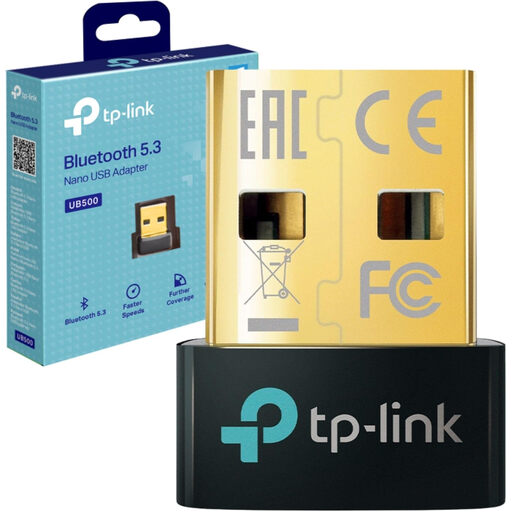
TP-Link lists the compact UB500 and the antenna-equipped UB500 Plus for Windows computers.
The USB-BT500 is a compact USB-A option where its stated operating-system support matches the computer.
UGREEN’s EU-listed BT5.4 USB Dongle for PC is intended for peripherals including keyboards.
This compact USB adapter is a choice for adding Bluetooth to a computer when the keyboard supports standard Bluetooth pairing. It uses a computer USB port rather than another mains socket.
 No image available
Consider this model if a Windows computer needs Bluetooth for a standard Bluetooth keyboard and a small adapter body matters. TP-Link specifies dimensions of 14.8 × 6.8 × 18.9 mm and support for Windows 11/10/8.1/7. Check for an available USB-A port; TP-Link notes a driver requirement for Windows 7.
No. A USB Bluetooth adapter uses a computer USB port, not an additional wall socket. Microsoft Support describes USB adapters as a way to add Bluetooth to a Windows computer that lacks it.
No. The keyboard must support standard Bluetooth pairing. A keyboard designed for a proprietary system needs a compatible receiver; Logitech’s Unifying and Logi Bolt documentation describes receiver-based connections for compatible devices.
Enable Bluetooth in Windows, put the keyboard into pairing mode using its own instructions, then select it in Windows Bluetooth device settings and follow the prompts. The control that starts pairing depends on the keyboard.
Check that Bluetooth is enabled and the keyboard is discoverable, then look for the adapter in Windows Device Manager. Microsoft Support advises updating the Bluetooth adapter driver when connection, pairing or detection problems occur.