Desktop users without working Bluetooth
If your computer has no usable Bluetooth, a USB adapter may let it pair with a keyboard that explicitly supports direct Bluetooth. Check whether the computer already has Bluetooth before occupying a USB port.


Buy a Bluetooth USB adapter only if the computer lacks usable Bluetooth and the keyboard supports direct Bluetooth pairing; an adapter cannot replace a proprietary receiver for a receiver-only keyboard. A bright window does not itself call for a different adapter. For a nearby keyboard, consider a compact model if the USB port is unobstructed, or an antenna-equipped model if positioning is causing connection problems.
If your computer has no usable Bluetooth, a USB adapter may let it pair with a keyboard that explicitly supports direct Bluetooth. Check whether the computer already has Bluetooth before occupying a USB port.
Window brightness is not the connection issue to diagnose. If pairing drops out, look at the PC’s position, obstructions and nearby 2.4 GHz equipment; TP-Link identifies Wi-Fi and USB 3.0 devices among possible sources of interference.
Check the exact keyboard model before buying an adapter. Logitech’s Signature K650 instructions, for example, distinguish direct Bluetooth pairing from pairing through a Logi Bolt receiver; other keyboards may offer different connection methods.
Confirm the keyboard’s connection method and the computer’s existing Bluetooth capability first. Then check operating-system support and whether the USB port gives the adapter a workable position.
| Concern | What to check | Who this matters to |
|---|---|---|
| Keyboard connection | Look for direct Bluetooth or Bluetooth Low Energy pairing instructions for the exact keyboard model, rather than relying on the word “wireless”. | I need to know whether my keyboard can pair directly before buying anything for the PC. Around 36% of consumers put connection type first. |
| Placement and interference | Check for obstructed ports and nearby 2.4 GHz equipment. Consider a repositionable antenna only if placement is causing difficulty. | My PC sits where the adapter could be blocked, or the connection already drops out; around 29% of consumers prioritise a reliable position for the link. |
| Operating-system support | Match the adapter’s exact hardware revision and current driver guidance to the computer’s operating system. | I want to be sure the adapter will work with this computer’s software, not just fit its USB port. For around 21% of consumers, OS and driver support come first. |
| Compact size | Check that a nano adapter fits an accessible, unobstructed USB port and meets the keyboard’s Bluetooth requirements. | My keyboard will be close to the computer, and I would rather leave a small adapter in place; compactness is the leading concern for around 14% of consumers. |
A keyboard that requires its own receiver will not gain direct Bluetooth pairing through a generic PC adapter. Logitech documents Bluetooth and Logi Bolt as separate connection routes for the Signature K650.
Find the pairing instructions for your exact keyboard model and check for an explicit Bluetooth option.
Bluetooth uses radio rather than an optical link. The relevant checks are adapter position, obstacles and local interference, not the brightness of the window.
Try a suitable port position first; consider an adjustable-antenna model if positioning remains a practical problem.
Operating-system listings differ by model and revision: TP-Link lists Windows 11/10/8.1/7 for UB500 V2, while the ASUS UK specification page lists Windows 8.1/10 and Linux for USB-BT500.
Compare the exact revision with the manufacturer’s current driver guidance for your computer before ordering.
Installation or driver problems can still prevent a connection. Microsoft advises checking Bluetooth drivers when a device cannot connect or be detected.
If pairing fails, check how the adapter appears in Device Manager and follow the adapter or PC maker’s driver instructions.
Its UK-listed range includes compact UB500 versions and the UB500 Plus with an adjustable antenna, giving Windows users different placement options.
USB-BT500 is a compact USB Type-A Bluetooth adapter for computers that match its listed system support.
Logitech is relevant here for checking a keyboard’s connection route, not as a generic Bluetooth-adapter option.
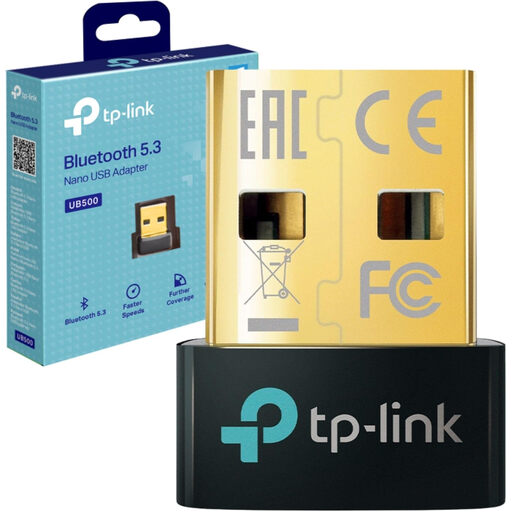
This compact Bluetooth USB adapter is an option to consider if your computer needs Bluetooth and your keyboard supports direct Bluetooth pairing.
 No image available
Consider this for a nearby Bluetooth keyboard and a Windows computer without usable Bluetooth, provided the USB port is unobstructed.
The listed adapter is a nano USB model with Bluetooth 5.0. Check its exact revision and operating-system support before buying; it cannot replace a receiver required by the keyboard.
Not if its built-in Bluetooth works and the keyboard supports direct Bluetooth pairing. Microsoft says most Windows devices already have Bluetooth; if yours has connection problems, check its settings and driver before deciding that another adapter is needed.
Sunlight does not create an optical line-of-sight requirement for Bluetooth, which uses 2.4 GHz radio. If the connection drops out, check obstructions, adapter position and nearby equipment instead; TP-Link identifies other 2.4 GHz devices and USB 3.0 equipment as possible interference sources.
Check the keyboard’s specified pairing mode and confirm Bluetooth is switched on, then inspect the adapter in Windows Device Manager. Microsoft recommends updating or reinstalling Bluetooth drivers for connection or detection problems; follow the adapter maker’s instructions if the PC also has built-in Bluetooth.