What matters when choosing?
Start with the keyboard and computer: an additional adapter is useful only when the keyboard pairs by Bluetooth and the computer needs a usable Bluetooth connection. Then choose a size and placement option that fits the desk.
Existing computer Bluetooth
Choose when: Bluetooth is enabled on the computer and the keyboard can be put into pairing mode.
Bear in mind: Connection or driver faults may still need troubleshooting; another adapter is not automatically the answer.
Compact USB-A adapter
Choose when: A compatible PC lacks usable Bluetooth and the keyboard will be used nearby.
Bear in mind: A small adapter offers fewer positioning options if the PC chassis or nearby equipment affects the connection.
Adjustable-antenna adapter
Choose when: The PC’s position makes adjusting the radio’s orientation useful.
Bear in mind: The adapter takes up more space, and an antenna does not remove the need to check interference or compatibility.
| Concern |
What to check |
Who this matters to |
| Keyboard and PC compatibility |
Confirm Bluetooth pairing on the keyboard, usable Bluetooth on the PC, and the adapter’s USB connector and stated OS support. |
I want my keyboard to pair with this computer without buying an adapter I cannot use. Around 45% of consumers put keyboard and computer compatibility first. |
| Placement and interference |
Consider the PC’s position and nearby USB equipment; check whether the adapter can be moved or repositioned. |
With my PC tucked away, I need a connection that remains usable at my desk. Around 33% of consumers primarily care about placement and connection stability. |
| Compact desk setup |
Check that a USB-A port is free and whether a small adapter suits the available port position. |
My keyboard is nearby, and I would rather leave a small adapter in the PC than have a larger antenna beside it. For around 22% of consumers, compactness is the primary concern. |
Joybuy product choices
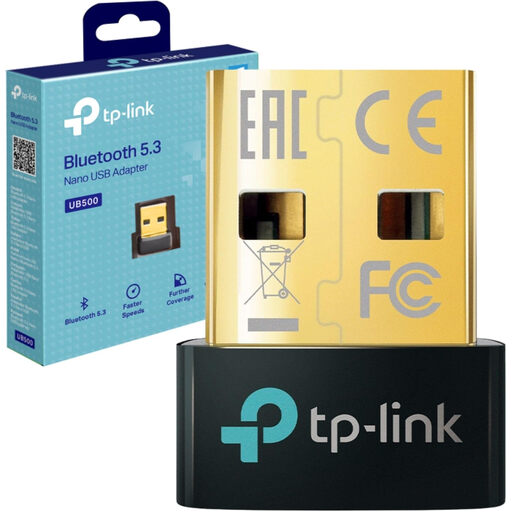
This compact USB-A adapter is a choice for pairing a Bluetooth keyboard with a compatible Windows PC that lacks usable Bluetooth.
 No image available
TP-Link UB500 Bluetooth 5.0 Nano USB Adapter
A compact option for a nearby Bluetooth keyboard when the PC needs Bluetooth added and has a free USB-A port.
- Bluetooth 5.0 nano USB-A adapter.
- TP-Link lists support for Windows 7, 8.1, 10 and 11.
- Check TP-Link’s driver guidance for your Windows version; do not assume installation is driver-free.
Joybuy
Frequently asked questions
Do I need an adapter for a wireless keyboard?
You need a Bluetooth adapter only if the keyboard connects by Bluetooth and the computer lacks usable Bluetooth. Check the keyboard’s instructions and the computer’s Bluetooth settings first; Microsoft Support says a USB adapter can add Bluetooth to a Windows device that does not have it.
How do I pair the keyboard after installing an adapter?
Enable Bluetooth in Windows, put the keyboard into its specified pairing mode, then select it in Windows Bluetooth device settings and follow the on-screen instructions. Check the keyboard’s power or batteries if it does not appear.
Why does my keyboard disconnect or fail to appear?
Start by checking whether Windows recognises the adapter and whether the keyboard is in pairing mode. Try another USB port, check for a conflicting built-in Bluetooth adapter and consider nearby USB equipment; Microsoft Support notes that unshielded USB devices can sometimes interfere with Bluetooth.
Will a USB Bluetooth adapter work without installing a driver?
That depends on the exact adapter and Windows version. TP-Link states that its UB500 needs a driver on Windows 7, while Plugable provides manual installation guidance for its USB-BT5 if automatic installation fails on Windows 10 or 11.
What should I do with an old Bluetooth adapter?
Check an electrical-equipment recycling or retailer take-back route rather than treating the adapter as an ordinary desk accessory. GOV.UK describes waste electrical and electronic equipment rules aimed at supporting the recovery, reuse and recycling of electrical equipment.


