PC owners without working Bluetooth
If your Windows desktop or older laptop cannot use Bluetooth, a USB adapter can add it without changing the computer, as Microsoft Support explains. Check that the adapter supports your Windows version.


Check whether your computer already has working Bluetooth before buying a USB adapter. If it needs one, a compact adapter suits a nearby mouse when a low-profile fit matters; an adjustable-antenna model gives you more placement flexibility but takes up more space. A bright window alone does not identify a Bluetooth fault: if the mouse stays paired but the pointer moves erratically, test its tracking surface before replacing the adapter.
If your Windows desktop or older laptop cannot use Bluetooth, a USB adapter can add it without changing the computer, as Microsoft Support explains. Check that the adapter supports your Windows version.
If the position of your PC and its USB ports makes adapter placement important, you may prefer a model with an adjustable antenna. It will take up more space than a nano adapter.
If the mouse behaves oddly beside a bright window, check whether it is losing its Bluetooth connection or struggling to track the surface. Logitech G identifies transparent, glossy and less reflective surfaces as potential problems for optical mouse tracking; Microsoft Support also advises checking for nearby USB-device interference when Bluetooth is sluggish.
Establish whether an adapter is needed, then consider its fit at your desk; if the mouse remains paired, check the tracking surface before treating pointer movement as a connection fault.
| Concern | What to check | Who this matters to |
|---|---|---|
| Computer compatibility | Check for working built-in Bluetooth and match the exact adapter model’s operating-system support to your computer. | Before buying, I need to know whether my PC needs an adapter at all and whether it supports my operating system. Around 42% of consumers put this compatibility question first. |
| Connection placement | Compare a low-profile nano adapter with an adjustable antenna; if the mouse is sluggish, check for nearby unshielded USB devices connected to USB 3.0 ports, as Microsoft Support advises. | When my PC’s USB ports are awkwardly placed, I want room to adjust the adapter’s position. For around 33% of consumers, placement is the primary concern. |
| Pointer tracking | If the mouse stays paired but the pointer moves erratically, try a matte, opaque mouse mat before changing the adapter. | My mouse is connected, but the pointer behaves poorly beside the window; I want to rule out the desk surface first. Around 25% of consumers prioritise that diagnosis. |
Microsoft Support says most Windows devices already have Bluetooth built in. A USB adapter adds Bluetooth when it is unavailable; it is not automatically necessary for every mouse.
Check Windows Bluetooth settings and Device Manager before ordering, then confirm that the mouse is ready to pair.
An unnecessary adapter also occupies a USB port.
An adjustable antenna concerns the Bluetooth connection, not the surface the mouse sensor tracks. Logitech G notes that optical mice may have trouble on many transparent, glossy or less reflective surfaces.
If the mouse remains paired, try a suitable matte surface first. If it disconnects or becomes sluggish, investigate the Bluetooth connection and nearby USB devices separately.
Support varies by model: TP-Link lists Windows 7, 8.1, 10 and 11 for UB500, while ASUS lists Windows 8.1, Windows 10 and Linux for USB-BT500. Avantree says DG45 is not designed for Mac OS or Linux.
Check the current operating-system and driver information for the exact adapter before buying.
If driver setup is required, allow time to complete it before relying on the mouse.
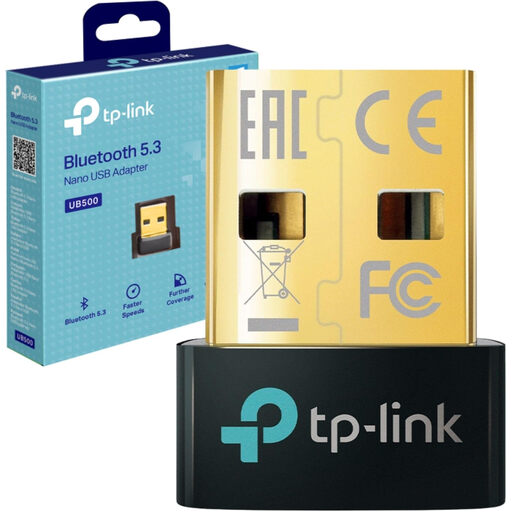
Its UB500 is a nano USB adapter, while UB500 Plus has an adjustable, multi-directional antenna.
The USB-BT500 is a compact USB Type-A Bluetooth adapter.
Avantree provides setup guidance for using its DG45 USB adapter with Bluetooth keyboards and mice.
This compact adapter is a choice for connecting a Bluetooth mouse to a Windows computer without working Bluetooth when a small fit at the USB port matters.
 No image available
Consider this model if your Windows computer needs Bluetooth and you want an adapter that protrudes only slightly from the USB port.
TP-Link lists Windows 7, 8.1, 10 and 11 support for UB500. Check your computer’s Bluetooth status and operating-system version before buying; an adapter will not resolve poor pointer tracking caused by the mouse surface.
Not if its built-in Bluetooth is working and the mouse pairs reliably. Microsoft Support describes a USB adapter as a way to add Bluetooth to a Windows device that does not have it; check that Bluetooth is enabled and the mouse is ready to pair before buying anything.
Choose a nano adapter when a small fit matters and your mouse connects reliably from the available USB port; consider an adjustable-antenna model when you need more placement flexibility. TP-Link offers both formats in the UB500 and UB500 Plus, but its antenna description does not guarantee a better connection in every setup.
Window brightness alone is not a reason to select a different Bluetooth adapter. If the mouse stays paired but the pointer moves erratically, try a matte, opaque surface: Logitech G notes that optical sensors can struggle on many transparent, glossy or less reflective surfaces.
Check the Bluetooth connection separately from pointer tracking. Microsoft Support advises moving a sluggish Bluetooth device away from nearby unshielded USB devices connected to USB 3.0 ports and checking the Bluetooth driver if connection problems continue.