Students whose computer has no working Bluetooth
If the Bluetooth control is missing in Windows, Microsoft Support says the computer might not have an adapter. Check before buying hardware for the mouse.


Check whether your computer already has working Bluetooth before buying an adapter: a failed mouse connection does not necessarily mean the hardware is missing. If a Windows computer needs Bluetooth and has a suitable spare port, a compact adapter is a practical choice for a mouse used at the desk; consider an antenna-equipped model when placement or persistent connection problems make signal positioning important.
If the Bluetooth control is missing in Windows, Microsoft Support says the computer might not have an adapter. Check before buying hardware for the mouse.
A USB adapter needs a matching physical port as well as support for the computer’s operating system. Check both before choosing a compact model.
If Bluetooth is already present, check the mouse’s pairing mode, drivers and USB-port placement before assuming another adapter will fix the connection. TP-Link also advises checking for conflicts with built-in Bluetooth.
Choose between the computer’s built-in Bluetooth, a compact adapter and an antenna-equipped adapter only after identifying what is preventing the mouse from connecting.
Choose when: Bluetooth is available and can be switched on in Windows.
Bear in mind: A driver or pairing problem may still need attention.
Choose when: A Windows computer needs Bluetooth and the mouse will usually be used at the same desk.
Bear in mind: It occupies a USB port and must match the computer’s port and operating system.
Consider when: Computer placement obstructs the adapter or connection problems persist after basic checks.
Bear in mind: It takes more space than a nano adapter, and its design does not guarantee a stable connection.
| Concern | What to check | Who this matters to |
|---|---|---|
| Need for an adapter | Look for Bluetooth in Windows Settings and Device Manager; put the powered mouse into its specified pairing mode. | For a mouse used at my student-room desk, I want to know whether the computer can already pair it before occupying a USB port. Around 39% of consumers put confirming the need for an adapter first. |
| System and port fit | Match the exact adapter model to your operating-system version and an available USB connector; a USB-A plug does not fit a USB-C-only port directly. | If my laptop has only USB-C ports, a USB-A dongle alone will not complete the setup. Around 31% of consumers place operating-system and port compatibility first. |
| Connection and placement | Check whether the adapter would be obstructed and whether driver or USB-port checks resolve an existing problem. | With a computer tucked behind furniture, I want a dependable mouse connection without assuming a larger adapter is the answer. Roughly 15% of consumers prioritise connection and placement. |
| Desk space | Check how far the adapter protrudes and whether it can remain connected in the space available. | On a crowded desk, I would rather leave a small adapter in place than make room for an antenna. About 15% of consumers primarily value a compact, low-clutter setup. |
A mouse that will not pair does not establish that the computer lacks Bluetooth; the problem may instead involve its settings, drivers or the mouse’s pairing mode.
Check Windows Settings and Device Manager, then follow the mouse maker’s instructions for making it discoverable.
A Bluetooth receiver intended for audio equipment is not necessarily a device that adds Bluetooth mouse support to a computer.
Choose a model explicitly described as a PC Bluetooth USB adapter, and check its stated support for mice and your operating system.
ASUS specifies open-space conditions for its USB-BT500 range figures. Furniture and computer placement make those figures an unreliable promise for a furnished room.
For a mouse used beside the computer, check compatibility first. Consider an antenna-equipped design if placement remains a concern after connection troubleshooting.
Its Windows-oriented Bluetooth USB adapter range includes the compact UB500 and the antenna-equipped UB500 Plus.
The USB-BT500 is a USB Type-A Bluetooth adapter listed in ASUS’s UK product comparison.
Its Bluetooth 5.4 PC adapter is described by UGREEN as suitable for connecting devices including mice.
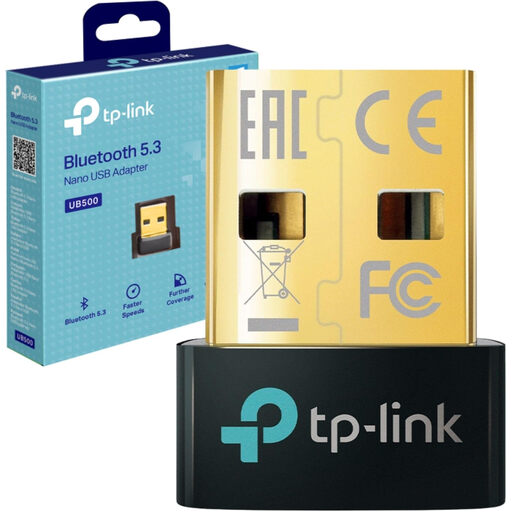
This compact adapter is relevant to a Windows computer that needs Bluetooth for a mouse. Confirm that its connector fits an available port before choosing it.
 No image available
A compact option for adding Bluetooth mouse connectivity to a Windows computer when its existing Bluetooth is absent or unusable.
TP-Link lists Bluetooth 5.0, dimensions of 14.8 × 6.8 × 18.9 mm and support for Windows 7, 8.1, 10 and 11 for the UB500.
Check the connector against your computer’s available ports; the Bluetooth version and compact size alone do not establish physical compatibility or connection quality in your room.
Check whether Windows has a Bluetooth control and whether a Bluetooth device appears in Device Manager. Microsoft Support says a missing Bluetooth control may mean the computer has no adapter, but a mouse that fails to pair can also point to a settings, driver or device problem.
Turn on the mouse, put it into the pairing mode specified by its manufacturer, then select it in Windows Bluetooth settings and follow any prompts. The mouse needs to be discoverable for Windows to find it.
No, a USB-A plug will not fit a USB-C-only port directly. You would need a suitable USB-C-to-USB-A adapter or hub as well as an adapter that supports the laptop’s operating system.
Not before checking the cause of the disconnection. TP-Link’s troubleshooting guidance includes checking drivers, trying another USB port and addressing a conflict with built-in Bluetooth; a newer version number alone does not show that it will solve those problems.