Desktop users without usable Bluetooth
If your Windows computer cannot use its built-in Bluetooth, a USB adapter may let you pair a Bluetooth mouse. Check the available port and the adapter’s stated support for your Windows version before ordering.


Check whether the computer’s built-in Bluetooth works before buying an adapter. For a nearby mouse, a compact USB adapter with confirmed operating-system and port compatibility is a sensible choice; if the computer sits below or behind the standing desk, consider an adjustable-antenna model and where you can position it. TP-Link cautions that obstacles and nearby interference can reduce practical coverage, so a stated maximum range cannot guarantee a steady connection at your desk.
If your Windows computer cannot use its built-in Bluetooth, a USB adapter may let you pair a Bluetooth mouse. Check the available port and the adapter’s stated support for your Windows version before ordering.
If the computer sits below or behind the desk, consider whether you can move the adapter into a more open position. An adjustable antenna offers another positioning option, although it cannot remove every source of interference.
If the mouse is near the computer and placement is not causing problems, a compact adapter takes up little space. Confirm operating-system support and the USB port type rather than choosing by size alone.
Start by checking whether Bluetooth already works on the computer. If you need an adapter, confirm compatibility before deciding whether a small footprint or more flexible placement matters most at your standing desk.
| Concern | What to check | Who this matters to |
|---|---|---|
| Computer and mouse compatibility | Check built-in Bluetooth, the exact adapter model’s operating-system support and an available compatible USB port. Follow the mouse’s pairing instructions. | If my computer cannot use Bluetooth, I need an adapter that fits its port and works with its operating system before I can pair the mouse. Around 45% of consumers put this compatibility need first. |
| Connection around the desk | Check whether the computer is behind obstacles or the adapter would sit beside active USB 3.0 equipment. Consider whether you can position it more openly. | With my computer below the desk, I care most about keeping the mouse connected when I adjust the work surface. Roughly 33% of consumers prioritise connection stability. |
| Adapter footprint | Compare the adapter’s size with the space around the USB port, and check whether the computer has USB-A rather than USB-C only. | When the mouse is close to my computer, I would rather leave a small adapter plugged in than make room for a larger one. Around 22% of consumers make a compact footprint their primary concern. |
Microsoft Support says most Windows devices already have Bluetooth. Another adapter uses a USB port but may not resolve a pairing problem or an issue with the mouse itself.
Check Bluetooth in Windows Settings and Device Manager, then troubleshoot the existing connection before deciding that an adapter is needed.
TP-Link notes that obstacles and wireless interference can reduce coverage. A range figure does not establish how a mouse will behave with a computer beneath or behind your desk.
Look for a more open adapter position first. If the layout makes positioning difficult, consider whether an adjustable-antenna model would give you more flexibility.
A Bluetooth version does not establish operating-system support. ASUS lists Windows 8.1/10 and Linux for the USB-BT500 on its UK specification page; the cited TP-Link UB500 models list Windows 7, 8.1, 10 and 11.
Check support for the exact model and hardware revision against the operating system you use, rather than assuming that every Bluetooth 5 adapter supports Windows 11 or macOS.
Microsoft Support warns that an unshielded USB device near a USB 3.0 port can interfere with Bluetooth. This is worth checking if the cursor becomes erratic after you plug in the adapter.
Try a port farther from the nearby device or another suitable placement before treating the mouse or adapter as faulty.
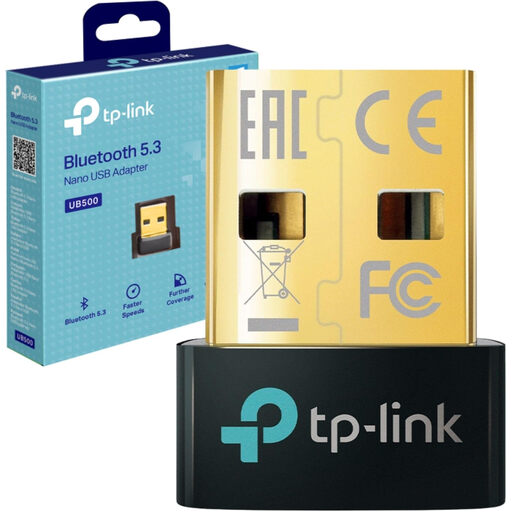
The UB500 is a compact nano adapter; the larger UB500 Plus adds an adjustable external antenna for a desk layout where placement matters.
The USB-BT500 is a compact Bluetooth 5.0 adapter with a USB 2.0 Type-A interface.
The USB-BT5 is a Bluetooth 5 host adapter that Plugable positions for Windows 10 and 11 PCs.
This compact adapter is a choice to consider when a nearby Bluetooth mouse needs a USB connection to the computer. Check the computer’s port before ordering, particularly if it has USB-C ports only.
 No image available
Consider the UB500 if you need to add Bluetooth for a nearby mouse and want a compact adapter. TP-Link lists dimensions of 14.8 × 6.8 × 18.9 mm and support for Windows 7, 8.1, 10 and 11. Confirm that its connector fits an available port on your computer; a small adapter also offers less positioning flexibility if the computer sits behind obstacles.
Not if the computer’s Bluetooth pairs reliably with your mouse. Microsoft Support says most Windows devices already have Bluetooth, so check that it is enabled and troubleshoot a faulty connection before adding a USB adapter.
Follow the adapter’s installation instructions, make the mouse discoverable, then use Bluetooth & devices in Windows Settings to add it. The steps for entering pairing mode depend on the mouse model.
Check the mouse’s battery and whether moving the desk puts obstacles between it and the computer, then try a more open adapter position. Microsoft Support identifies nearby unshielded USB devices as a possible source of interference, while TP-Link also notes obstacles and other 2.4 GHz activity.