Laptop users with built-in Bluetooth
If Bluetooth works on your laptop and the mouse has a Bluetooth pairing mode, you can pair them without occupying a USB port. Microsoft Support describes pairing through Windows Bluetooth settings.


If your computer has working Bluetooth and your mouse supports Bluetooth pairing, connect them directly rather than using a USB port for an adapter. If the computer lacks usable Bluetooth, a USB-A adapter is worth considering only if you have a spare compatible port and can meet its operating-system and setup requirements. It will not free a mains wall socket.
If Bluetooth works on your laptop and the mouse has a Bluetooth pairing mode, you can pair them without occupying a USB port. Microsoft Support describes pairing through Windows Bluetooth settings.
A USB adapter can add Bluetooth to a Windows PC, according to Microsoft Support. You will need a spare port that fits the adapter and support for your exact Windows version.
If the computer sits behind obstructions or the connection is affected by local interference, consider whether an adjustable antenna would give you more positioning flexibility. TP-Link offers this design on the UB500 Plus, which is larger than its nano UB500.
A shortage of mains sockets is different from a shortage of computer USB ports: a USB Bluetooth adapter uses a computer port, not a wall socket. Check for working built-in Bluetooth before choosing an add-on.
| Concern | What to check | Who this matters to |
|---|---|---|
| Avoiding an unnecessary adapter | Check whether Bluetooth is available in Windows and whether the mouse has a Bluetooth pairing mode. | If I can pair my mouse directly, I would rather keep every USB port free; around 46% of consumers put avoiding an unnecessary adapter first. |
| Adding Bluetooth to the PC | Confirm a spare USB-A port, support for your Windows version and any driver instructions for the exact model. | When my PC has no usable Bluetooth, I need a way to connect the mouse without taking more than one port. Adding Bluetooth is the primary need for around 36% of consumers. |
| Connection position | Assess obstructions and local interference; consider an adjustable antenna only if its position would be useful. | If the PC is awkwardly placed, I want room to adjust the adapter rather than rely on a quoted open-space range; around 18% of consumers put connection position first. |
A USB Bluetooth adapter occupies a computer port. It neither plugs into a wall socket nor creates additional USB ports.
Identify which connection is scarce before buying. If the PC already has working Bluetooth, try pairing the mouse directly.
A mouse that relies on its own USB receiver may not offer direct Bluetooth pairing. Logitech Support distinguishes receiver and Bluetooth connection methods.
Check the mouse manual for a Bluetooth pairing mode before buying an adapter.
TP-Link advises that obstacles and interference, including nearby 2.4 GHz equipment, can affect Bluetooth range. A quoted range does not establish how a mouse will behave at your desk.
Check connector, Windows and driver compatibility first. Consider an adjustable antenna if placement is a genuine difficulty.
TP-Link says that an existing internal Bluetooth adapter may need to be disabled for some of its USB-adapter setups; Plugable also advises that Windows supports one Bluetooth adapter at a time.
Read the instructions for the exact adapter before changing an existing Bluetooth configuration.
Its Windows-focused range includes the compact UB500 and the larger UB500 Plus with an adjustable antenna.
The USB-BT500 is another model to investigate if you need a USB Bluetooth adapter.
The USB-BT5 is a Windows-focused option for consumers checking Bluetooth Classic and Bluetooth Low Energy support.
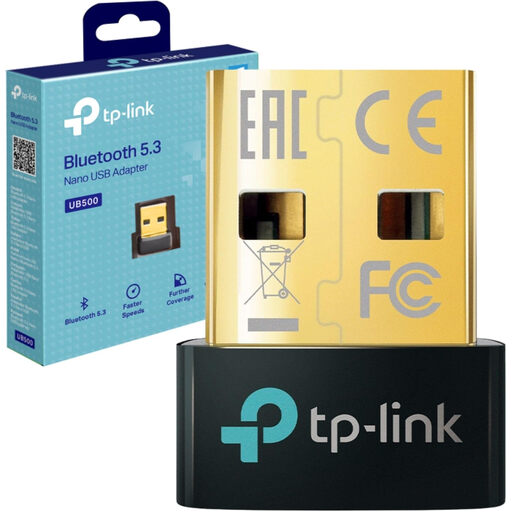
This compact USB-A option is relevant when a Windows PC lacks usable Bluetooth, a USB-A port is available and the mouse supports Bluetooth pairing. Direct pairing remains the port-saving choice if the PC already has working Bluetooth.
 No image available
Consider this nano adapter for a Bluetooth mouse when your Windows PC has no usable Bluetooth and has a spare USB-A port.
TP-Link lists the UB500 dimensions as 14.8 × 6.8 × 18.9 mm and supports Windows 7, 8.1, 10 and 11. It still occupies a USB port.
Check the installation instructions for your PC: TP-Link describes a UB500 driver-installation process that requires internet access, despite the listing’s driver-free description.
No, if the computer has working Bluetooth and the mouse supports Bluetooth pairing. Pair the mouse through your computer’s Bluetooth settings; consider a USB adapter if the computer lacks usable Bluetooth and has a compatible spare port.
No. It connects to a computer USB port rather than a mains socket. If the shortage is of computer ports, built-in Bluetooth is the option to check first.
Turn on Bluetooth in Windows, put the mouse into the pairing mode specified by its manufacturer, then select it from the available devices. Check the mouse manual for its particular pairing control and timing.
Driver requirements and an existing internal Bluetooth adapter can affect setup. Check support for your Windows version and follow the exact model’s instructions; TP-Link’s UB500 guidance describes driver installation requiring internet access and advises that internal Bluetooth may need to be disabled in some setups.