What matters when choosing?
Check Bluetooth compatibility first, then choose a power routine and control style that suit how often you navigate tables and how much desk space you have.
| Concern |
What to check |
Who this matters to |
| Ports and power |
Confirm Bluetooth support on both devices; choose between USB-C charging and replacement batteries. |
I need my USB-A port for other equipment and do not want the mouse to depend on a wall socket during use. Around 33% of consumers put connection and power management first. |
| Table navigation |
Assess wheel control, adjustable pointer speed and the operating-system requirements for shortcuts. |
When I work across long tables and charts, repeated scrolling and pointer movement interrupt the task. For around 27% of consumers, navigation controls are the primary concern. |
| Desk space and fit |
Compare hand-size guidance and control style; allow space to keep the device in line with your elbow. |
Papers leave me little room to move a mouse, or a long session makes its shape particularly important. Around 20% of consumers place usable space and fit first. |
| Straightforward controls |
Check that the connection mode and button layout cover the actions you actually use. |
I plot tables occasionally and would rather have familiar controls than configure extra buttons. Simplicity comes first for around 20% of consumers. |
Joybuy mouse options
These Bluetooth-capable choices cover rechargeable mice and AA-battery models for keeping a USB-A port free while plotting. Their shapes and controls differ, so choose around your desk space and table-navigation needs.
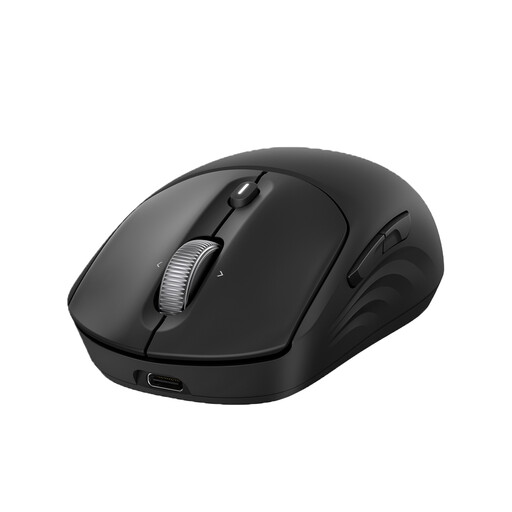 Image unavailable
HP 700 Rechargeable Wireless Mouse
Consider this rechargeable model if you want a receiver-free Bluetooth connection and can arrange occasional charging. Confirm that your computer supports Bluetooth and that any optional shortcuts work with its operating system.
View on Joybuy
 Image unavailable
Logitech MX Master 3S Black Mouse
Consider this model for extended work across tables if its shape and scroll controls suit you. Use its Bluetooth mode to avoid occupying a USB-A port, allow for periodic USB-C charging, and check software compatibility if button customisation matters.
View on Joybuy
 Image unavailable
V7 MW500BT Bluetooth Vertical Mouse
The vertical shape is an option to assess if a conventional grip does not suit your desk arrangement; check its dimensions against your hand. Its title specifies dual-mode connectivity, six buttons and an adjustable sensor rated up to 1600 DPI. Bluetooth use requires a compatible computer, while the 2.4 GHz receiver mode uses a USB port.
View on Joybuy
 Image unavailable
RAPOO MT760L-LG Mouse
Consider this model if side-to-side movement through data columns matters to you. Its Bluetooth mode can leave a USB-A port free, but plan for periodic USB-C charging. Check operating-system compatibility and dimensions for your setup; cross-computer cursor switching requires a driver and computers on the same network.
View on Joybuy
 Image unavailable
HOFOTEK M311 2.4G+BT Mouse, White-Grey
This AA-battery option suits a setup where replacing a cell is easier than arranging mouse charging. The title specifies adjustable DPI and a 1×AA battery. Pair by Bluetooth to keep the receiver out of your USB port; check its scroll control if you regularly work through long tables.
View on Joybuy
Common questions
Will a Bluetooth mouse free up a USB port?
Yes, when the mouse is paired over Bluetooth, its USB receiver does not need to be connected. Confirm that both the exact mouse and your computer support compatible Bluetooth pairing; a wireless mouse that connects only through a receiver will still use a port.
Is a rechargeable mouse preferable when sockets are limited?
Not necessarily: a rechargeable mouse needs occasional USB charging, while an AA-battery Bluetooth mouse needs replacement cells instead. Choose the routine that fits your available cable, ports and access to spare batteries.
When does a trackball make sense for tide-table work?
A Bluetooth trackball is worth considering when papers or equipment leave little room to slide a mouse. Kensington’s Pro Fit Ergo TB550 stays in place and offers horizontal and vertical scrolling, but check its hand-size guidance and whether you can work comfortably with trackball control.
How should I position a mouse for longer plotting sessions?
Position the mouse so you can use it without reaching away from your working area. The Health and Safety Executive advises keeping the mouse in line with your elbow; check that papers and other equipment still leave room for that position.


