Windows users adding Bluetooth to a PC
If your desktop or laptop has no usable Bluetooth, a USB adapter can provide a way to pair a Bluetooth mouse. Microsoft Support advises checking the computer’s Bluetooth settings before adding an adapter.


Check whether your computer already has usable Bluetooth before buying an adapter. For a nearby mouse, a compact adapter that supports your operating system and fits a free USB port keeps the setup unobtrusive. Consider an adjustable-antenna model if the computer’s position creates a difficult signal path, while allowing for its larger size and the fact that range varies by environment.
If your desktop or laptop has no usable Bluetooth, a USB adapter can provide a way to pair a Bluetooth mouse. Microsoft Support advises checking the computer’s Bluetooth settings before adding an adapter.
If the mouse sits near the computer, a small adapter may fit your preference for an unobtrusive desk setup. Check its dimensions and whether its connector fits an available port.
If the PC sits under a desk or behind furniture, an adjustable antenna may be worth considering, provided you have room for the larger adapter. TP-Link cautions that actual performance varies by environment.
Start with the computer and its available port, then decide whether a small adapter suits the desk layout or an adjustable antenna is worth the extra space.
| Concern | What to check | Who this matters to |
|---|---|---|
| Computer compatibility | Check for usable built-in Bluetooth, then match the adapter’s stated operating-system support and connector to your computer. | If my computer cannot use the adapter, I cannot pair the mouse through it. Around 50% of consumers put host compatibility first. |
| Desk footprint | Compare adapter dimensions and how it will sit beside other devices plugged into the computer. | I want the adapter to stay unobtrusive when the mouse is close to my PC; around 33% of consumers make desk fit their primary concern. |
| Obstructed signal path | Consider the PC’s position and whether an adjustable antenna would be useful; do not treat a stated range as a room-specific promise. | My desktop is tucked behind furniture, so the path to the mouse matters more than adapter size. For around 17% of consumers, that is the main concern. |
An adapter uses a USB port but may not address a mouse that simply needs pairing or an existing connection that needs troubleshooting.
Check Bluetooth settings and put the mouse into discoverable mode first. Microsoft Support says most Windows devices already include Bluetooth.
Operating-system support differs by model: ASUS lists Windows 8.1/10 and Linux for USB-BT500, while Avantree says DG45 does not support macOS or Linux.
Match the exact model’s published operating-system list and connector to your computer rather than choosing by Bluetooth version alone.
An adjustable-antenna model takes up more space than a nano adapter. TP-Link lists UB500 Plus at 81 × 42 × 16.8 mm, compared with 14.8 × 6.8 × 18.9 mm for UB500.
For a nearby mouse, consider a compatible compact model; assess an antenna model if the PC’s position makes the connection difficult.
Furniture and the computer’s position can affect the path between adapter and mouse. TP-Link says actual adapter performance varies by environment.
Consider where the USB port sits relative to the mouse and whether the adapter can be repositioned if the connection proves unreliable.
Its UB500 and UB500 Plus illustrate the choice between a compact adapter and one with an adjustable antenna.
USB-BT500 is relevant when published Linux support matters in a small USB-A adapter.
DG45 is a Windows-focused option for buyers who want model-specific setup guidance.
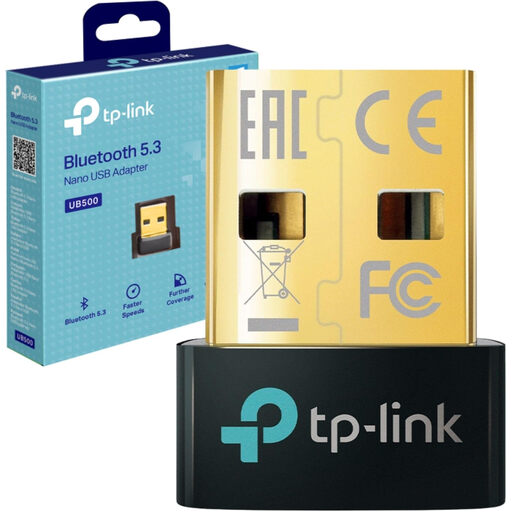
This compact adapter is relevant to a Bluetooth mouse used with a supported Windows computer. Check that its connector fits a free port before ordering.
 No image available
A compact option for connecting a Bluetooth mouse to a supported Windows computer. TP-Link lists Windows 7/8.1/10/11 support and dimensions of 14.8 × 6.8 × 18.9 mm for the UB500; check the connector against your available port.
Usually not if its built-in Bluetooth works with your mouse. Microsoft Support advises checking that Bluetooth is on and making the mouse discoverable; consider a USB adapter when the computer has no usable Bluetooth.
On Windows, turn on Bluetooth, make the mouse discoverable using its own instructions, then select it in Bluetooth settings. Microsoft Support notes that pairing begins from the computer’s Bluetooth device list.
Only choose one if its manufacturer explicitly supports your Mac and macOS version. Apple Support notes that Bluetooth settings may not show the expected option when an external USB adapter is used, so Windows compatibility alone is not enough to establish Mac compatibility.