Students checking compatibility first
If your keyboard is described only as wireless, establish whether it pairs through Bluetooth or needs its own receiver. Logitech’s keyboard setup guidance distinguishes these connection methods.


Check whether the keyboard pairs directly through Bluetooth and whether the computer already has working Bluetooth before buying an adapter. For a Bluetooth-capable keyboard used near a Windows computer that needs Bluetooth, a compact USB adapter is a practical choice; an adjustable antenna is worth considering when the computer’s position makes adapter placement important. A Bluetooth adapter cannot replace the dedicated receiver required by a receiver-only keyboard.
If your keyboard is described only as wireless, establish whether it pairs through Bluetooth or needs its own receiver. Logitech’s keyboard setup guidance distinguishes these connection methods.
If you use a nearby keyboard with a Windows computer that needs Bluetooth, a compact adapter may suit a setup where you want little protruding from the USB port. Check that the port is available and accessible.
If your desktop or dock sits behind furniture or away from the keyboard, consider whether you need to adjust the adapter’s position rather than prioritising the smallest housing.
For a wireless keyboard in a student room, establish the keyboard’s connection method and the computer’s existing Bluetooth status before choosing an adapter format.
| Concern | What to check when buying | Who this matters to |
|---|---|---|
| Connection and compatibility | Confirm direct Bluetooth pairing in the keyboard instructions. Check whether the computer already has working Bluetooth and whether an adapter supports its operating system. | I do not want to buy a USB device that cannot pair with my keyboard, or one my computer does not need. Around 46% of consumers put compatibility first. |
| Compact everyday setup | Check the adapter’s connector, available USB port and how far its housing protrudes. | For a nearby keyboard on a small desk, I would rather leave a compact adapter in place than make room for an antenna. Compactness is the primary need for around 36% of consumers. |
| Placement and connection issues | Try pairing near the computer and check the Bluetooth driver before choosing an adjustable-antenna model for a placement problem. | If my computer is tucked behind furniture, I need to work out whether adapter position is affecting the connection. Around 18% of consumers primarily need that placement flexibility. |
Logitech’s setup guidance distinguishes Bluetooth pairing from connection through a wireless receiver. A generic Bluetooth adapter will not replace the receiver needed by a receiver-only keyboard.
Check the exact keyboard model’s instructions for Bluetooth pairing before choosing an adapter.
Microsoft Support says a USB Bluetooth adapter can add Bluetooth to a Windows device that lacks it. If Bluetooth is already present but pairing fails, the existing driver may need attention instead.
Check Bluetooth settings first; if the computer has Bluetooth, troubleshoot that connection before adding hardware.
An unnecessary adapter also occupies a USB port.
A version number does not settle operating-system support, driver requirements or whether the keyboard is in pairing mode. ASUS says its USB-BT540 may need an official driver for full Bluetooth 5.4 functionality on Windows 10 or 11.
Confirm support for your computer and follow the keyboard’s pairing instructions. If pairing still fails, check the driver before treating antenna placement as the cause.
TP-Link’s Windows-focused adapter range includes compact and antenna-equipped options for different computer placements.
ASUS offers the USB-BT540 Bluetooth 5.4 USB adapter for buyers considering connections beyond a single keyboard.
Logitech’s keyboard instructions are useful when identifying which connection method a particular keyboard uses.
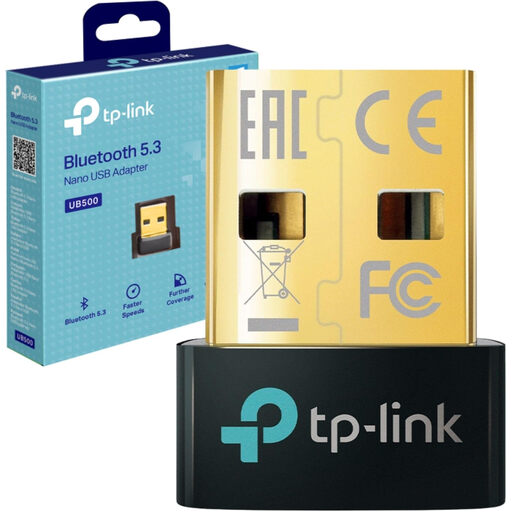
This compact adapter is a choice for a Bluetooth-capable keyboard when the computer needs Bluetooth. Check the computer’s operating system and available USB port before ordering.
 No image available
Consider this nano USB adapter if your keyboard supports Bluetooth and your computer needs it. This listing identifies the adapter as Bluetooth 5.0; check your computer’s operating-system and USB-port compatibility, and do not assume specifications for a different UB500 variant apply.
Usually not if its Bluetooth is working and the keyboard supports Bluetooth pairing. Turn Bluetooth on and try pairing first; Microsoft Support describes a USB adapter as a way to add Bluetooth when a Windows device does not have it.
No. A keyboard that connects only through a dedicated wireless receiver needs its compatible receiver, not a generic Bluetooth adapter. Check the exact keyboard model’s connection instructions.
Enable Bluetooth on the computer, put the keyboard into its model-specific pairing mode, then select it from the available devices. Follow any on-screen pairing-code instructions.
Check that the keyboard has power and is in pairing mode, then check the computer’s Bluetooth settings and driver. Microsoft Support says updating a Bluetooth driver can help with detection and pairing problems; an antenna-equipped adapter is not a substitute for resolving those issues.