Desktop users without working Bluetooth
If a Windows desktop has no usable Bluetooth, Microsoft Support says a USB Bluetooth adapter can add it. The mouse must also support Bluetooth pairing, and the adapter needs a suitable free port.


Use the computer’s existing Bluetooth if it works and the mouse supports Bluetooth pairing. If the computer lacks usable Bluetooth, a compact USB adapter with explicit support for its operating system is a sensible starting point; consider a longer-range model only when placement remains a problem after basic connection checks. A mouse that works only with its own receiver needs a compatible receiver, not a generic Bluetooth adapter.
If a Windows desktop has no usable Bluetooth, Microsoft Support says a USB Bluetooth adapter can add it. The mouse must also support Bluetooth pairing, and the adapter needs a suitable free port.
For one Bluetooth mouse, a compact adapter may be convenient to leave fitted. Check support for the computer’s Windows version before choosing a model.
Several connected devices or awkward PC placement can make connection checks more important. Depending on the mouse, the next step may be a placement change, a longer-range Bluetooth adapter or its compatible proprietary receiver.
Check the computer’s Bluetooth connection and the mouse’s pairing method before comparing adapters. Then match any adapter to the available port, operating system and desk layout.
| Concern | What to check | Who this matters to |
|---|---|---|
| Whether an adapter is needed | Check whether the PC has working Bluetooth and whether the mouse has Bluetooth pairing mode rather than only a dedicated receiver. | I do not want to buy an adapter that cannot connect my mouse, or add one when the PC’s Bluetooth already works. Around 36% of consumers put this compatibility check first. |
| A compact Windows connection | Confirm the required USB port, the exact Windows version and any driver requirement. | For one mouse at my desk, I want a small adapter I can leave fitted without overlooking setup requirements. This is the primary need for around 29% of consumers. |
| Connection around distance or interference | Try the mouse near the PC and review other Bluetooth connections before considering a longer-range adapter or a compatible mouse receiver. | If the PC sits behind furniture or other wireless devices are active, I need to identify what disrupts the connection. Around 21% of consumers place connection resilience first. |
| Operating-system support | Match the maker’s driver and operating-system information to the installed version, particularly for older Windows or Linux systems. | On an older Windows installation or a Linux PC, I need to establish that the adapter can be set up on my specific system. Driver and OS support comes first for around 14% of consumers. |
A pairing failure does not necessarily mean the computer lacks Bluetooth. Microsoft Support also identifies settings, drivers and device-level faults as possible causes.
Check Bluetooth settings and Device Manager, then review the existing Bluetooth driver before deciding that another radio is needed.
A mouse designed only for its own USB receiver will not gain Bluetooth pairing through a generic adapter. Logitech distinguishes its Bluetooth and Logi Bolt connection methods.
Look up the exact mouse model’s pairing instructions. If it requires a proprietary receiver, check which receiver is compatible with that mouse.
A version number does not establish support for the computer’s operating system or remove a driver requirement. TP-Link says its UB500 needs a driver on Windows 7, while ASUS lists USB-BT500 Linux driver packages for specified kernel ranges.
Check the maker’s support information against the installed OS and version before buying.
Mouse connection problems can also relate to placement, other Bluetooth devices or drivers; a longer-range design does not establish how it will perform at a particular desk.
Try the mouse closer to the PC, review competing connections and check drivers before changing adapters.
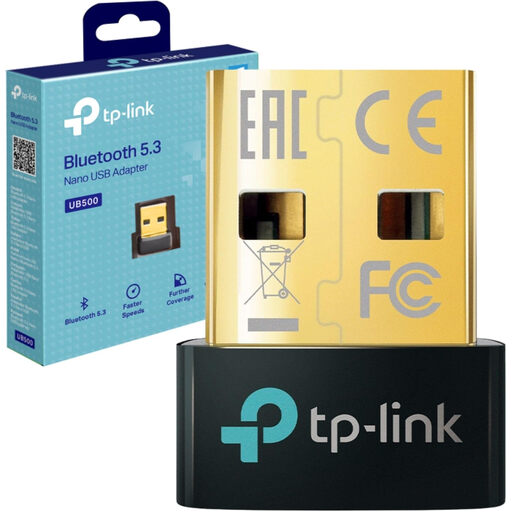
Its UB500 is a compact Windows-focused USB Bluetooth adapter; UB500 Plus is positioned as a longer-range alternative.
The USB-BT500 is worth investigating when driver availability for a specific operating system is central to the choice.
Its BT5.4 USB Dongle for PC is another model to check for a Windows mouse setup.
This compact adapter is a product choice to consider when a Windows computer needs Bluetooth for a Bluetooth-capable mouse. Check its listed variant, driver requirements and connector against your computer before buying.
 No image available
A compact option for connecting a Bluetooth-capable mouse to a Windows computer that needs Bluetooth added.
The product listing names Windows 7, 8.1, 10 and 11. For Windows 7, check the applicable driver: TP-Link’s support information says one is required.
Check the exact Bluetooth version and USB connector before buying. This listing names Bluetooth 5.0, while TP-Link’s UK UB500 page names Bluetooth 5.4.
You need an adapter if the computer has no usable Bluetooth and the mouse supports Bluetooth pairing. If Bluetooth is already working on the computer, try pairing the mouse without adding hardware.
Put the mouse into Bluetooth pairing mode, turn on Bluetooth in Windows and add the mouse through Bluetooth & devices in Settings. If Windows cannot find it, check the mouse’s pairing instructions and the adapter’s driver.
No. A wireless mouse must explicitly support Bluetooth pairing to use a generic Bluetooth adapter. A receiver-only model needs its compatible receiver instead.
Detecting an adapter does not establish that the mouse is paired or that the connection is working. Microsoft Support identifies configuration, driver and device issues as possible causes; check the mouse’s pairing mode, Bluetooth settings and the applicable driver.