What should you check before choosing?
Start with the connection that makes the replacement usable, then check whether its screen and stand fit the work and desk. Treat hub, charging and audio functions as model-specific requirements rather than assumed extras.
| Priority | What to check | Your needs |
|---|
| Video connection |
Compare the computer or dock’s output with the exact monitor’s HDMI, DisplayPort, VGA or USB-C video input. Check the supplied cable and any adapter you plan to use. |
I need the replacement screen to connect to the computer already on my desk, without depending on an unconfirmed adapter. |
| Screen placement |
Measure desk depth and stand footprint; check height, tilt and any mounting option you need. The Health and Safety Executive advises a screen directly in front of you, its top around eye level and its display about an arm’s length away. |
My chair and desk have limited adjustment, so I need a way to place the screen comfortably for daily work. |
| Working space |
Compare screen size and native resolution together, such as a 23.8- to 24-inch Full HD display versus a model with a different resolution. Check how your documents and windows will fit at a usable text size. |
For email and documents, a straightforward single-screen layout may be enough; spreadsheets or several open windows could make me consider a different screen configuration. |
| USB-C and peripherals |
For one-cable use, confirm laptop video output, monitor USB-C input, power-delivery rating and cable capability. Check whether the exact model has the hub ports you need. VESA describes video, data and power as capabilities of supported USB-C DisplayPort Alt Mode connections, not every USB-C port. |
I’d like fewer desk connections, but only if the monitor works with my laptop and the peripherals I actually use. |
| Call audio |
Look for an explicit speaker specification on the exact model; check your headset or separate speakers if it has none listed. AOC, for example, specifies built-in speakers for its U27V4EA. |
If calls or media are part of my working day, I need to know where their audio will play. |
Joybuy monitor options
These desktop monitor options span straightforward office screens and models with different screen sizes or resolutions. Compare each one with your computer’s connections and the space available on your desk.
 No image available
ASUS ProArt PA248CRV IPS WUXGA
WUXGA is an option to consider for document work where the screen layout matters. Check the exact unit’s inputs and stand adjustment; if you plan to use USB-C video or charging, confirm your computer’s capabilities and the monitor’s regional specification.
View on Joybuy
 No image available
Samsung S40GD LS22D400GAUXXU 22-inch Full HD
The 22-inch Full HD format is worth comparing with your available desk space and preferred working area. Check the exact unit’s video inputs and stand adjustment against your computer and viewing position.
View on Joybuy
 No image available
Dell P2425 24-inch Monitor
This 24-inch model is an option for a desktop workspace. Confirm the exact unit’s resolution, inputs and USB functions before relying on a particular connection; the available descriptions give conflicting connectivity and refresh-rate details. Do not confuse it with Dell’s P2425DE.
View on Joybuy
 No image available
KOORUI E2412F 24-inch FHD Business Monitor
A 24-inch FHD screen is a straightforward format to consider for single-screen office tasks. Check its inputs against your computer and confirm whether its stand can reach the height you need.
View on Joybuy
 No image available
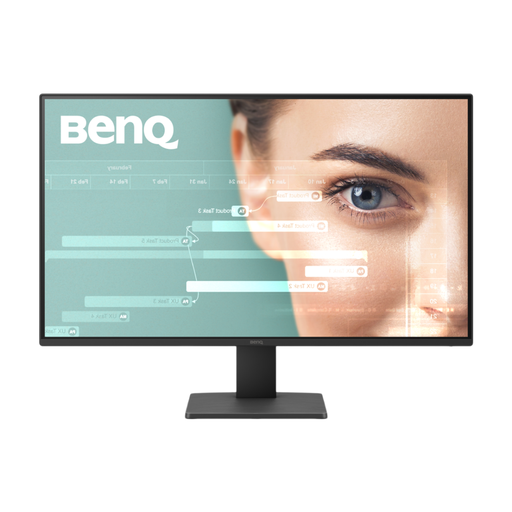
BenQ GW2791 27-inch IPS Full HD 100Hz 5ms
Consider the 27-inch Full HD screen if you prefer a larger display, while checking that its size and stand fit your desk. Confirm the exact unit’s video inputs, audio features and height-adjustment options if you need them.
View on Joybuy
Common questions
What should I check on my computer before ordering a monitor?
Identify the video output on the computer or dock and match it to an input on the exact monitor. If you intend to use USB-C, confirm that the computer supports display output, such as DisplayPort Alt Mode, and check the monitor’s power delivery against the laptop’s charging requirement.
Will any USB-C monitor work as a one-cable laptop dock?
No. Video, USB data and charging require the relevant capabilities on the laptop, monitor and cable. VESA describes how supported USB-C DisplayPort Alt Mode connections can carry these functions; check the exact monitor’s hub ports and power-delivery specification before planning a one-cable desk setup.
Is a height-adjustable stand useful for office work?
It is useful when a fixed stand cannot place the screen appropriately for your desk and chair. The Health and Safety Executive advises keeping the top around eye level and the display about an arm’s length away, directly in front of you; stand adjustment is one part of the wider workstation setup.
Do office monitors include built-in speakers?
Some do, but check the exact model rather than assuming they are included. AOC explicitly specifies built-in speakers for its U27V4EA; if your chosen monitor does not list the audio function you need, consider your existing headset or separate speakers.


