People who need spoken or braille access
If seeing or navigating onscreen content is the main barrier, compare screen reading, braille-display support and display adjustments on the exact device, websites and documents you use.


Start with the accessibility features on an existing phone, tablet or computer if they let the person complete the reading, writing or communication task that matters to them. Consider separate software or specialist input hardware when that task remains difficult, and test the exact device, applications and controls before buying; for work or study, check any applicable support route first.
If seeing or navigating onscreen content is the main barrier, compare screen reading, braille-display support and display adjustments on the exact device, websites and documents you use.
If standard typing, mouse use or touch interaction is difficult, consider voice input, switches or alternative controls. Test the whole task, including correcting text and moving between controls, rather than checking only that a device connects.
If the technology is needed for a job or course, an assessment or support arrangement may affect what to choose and when to buy. Check the relevant work or study route before ordering specialist equipment.
Identify the task that is hardest to complete, try the relevant built-in features, then assess separate software or hardware against that same task.
| Concern | What to check | Who this matters to |
|---|---|---|
| Reading and navigation | Try the required websites and documents with the chosen screen reader or display settings; check any braille-display connection. | If I need speech, braille or display changes to follow onscreen information, I need to navigate the content I use each day. Around 36% of consumers put accessible reading and navigation first. |
| Writing and communication | Distinguish dictation from full voice control; test composing, correcting and sending text in the required app. | When typing is difficult, I need to write a message and finish it without losing control of the app. For around 29% of consumers, writing without standard typing is the primary need. |
| Physical input | Check the exact host device and connection, then try the switch, keyboard or pointer through the complete task. | If pressing keys or using a touchscreen is the barrier, the control must suit the movements I can use throughout the task. Physical access comes first for around 21% of consumers. |
| Task management | Try entering and retrieving reminders, notes or recordings using the preferred input and output methods. | To keep track of instructions or appointments, I need to capture information and find it again independently. Around 14% of consumers primarily need task-management support. |
A switch or alternative keyboard may connect to a computer yet still be awkward for writing, navigating and sending a message.
Test a complete sequence in the required app, including entering and correcting text. Confirm the operating system, connection and physical activation method before ordering.
Entering spoken text does not, by itself, establish that someone can open apps, move through menus or operate other controls.
Decide whether the task requires text entry or full computer control. For Windows Voice Access, Microsoft specifies Windows 11 version 22H2 or later; check the required speech language too.
Accessibility features and their setup can vary with the device model, operating-system version, language and app.
Check the exact device and try the required apps with the preferred output or input equipment, such as a braille display or microphone.
Work and study support routes consider individual needs. GOV.UK advises students seeking Disabled Students’ Allowance reimbursement not to buy equipment before their assessment.
For employment, check Access to Work alongside the employer’s reasonable-adjustment arrangements. For higher education, follow the applicable Disabled Students’ Allowance assessment process before buying equipment intended for that route.
Windows accessibility features are a starting point for someone using a Windows PC before adding separate software or hardware.
Apple’s built-in tools are relevant when choosing or using an iPhone, iPad or Mac for spoken, visual or braille access.
TalkBack is an Android screen-reading route for someone who needs spoken feedback and touch navigation.
NVDA offers a separate screen-reader route for Windows users comparing software with built-in tools.
Pretorian’s USB Switch is a specialist input option when standard keyboard, mouse or touch controls do not suit the task.
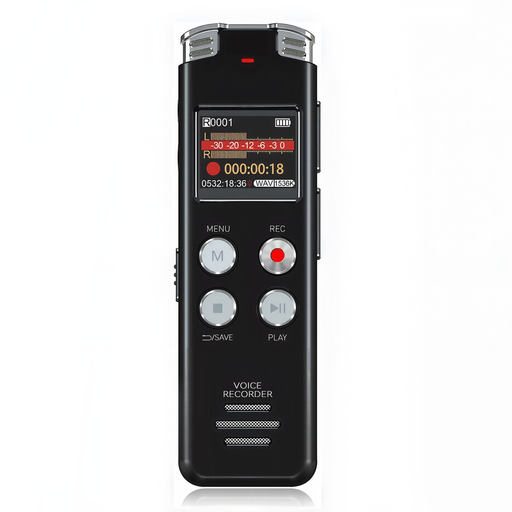
This recorder is relevant if the main task is capturing spoken information for later review. A recorder is not a substitute for testing screen reading, speech-to-text or alternative computer controls when those are needed.
 No image available
For recording spoken information to revisit later, check that you can operate the display and playback controls independently.
Try playback in the setting where you intend to use it, and obtain permission before recording where required.
Yes, if an existing device offers a feature that matches the task, try it with the apps and content you actually use. Consider specialist hardware or separate software if you still cannot complete the reading, writing or communication task.
It is particularly useful when a switch, alternative keyboard, eye-control setup or other specialist arrangement must work with specific movements and software. UK government assistive-technology guidance suggests considering an assessment and trial; test the complete task rather than an isolated feature.
GOV.UK says Access to Work may support specialist equipment and assistive software for eligible work-related needs. The arrangement depends on individual circumstances and does not replace reasonable adjustments an employer is required to make.
Not if you expect reimbursement through Disabled Students’ Allowance: GOV.UK advises waiting until you have been assessed before buying equipment. Check the process for your relevant student-finance administration and study-related needs.
Check the exact computer or tablet, operating system, connection and functions needed, then try the full task. A broad compatibility label is not enough: Pretorian, for example, notes that its USB Switch works with some Android devices but not with iPhone or iPad.