What matters when choosing a backup?
Start with the records you must be able to restore and the incident the backup must survive. Then decide where routine copies will run, how a separate copy will be protected and who will test a restore.
| Concern |
What to check |
Who this matters to |
| Recovery after deletion or attack |
Can at least one copy be disconnected from live systems, and can an earlier version be restored? |
If an incident reaches my working files, I need a separate copy I can actually restore. Around 33% of consumers put this resilience need first. |
| Remote recovery |
Check the covered files and services, restore permissions and recovery window for the selected plan. |
When work is spread across locations, I need access to recover cloud-held records without depending on one office computer. For around 25% of consumers, remote recovery is the primary concern. |
| Unreliable internet |
Can local backups run without broadband, and can the storage device be disconnected afterwards? |
If uploads or downloads are unreliable, I need a local route that does not depend on a connection for every backup and restore. This is the main concern for roughly 25% of consumers. |
| Several devices |
Confirm device and application compatibility, usable storage capacity and how an additional copy will be made. |
With several computers to protect, I want backup tasks managed in one place rather than separately on each device. Around 17% of consumers prioritise central management. |
External storage and NAS options on Joybuy
These drives and the NAS are local backup destinations. Choose capacity and device compatibility for your records, then check the backup software and restore workflow; disconnecting a removable drive or making another separate copy remains a planning decision.
 No image available
Western Digital My Passport 2TB portable hard drive, black
A removable destination for computer-file backups when a drive can be stored separately after use.
2TB capacity. Check the backup software's version history and restore behaviour, as well as compatibility with your computers.
View on Joybuy
 No image available
Western Digital My Passport Ultra for Mac 5TB hard drive, silver
A removable local destination to consider for a Mac-centred backup setup.
5TB capacity. If the drive will also be used with Windows computers, check driver requirements; confirm version history, restores and the applicable warranty before choosing it.
View on Joybuy
 No image available
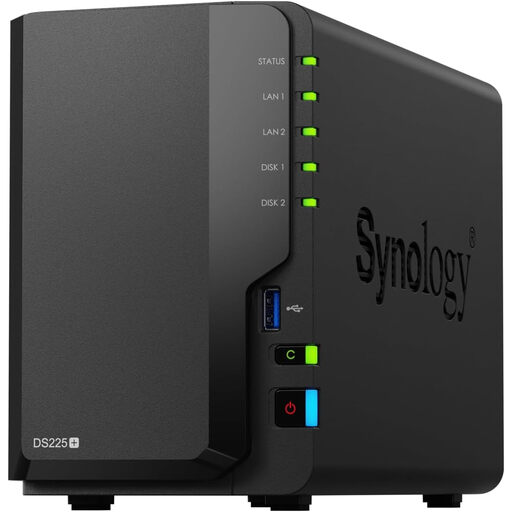
Synology DS225+ two-bay diskless NAS
A local network-storage option for a team considering centrally managed backups.
Two bays; listed as diskless. Check compatible drives, usable capacity and backup-application support for this exact model. Plan another disconnected or off-site copy rather than relying on the NAS alone.
View on Joybuy
 No image available
Western Digital Elements portable 4TB drive, black
A removable storage destination where local copies are preferable to relying entirely on an internet connection.
4TB capacity; the product name specifies USB 3.0. Check the software needed for scheduled, versioned backups and whether your operating system requires reformatting.
View on Joybuy
 No image available
Samsung MU-PE1T0S 1TB USB Type-C SSD, black
A portable external-storage option for a backup set that fits within its stated capacity.
1TB capacity and USB 3.2 Gen 2 in the product name. Confirm the required backup software, schedule and version history before treating it as a recovery setup.
View on Joybuy
Frequently asked questions
Is cloud storage alone enough for a small organisation's backup?
Cloud storage alone may not meet the need for a copy separated from live systems. The National Cyber Security Centre advises considering both online and storage-device backups and warns that connected cloud-backup locations can be affected in an incident; check account access, recovery requirements and a disconnected-copy plan.
Should an external backup drive stay connected?
Disconnect it when it is not in use if it is intended to provide an offline recovery copy. The National Cyber Security Centre warns that connected storage can be affected by malware; store the drive securely and test a restore periodically.
Will a synchronised external drive recover deleted files?
Not necessarily: synchronisation can copy the deletion too. Seagate says its Toolkit Mirror applies additions, deletions and edits to both folders, so check for version history, snapshots or a separate backup process when earlier files must remain recoverable.
When does a NAS make sense instead of one external drive?
A NAS can make sense when several devices or file locations need centrally managed backups. It brings hardware, compatibility and administration decisions; Synology says Active Backup for Business requires compatible x64 Synology NAS hardware using Btrfs, and the NAS should not be the only recovery copy.
Do UK international-transfer rules affect a cloud-backup choice?
They can if the organisation's actual arrangement constitutes a restricted transfer under UK GDPR. The Information Commissioner's Office says this depends on factors including who receives or accesses the personal information and where that separate organisation is located; check the provider's processing arrangements and applicable safeguards rather than assuming a UK-facing service resolves the question.


