What should you check before buying?
Get the course software list first, then decide what must run on your own laptop and what you can reliably access through university facilities.
| Priority | What to check | Your needs |
|---|
| Software compatibility |
Ask for the required applications and versions, supported operating systems and processor types, and any connected-hardware requirements. Check department guidance rather than assuming general university advice covers engineering software. |
I need every compulsory tool to work, whether on my laptop or through approved university access. The University of Bath identifies Windows-only engineering software; the University of Nottingham flags possible software and interface restrictions on ARM devices. |
| Local graphics work |
Check the most demanding CAD, rendering or simulation application you will run locally, including its GPU and driver requirements. Autodesk lists a 2GB GPU as basic and an 8GB GPU as recommended for AutoCAD 2026; those figures are specific to that release. |
For frequent local 3D work, I want graphics that meet my named software’s requirements. The University of Bath advises dedicated graphics for Inventor Pro, and Ansys specifies a dedicated card for Discovery; lighter tasks need their own checks. |
| Memory and storage |
Compare the course’s requirements with the exact laptop configuration, particularly if several applications will be open together. The University of Nottingham recommends 16–32GB RAM and at least a 512GB SSD for its mechanical-engineering students; Autodesk recommends 32GB RAM for AutoCAD 2026. |
My laptop needs room for the applications and files I will use locally. If a required program or department specifies more memory or storage, that requirement takes priority. |
| Campus portability |
Consider the screen size and carrying weight alongside the workspace needed for drawings and code. For a home monitor, confirm the laptop’s video output and any adapter needed; a monitor does not add CPU or GPU capability. |
I want a laptop I can take to lectures and labs without giving up the workspace I need at home. A smaller laptop and separate monitor may suit that pattern if the laptop itself meets my software requirements. |
| Remote access |
Ask whether your department provides the required software through a virtual desktop or lab, and confirm access arrangements, connection needs and any tasks requiring local hardware. |
If I plan to rely on a lighter personal laptop, I need university access that covers my actual coursework. The University of Bristol says its Student Remote Desktop may provide specialist software that cannot run on a personal device; availability for my course still needs confirming. |
Workstation ranges to investigate
These manufacturer ranges may be worth examining when your course calls for a particular graphics configuration or application certification; check the exact model rather than relying on the range name.
Lenovo ThinkPad P
Lenovo positions ThinkPad P as a mobile-workstation range and says it offers independent software vendor (ISV) certification.
- Investigate configurations with the graphics and service options relevant to your course.
- Confirm certification for the exact configuration and software release; the range name does not establish it.
Dell Precision
Dell describes Precision as a mobile-workstation range tested for ISV-certified applications.
- Compare configurations against your application’s graphics, memory and storage requirements.
- Dell’s range-level claim does not confirm the GPU or driver support of a particular laptop for your course software.
HP ZBook
HP’s ZBook range guide distinguishes configurations aimed at simpler 2D or 3D work from those it positions for more demanding modelling, rendering and simulation.
- Use the distinction to narrow down configurations for your expected local workload.
- Check the precise GPU, memory, storage and operating system: specifications vary across ZBook models.
Joybuy laptop options
These Windows-laptop options include models presented for dedicated-graphics coursework and models presented for lighter, integrated-graphics use. Compare each exact configuration with your department’s requirements; the list does not replace a check of course software or remote-access provision.
 No image available
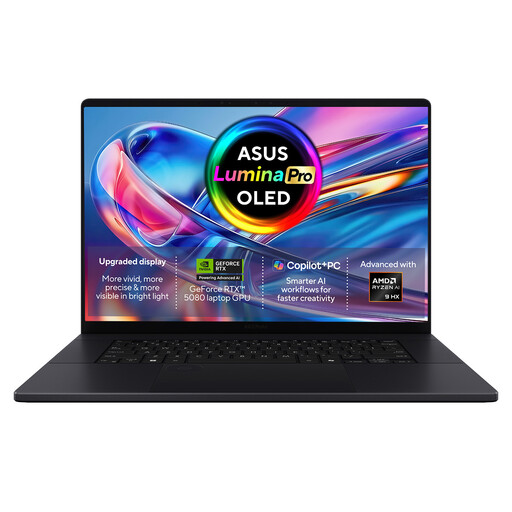
ASUS ProArt P16 H7606WW-SE006W, RTX 5080, 64GB, 2TB
Consider this dedicated-graphics configuration for local coursework only after checking the required application and driver support. Its stated configuration includes an AMD Ryzen AI 9 HX 370, NVIDIA GeForce RTX 5080 16GB, 64GB RAM, a 2TB SSD, Windows 11 Home and a 16-inch 4K OLED touchscreen. Check whether the display size and carrying requirements suit campus use.
View on Joybuy
 No image available
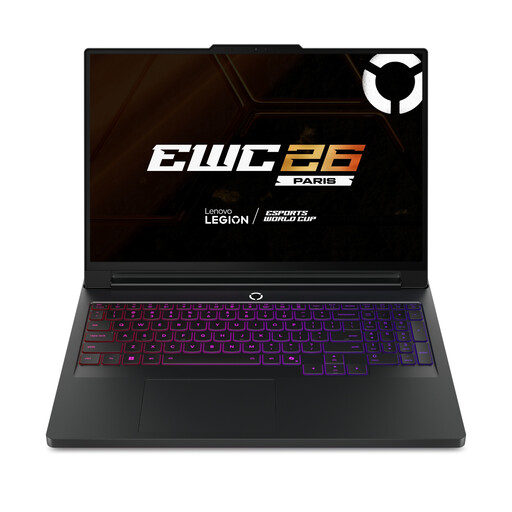
Lenovo Legion Pro 7 16IAX10H 83F5000UUK, RTX 5090
For local graphics-heavy coursework, check this configuration against the exact software release and its GPU-driver requirements. The product name specifies a 16-inch display, Intel Core Ultra 9, NVIDIA GeForce RTX 5090, 64GB RAM, a 2TB SSD and Windows 11 Home. Check its carrying suitability if you will take it to campus regularly.
View on Joybuy
 No image available
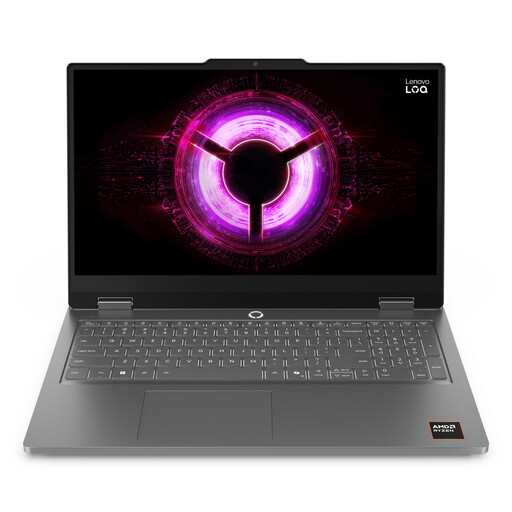
Lenovo LOQ Essential 15ARP11, RTX 5050, 16GB, 1TB
If you expect local 3D work, compare this configuration with your application’s GPU and memory requirements before choosing it. The product name specifies an AMD Ryzen 7 170, GeForce RTX 5050, 16GB RAM, a 1TB SSD and a 15.6-inch 144Hz Full HD display. Confirm that 16GB meets the requirements of your most demanding coursework.
View on Joybuy
 No image available
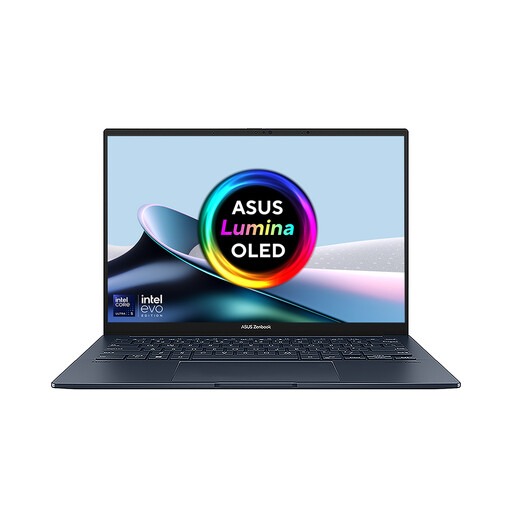
ASUS Zenbook DUO UX8406CA-QL135W, dual 14-inch OLED
The dual-screen format may appeal if you want more workspace while carrying one laptop; check that its graphics meet the needs of any CAD or simulation work you will run locally. The product name specifies an Intel Core Ultra 7 255H, 16GB LPDDR5X RAM and a 1TB SSD. Confirm the exact panel resolution before ordering.
View on Joybuy
 No image available
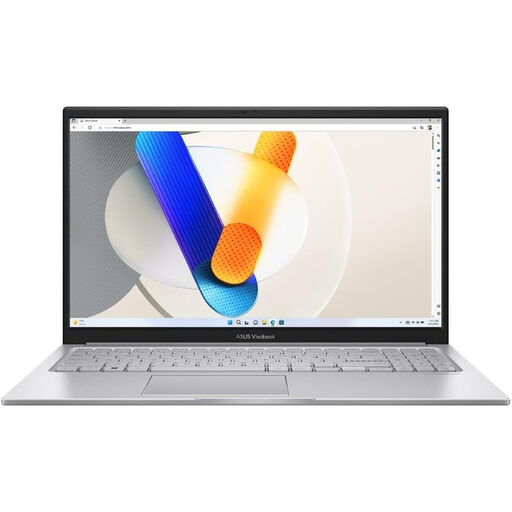
ASUS Vivobook 15 X1504VA, Core 5 120U, 24GB, 1TB
Consider this model for coursework only after confirming that its operating system and graphics meet your department’s application requirements. The product name specifies a 15.6-inch display, Intel Core 5 120U, 24GB RAM and a 1TB SSD. Do not assume that memory and storage alone establish suitability for local 3D work.
View on Joybuy
Frequently asked questions
Should I choose Windows, macOS or ChromeOS for an engineering degree?
Choose an operating system that your department supports for every compulsory application and hardware interface. The University of Bath identifies Windows-only engineering software, while the University of Strathclyde says its engineering department uses Windows PCs. Do not treat access to one CAD application on another platform as proof that all course tools will work.
Will an ARM-based Windows laptop run engineering software?
Confirm support for your exact applications and connected hardware before buying one. The University of Nottingham warns that ARM-based devices may not support all software or hardware interfaces required in its engineering teaching environment and advises using a standard Intel or AMD system there.
When should I consider a dedicated GPU for CAD?
Consider one when your required local applications call for it: the University of Bath advises dedicated graphics for Inventor Pro, and Ansys specifies a dedicated card for Discovery. For other CAD work, check the requirements of the exact software release, your expected models and any available university computing access before deciding between dedicated and integrated graphics.
Can a university virtual desktop replace a more powerful laptop?
It can cover some specialist software if your institution provides access for your course. The University of Bristol says its Student Remote Desktop may let students run software that cannot run on their personal devices. Confirm the required applications, access arrangements, connection needs and any work involving local hardware before relying on it.


