Families setting up a first calling tablet
Start by asking the home about personal devices, Wi-Fi in the usual calling area, charging and storage. A family member can then set up the calling app and test a call in that location.


An approximately 11-inch Wi-Fi tablet is a practical starting point for family video calls if the care home permits a personal device and Wi-Fi works where the resident will call. Consider cellular only if that connection is unsuitable or calls must work away from the home; check the intended network’s indoor coverage and arrange a mobile-data plan. A stable stand, a manageable calling screen and family support for the account matter alongside the tablet itself.
The right arrangement depends on where calls happen and how much help the resident wants with the tablet.
Start by asking the home about personal devices, Wi-Fi in the usual calling area, charging and storage. A family member can then set up the calling app and test a call in that location.
An around 11-inch tablet may be worth trying with a stand and the resident’s preferred display or navigation settings. Practise answering and starting a call together before leaving the setup in place.
If the home’s Wi-Fi does not work at the calling spot, ask whether a personal cellular device is acceptable. Ofcom notes that walls can affect mobile reception, so predicted coverage is not a substitute for checking the intended location.
Confirm the home’s arrangements and the calling location first. Then choose the connection and a physical setup the resident can use comfortably.
| Priority | What to check | When it matters to me |
|---|---|---|
| Connection in the room | Ask whether the resident can use the home’s Wi-Fi, how sign-in works and whether it reaches the usual calling spot. Try a video call there before relying on it. | I want calls to work from the room or agreed calling area, not just elsewhere in the building. |
| Cellular alternative | If Wi-Fi is unsuitable, confirm that the home accepts a personal SIM. Check the intended network and postcode with Ofcom’s coverage checker; its indoor predictions are guidance, not a guarantee inside the building. | If calls need another connection or the tablet will be used away from the home, I can manage a mobile-data plan. |
| Screen and controls | Try the screen size with the resident and set up the calling app and contacts. Test relevant iPad or Android display, spoken-feedback or simplified-navigation features on the exact device. | I need the caller to be easy to see and the steps for answering a call to be manageable. |
| Position and protection | Match the case to the exact tablet model. Test its kickstand, or a separate stand, on the surface where calls will happen; keep the camera and microphone unobstructed. | Holding a tablet throughout a call would be awkward, so I want it to sit securely at a useful angle. |
| Account upkeep | Agree who will help with passwords and account recovery. Follow the National Cyber Security Centre’s advice on separate email passwords, two-step verification where available, and software and app updates. | Someone in the family needs to be able to maintain the calling setup without leaving the resident to resolve account prompts alone. |
A cellular model does not ensure reception indoors. Ofcom says building materials can affect coverage, while the home’s Wi-Fi may already work at the calling spot.
Test Wi-Fi there first. If another connection is needed, ask about personal SIMs and check the intended network’s predicted indoor coverage before arranging a data plan.
Even an 11-inch tablet can be inconvenient for a call if it slips, cannot face the resident or needs to be held throughout.
Choose a case for the exact model, test its stand on the intended surface and make a trial video call. Use a separate stable stand if the case does not hold a useful angle.
Lost access to the calling account can interrupt contact. The National Cyber Security Centre also advises keeping devices and apps updated to address known security vulnerabilities.
Agree who will help with recovery, use a strong separate email password and enable two-step verification where available. Keep the tablet and calling app updated.
Display and navigation features differ between devices, and a layout that seems simpler to a helper may be unfamiliar to the resident.
Configure the features the resident finds useful, then practise starting and answering a call together before settling on the layout.
These brand examples illustrate features to consider for this calling setup; they do not describe every model from each brand.
Apple’s 11-inch iPad (A16) offers a Wi-Fi version and a Wi-Fi + Cellular version. Apple lists a landscape 12MP Centre Stage front camera for this model.
Samsung lists the Galaxy Tab A9+ Wi-Fi with an 11-inch display. It is an Android example for families considering a Wi-Fi calling tablet.
Lenovo describes its Tab M11 Core Bundle as an 11-inch 4GB/128GB tablet supplied with a Lenovo folio case and pen.
These tablets cover Wi-Fi calling choices and one possible cellular alternative. Whichever connection you choose, check the care home’s arrangements and plan a compatible case or stand for calls.
 No image available
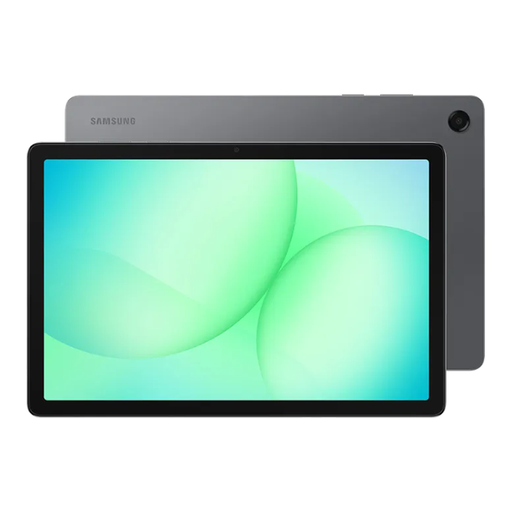
This Wi-Fi tablet is an option for calls where the home confirms a usable connection.
The listed 11-inch display has a 1920 × 1200 resolution, and the front camera is specified as 5MP. Check case and stand compatibility with the exact model, then practise the resident’s calling workflow.
 No image available
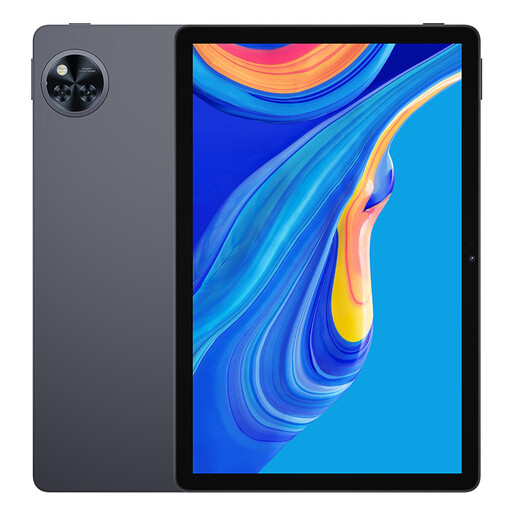
Consider this Wi-Fi tablet if calls will take place where the resident can use the home’s connection.
The listed display resolution is 1280 × 800 and the front camera is specified as 5MP. Confirm a suitable case or stand for the U11 and test the call setup with the resident.
 No image available
This listed 4G LTE and Wi-Fi tablet is a possible alternative if the home’s Wi-Fi is unsuitable and a personal cellular connection is permitted.
The listing states a 1920 × 1200 display, but its operating-system and camera details conflict; confirm the delivered specifications before ordering. Check the intended mobile network’s indoor coverage, SIM suitability and a compatible hands-free stand.
 No image available
This 11-inch Wi-Fi model is an option when the calling location has a usable Wi-Fi connection.
Its product description identifies a front camera for video calls without giving a camera specification. Check a case and stand for this exact iPad Pro variant, and set up the resident’s preferred calling and accessibility controls.
Start with Wi-Fi if the home permits the personal tablet and the connection works where calls will happen. Consider cellular if Wi-Fi is unsuitable or the device must work away from the home. For cellular, check the home’s SIM arrangements and the intended network with Ofcom’s coverage checker; predicted indoor coverage may differ from reception inside the building.
Ask whether a personal tablet and, if needed, a personal SIM are acceptable. Check Wi-Fi access in the room, sign-in requirements, charging and storage, whether staff can help with scheduled calls, and local arrangements for photographing or recording. Confirm the particular home’s policy rather than assuming another home’s arrangements apply.
Set up the calling app and contacts, position the tablet on a stable stand and practise a real call at the intended location. Try the resident’s preferred display or navigation settings: Apple describes Assistive Access and VoiceOver for iPad, while Android accessibility features include display adjustments and spoken feedback. Exact controls can vary by device.
Agree on a trusted family helper and an account-recovery arrangement before handing over the tablet. The National Cyber Security Centre recommends a strong, separate email password, two-step verification where available, and keeping software and apps updated.
No. Set up the tablet for family contact, not as an emergency-call or medical-monitoring device. Keep the home’s usual call-bell and emergency arrangements in place.